Keeping your Awaio smart locks on the latest firmware fixes bugs and adds new features. You can update a single lock from its device details, or push an update to every lock in a cluster at once from the Manage devices screen.

Note: You need admin access to the community the lock or cluster belongs to. Keep the lock or locks within Bluetooth range for the whole update — don't close the app or walk away while it's installing.

Part 1: Single lock

Step 1: Tap your profile picture in the top-right corner of the homescreen, then under Communities select the community the lock belongs to.

Tap your profile picture and select your community

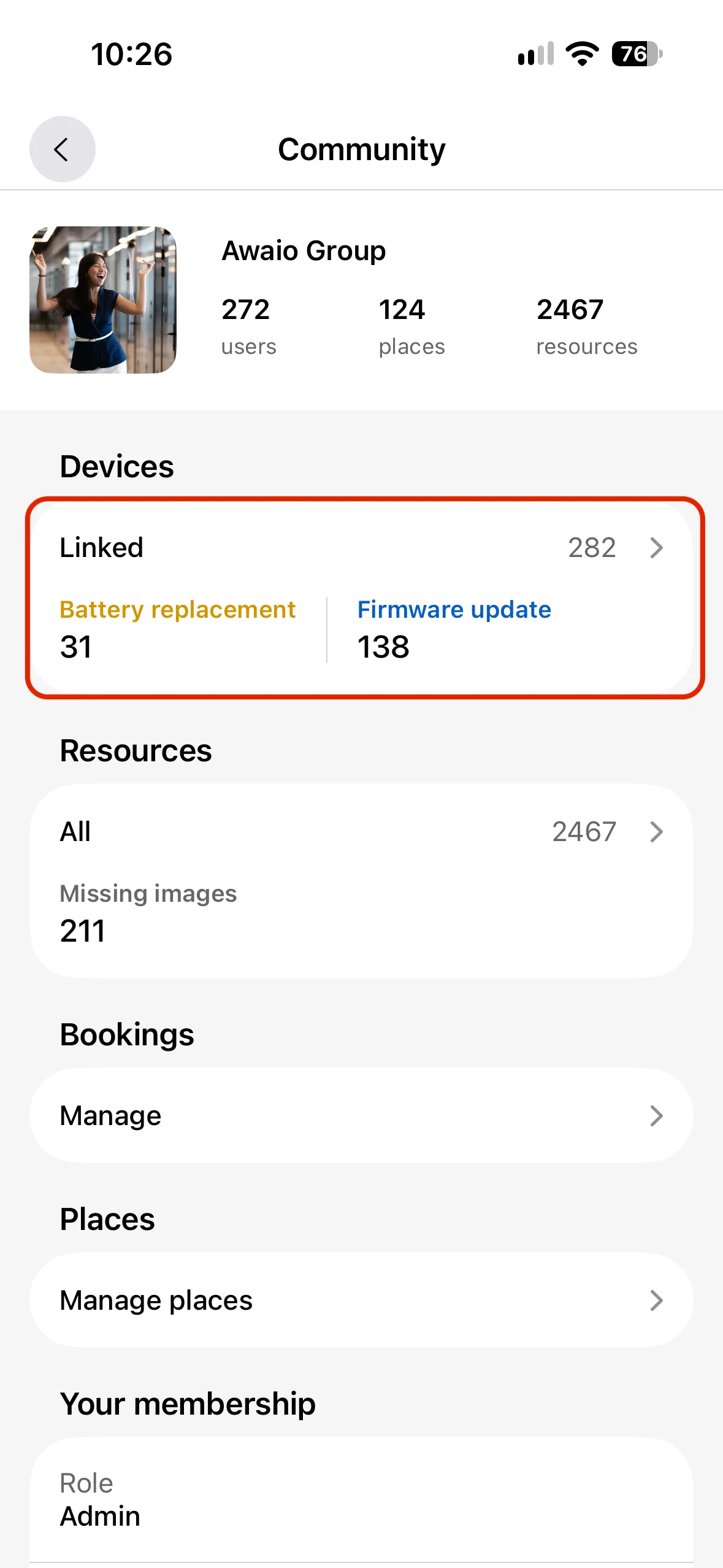
Step 2: Tap Resources.

Tap Resources in the community screen

Step 3: Find your locker and tap its lock icon.

Find your locker and tap its lock icon

Step 4: On the device details screen, tap Update next to the Firmware row.

Tap Update next to the Firmware row

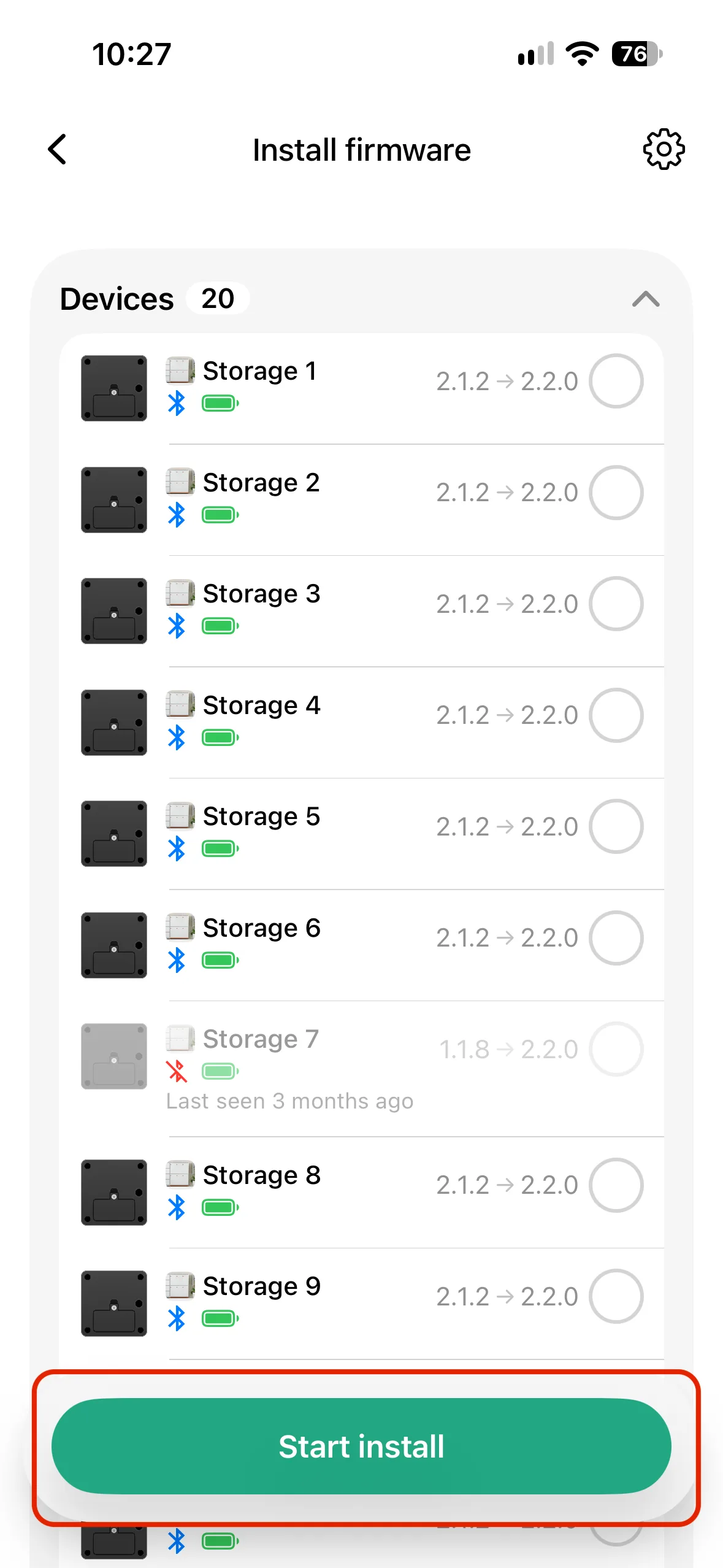
Step 5: Tap Start install.

Tap Start install

Step 6: Wait while the firmware installs. Keep the lock in Bluetooth range and don't leave the screen.
Firmware installing, progress indicator shown

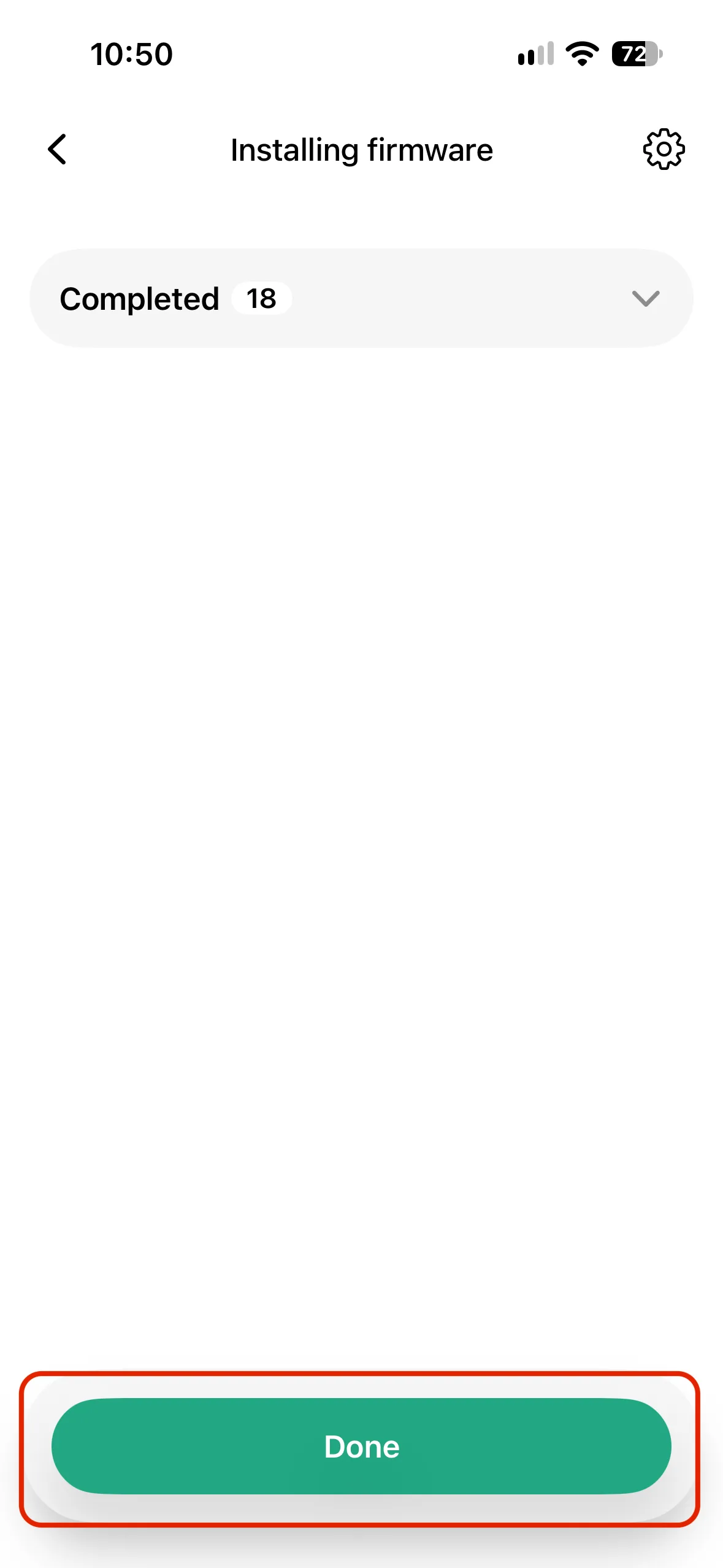
Step 7: Once it's finished, tap Done.

Tap Done once the install has completed

Step 8: The device details screen now shows the new firmware version.

Updated firmware version shown on the device details screen

Part 2: Locker cluster

Instead of updating locks one by one, you can push a firmware update to every lock in a cluster at once from the Manage devices screen.

Step 1: Tap your profile picture in the top-right corner of the homescreen, then under Communities select your community.

Tap your profile picture and select your community

Step 2: Tap Resources.

Tap Resources in the community screen

Step 3: Find the cluster you want to update and tap the lock icon in the top-right corner.

Find the cluster and tap the lock icon

Step 4: On the Manage devices screen, switch to the Firmware Update tab.

Switch to the Firmware Update tab

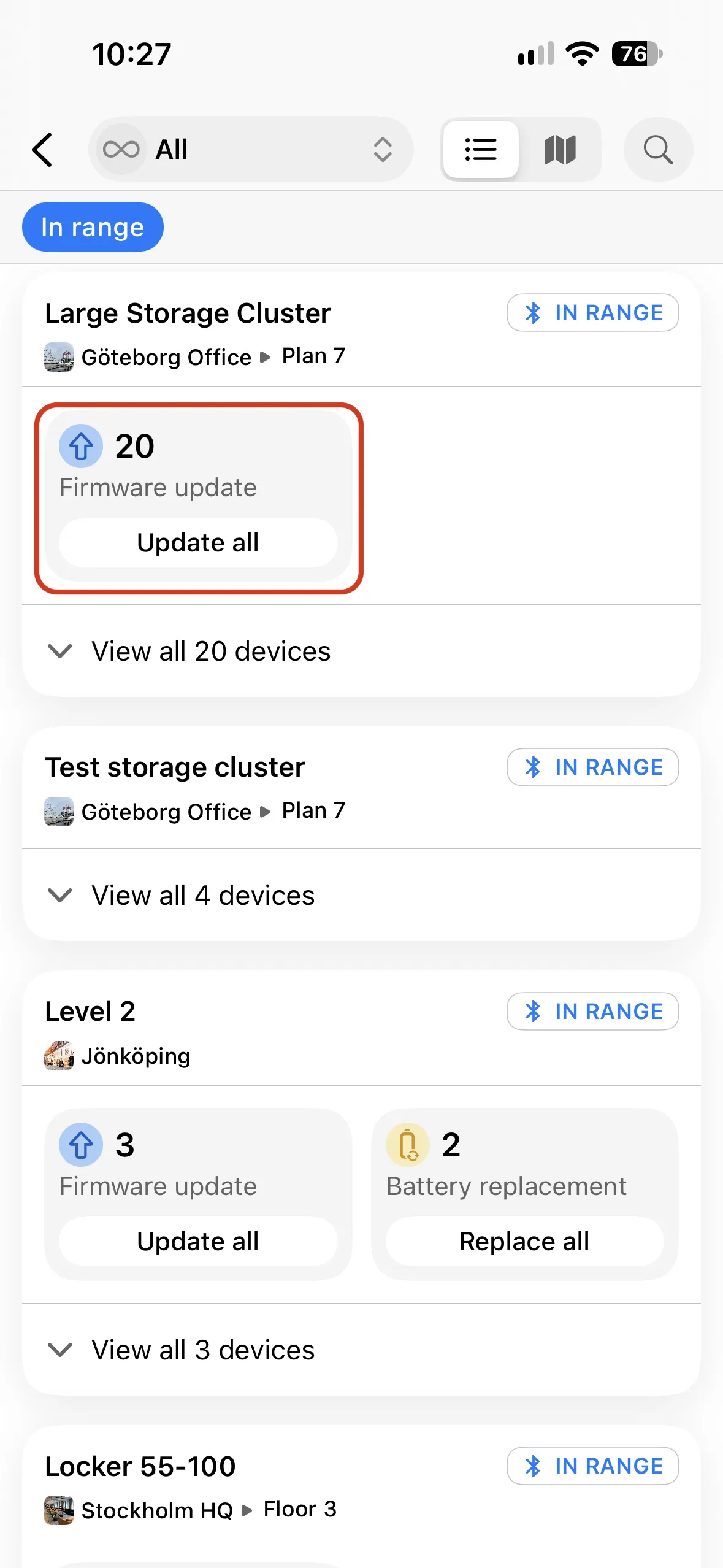
Step 5: Tap Update.

Tap Update

Step 6: Confirm by tapping Yes on the "Update firmware on all included devices?" prompt.

Confirm by tapping Yes

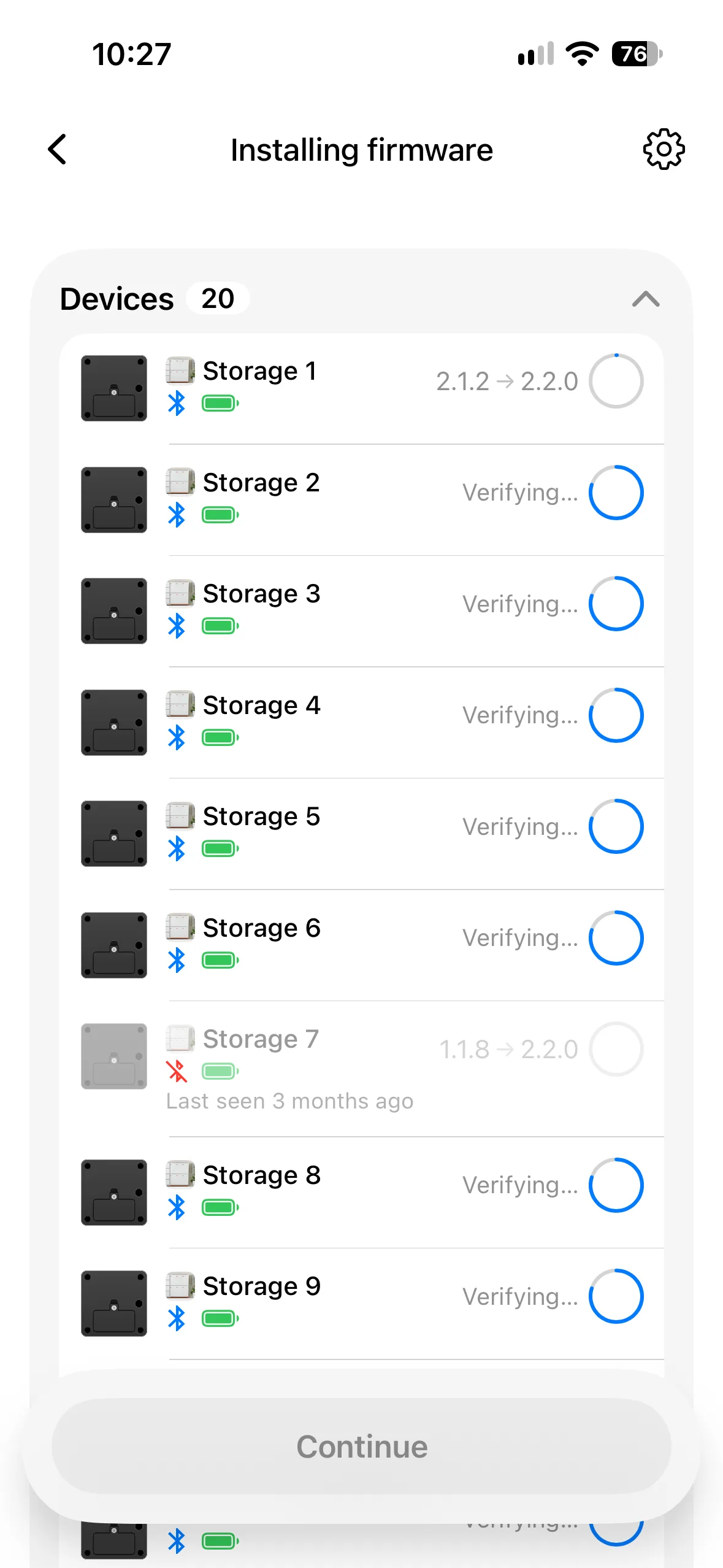
Step 7: Every included lock updates in turn. Keep them in Bluetooth range until the progress bar finishes for all of them.

Firmware update progress shown for a lock in the cluster

If you have further questions, feel free to contact us via our website chat (awaio.com) or email us at support@awaio.com.