Keeping your Awaio smart locks on the latest firmware fixes bugs and adds new features. Locks are grouped by place, floor, and cluster, so you can push a firmware update to a whole group at once instead of updating locks one by one.
Note: You need admin access to the community the locks belong to. Keep the locks within Bluetooth range for the whole update — don't close the app or walk away while it's installing.
Step 1: Tap your profile picture in the top-right corner of the homescreen, then under Communities select your community. The Devices card shows how many locks currently need a firmware update.
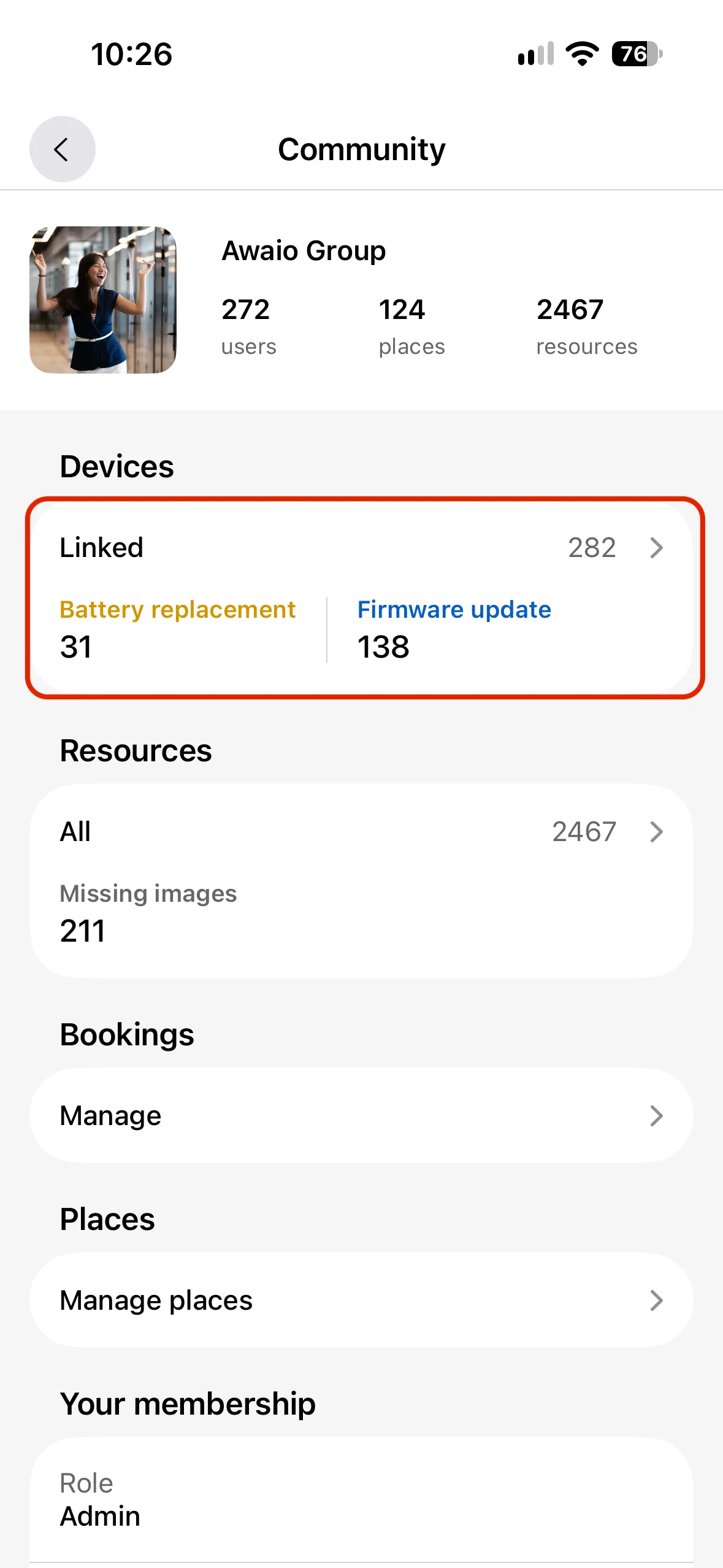
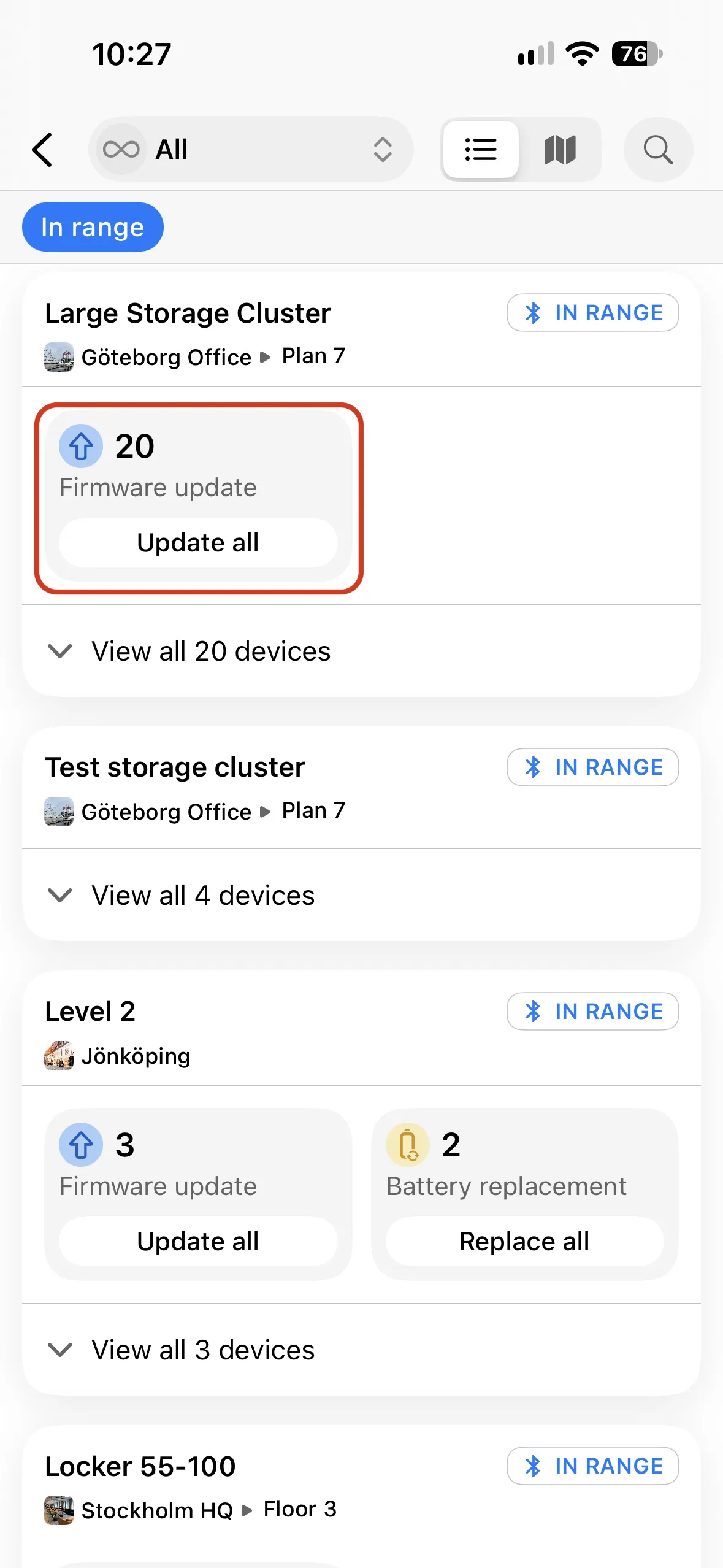
Step 2: Tap Linked under Devices, then find the place, floor, or cluster you want to update. Tap Update all under its Firmware update count.
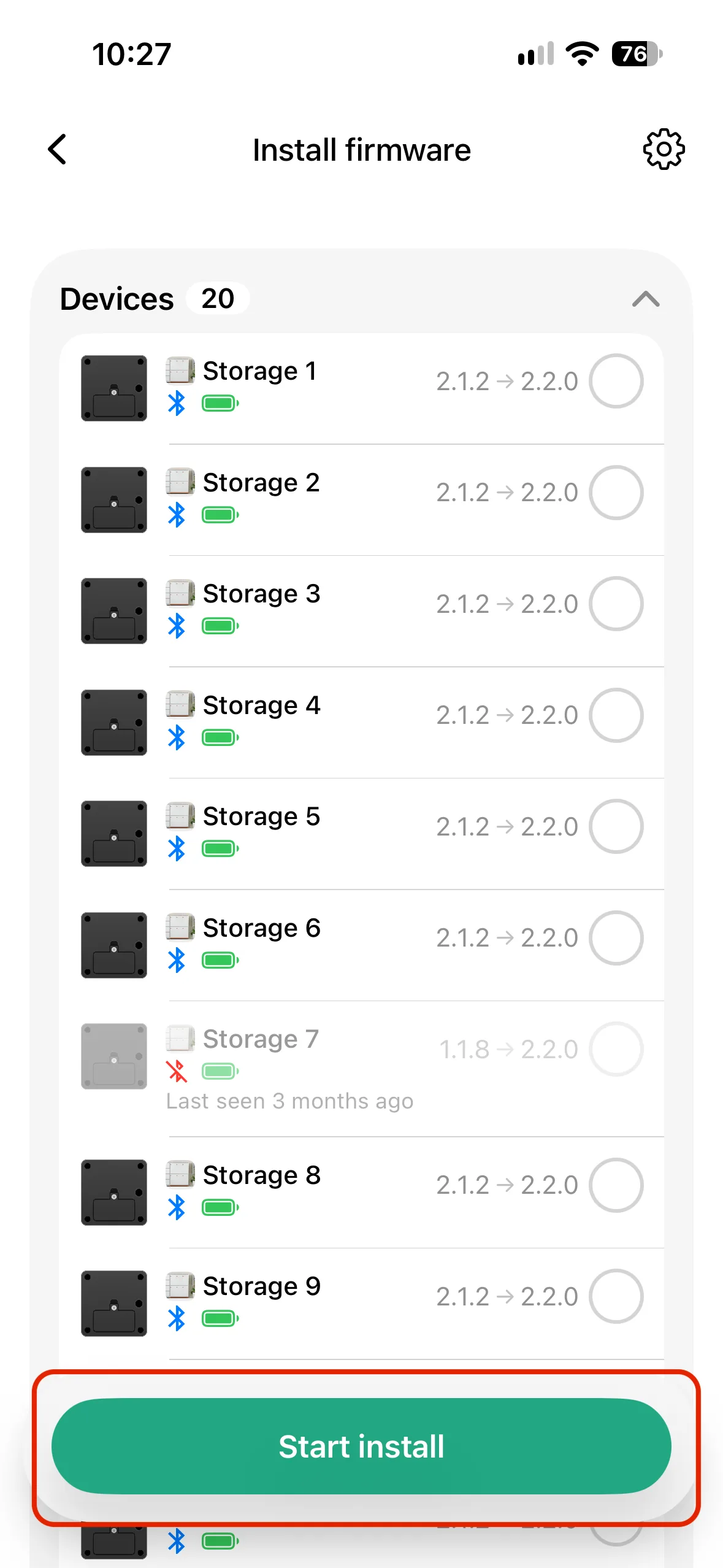
Step 3: Review the devices queued for the update, then tap Start install.
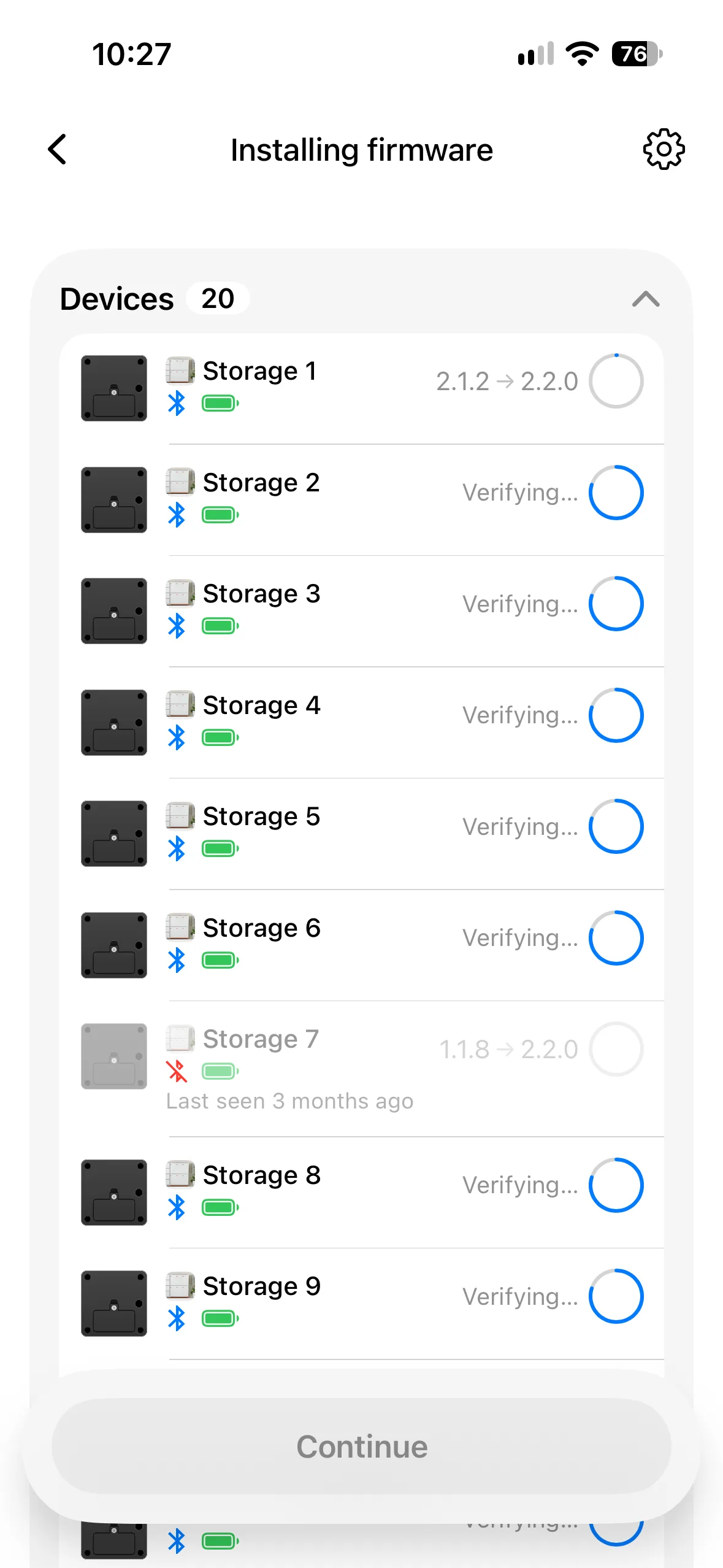
Step 4: Wait while each device installs and verifies the new firmware. Keep the locks in Bluetooth range and don't leave the screen.
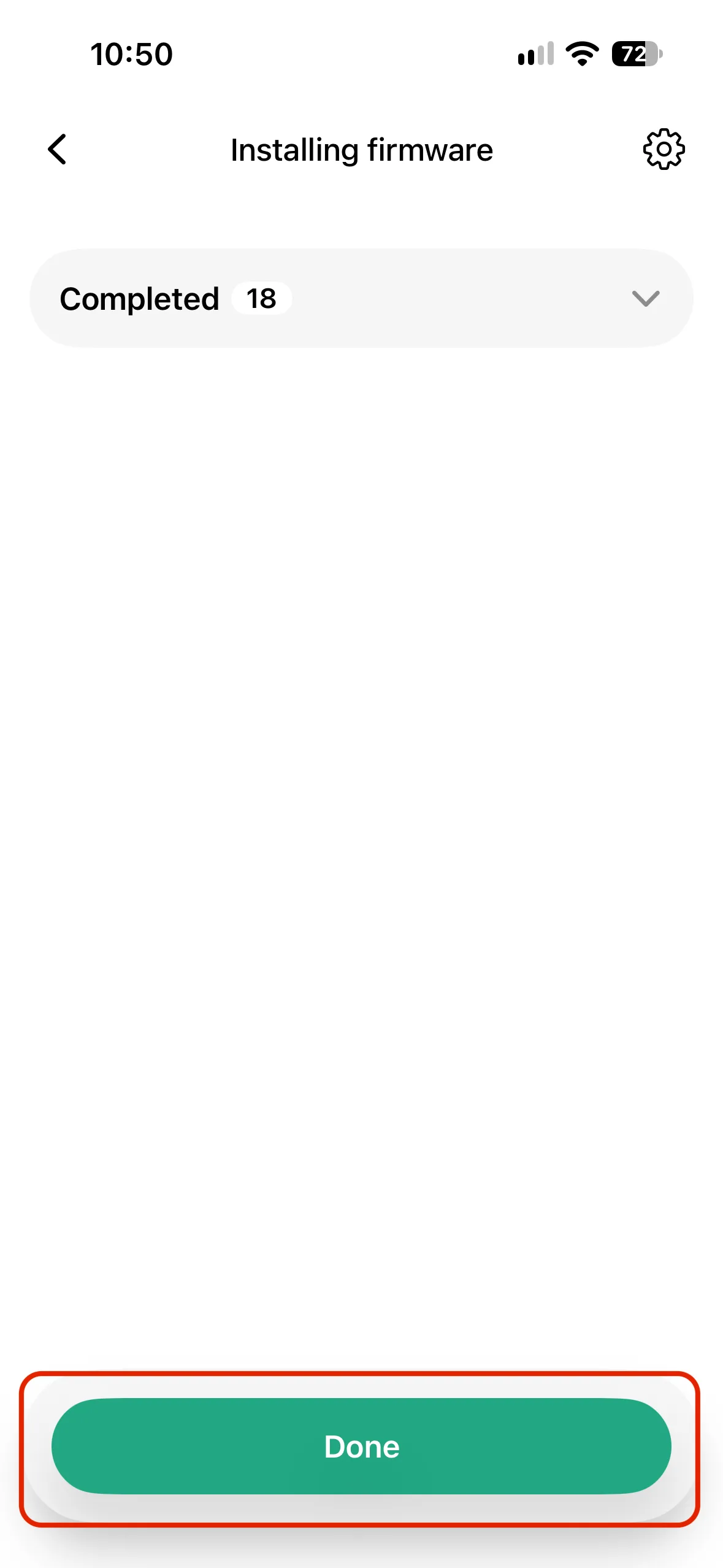
Step 5: Once every device has finished, tap Done.
If you have further questions, feel free to contact us via our website chat (awaio.com) or email us at support@awaio.com.