Service mode (formerly called install mode) keeps a lock open and prevents it from automatically re-locking while you're working on it — for example during mounting, a battery change, or troubleshooting. Always turn service mode back off once you're done.
Note: You need admin access to the community the lock or cluster belongs to.
Part 1: Single lock
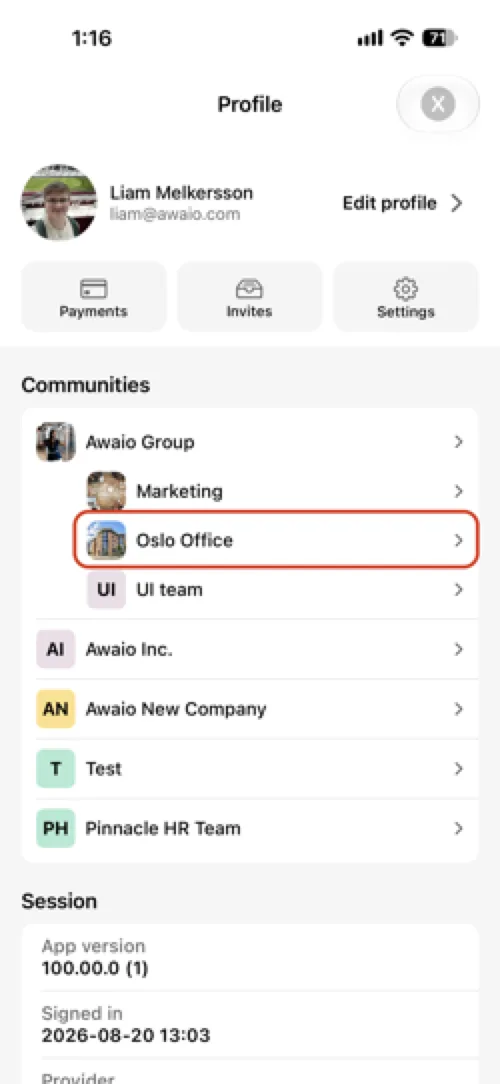
Step 1: Tap your profile picture in the top-right corner of the homescreen, then under Communities select the community the lock belongs to.
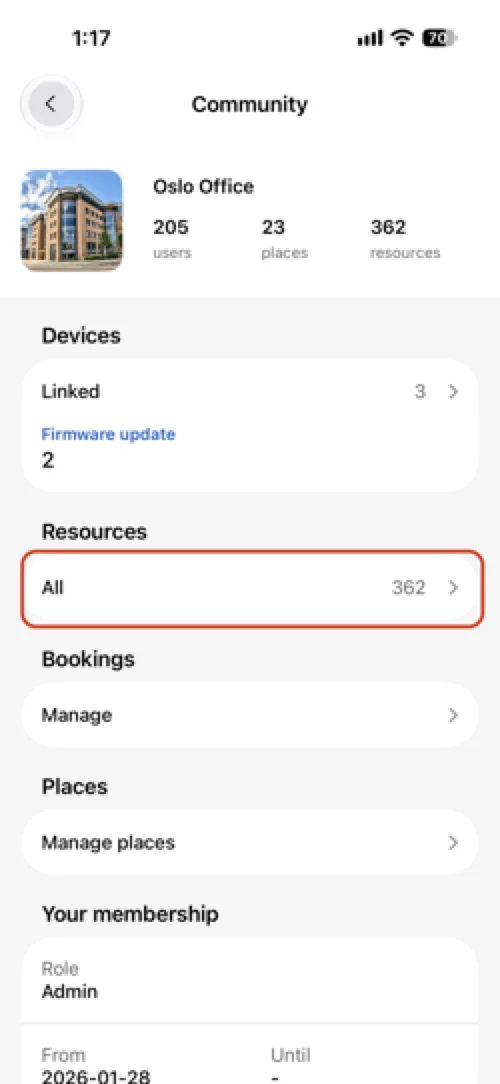
Step 2: Tap Resources.
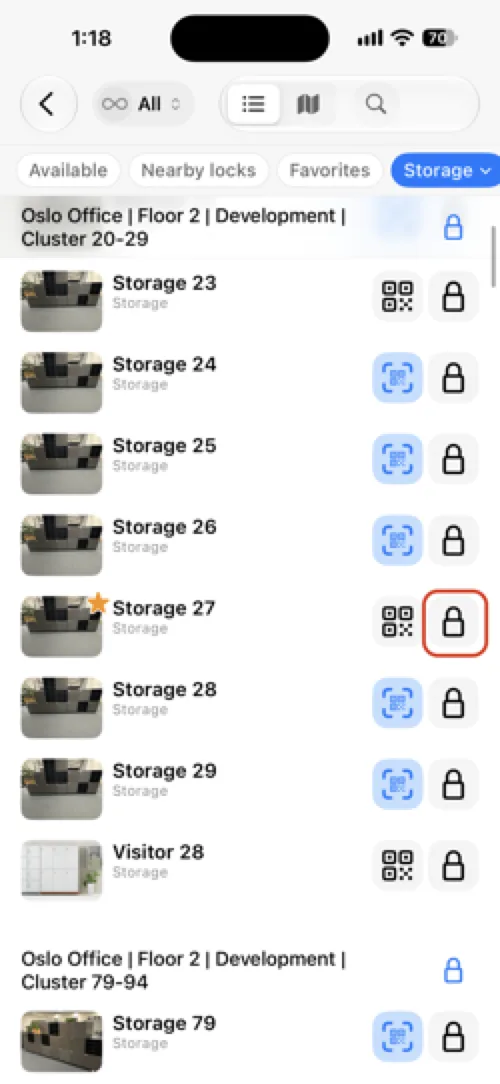
Step 3: Find the lock you want to service in the list.
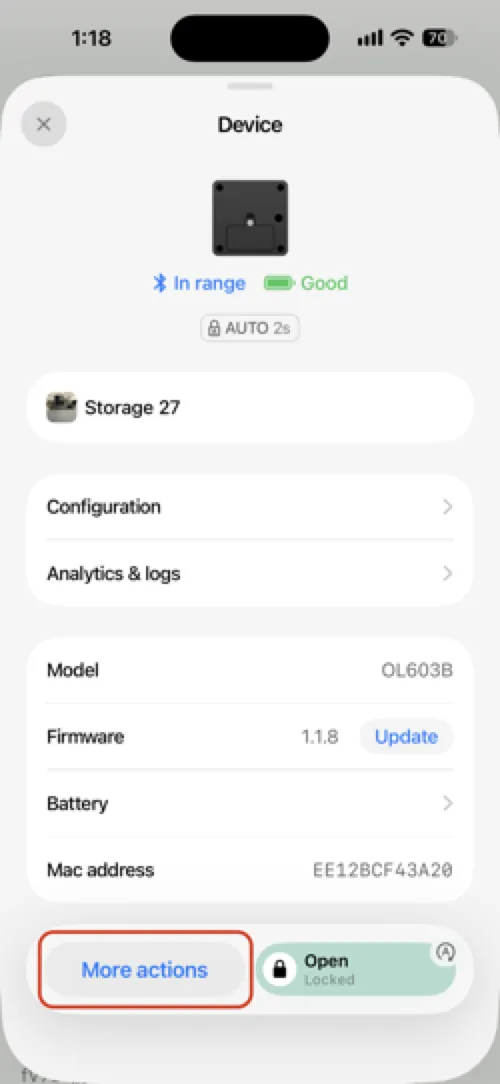
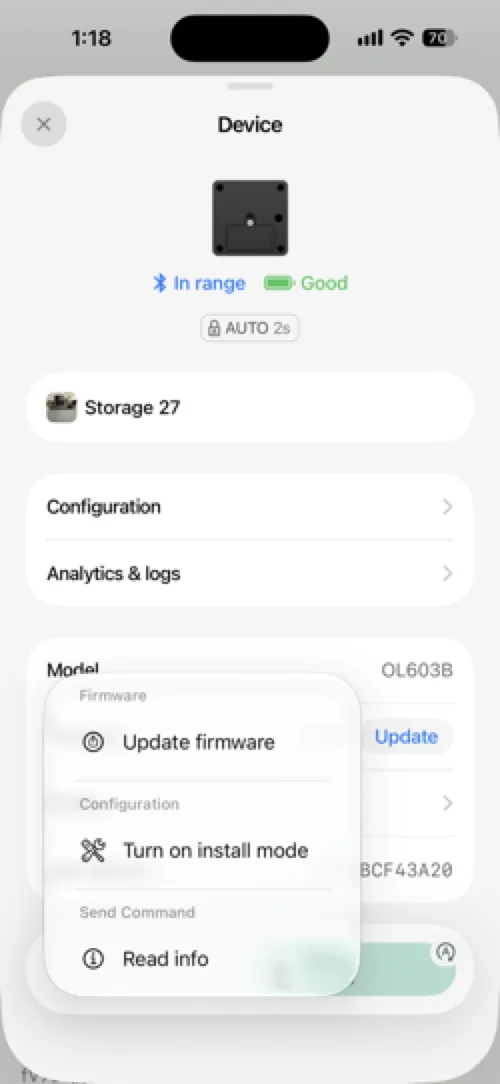
Step 4: Tap the lock to open its device details, then tap More actions.
Step 5: Tap Turn on install mode.
Step 6: The device details screen now shows a Service enabled banner. The lock will stay open while you work on it.
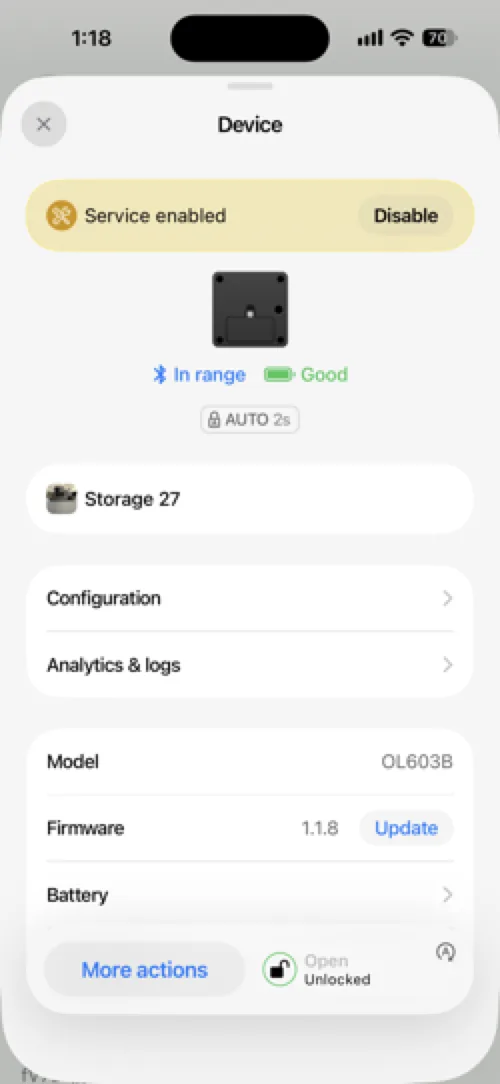
When you're finished, go back to this screen and tap Disable on the Service enabled banner to turn service mode back off.
Part 2: Locker cluster
Instead of enabling service mode lock by lock, you can push it to every lock in a cluster at once from the Manage devices screen.
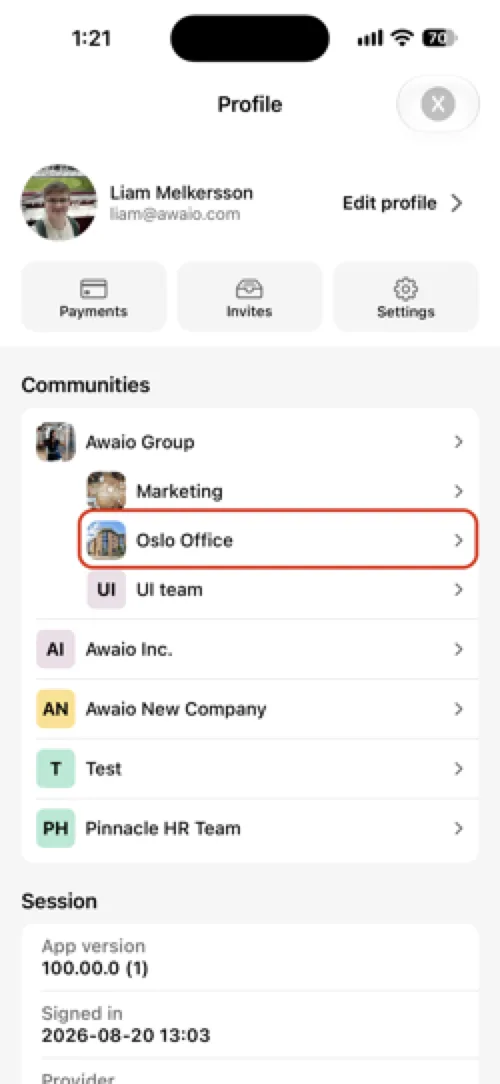
Step 1: Tap your profile picture in the top-right corner of the homescreen, then under Communities select your community.
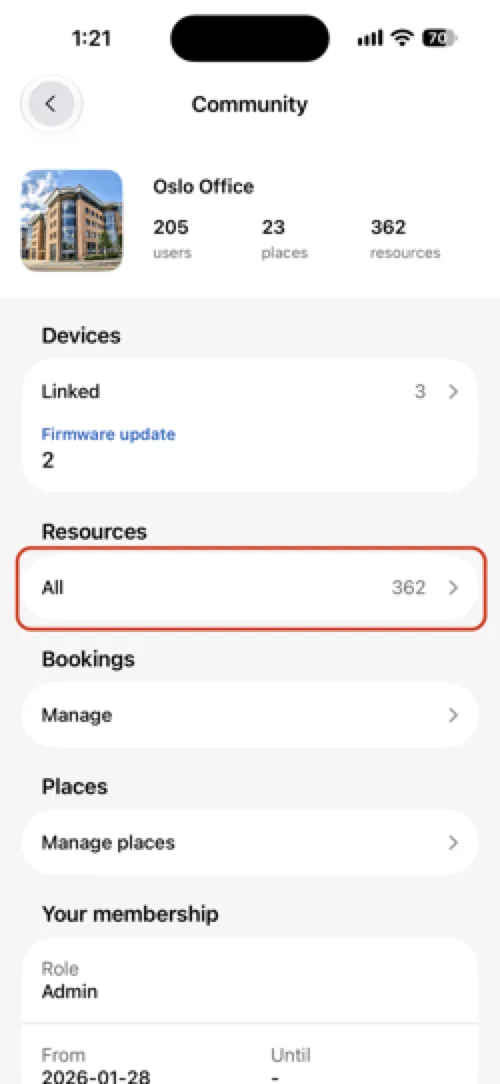
Step 2: Tap Resources.
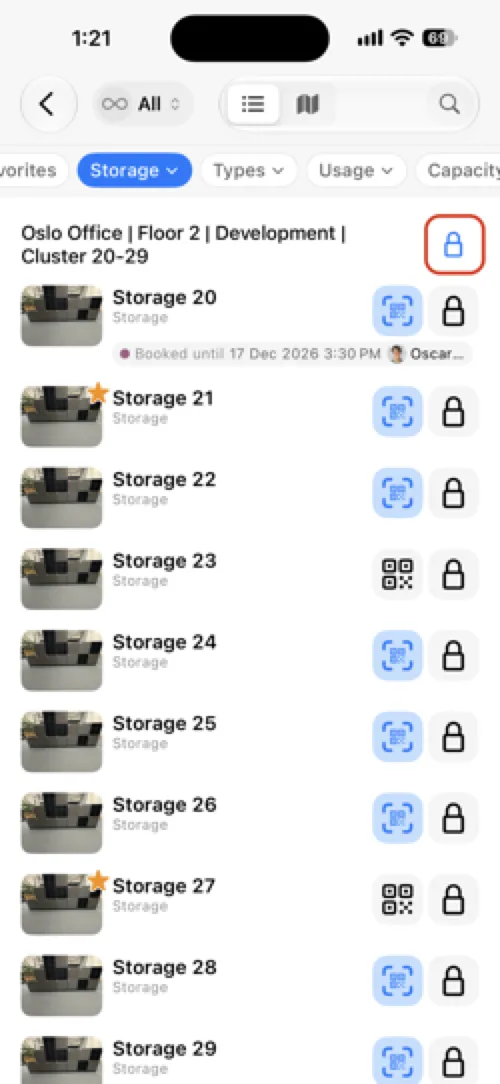
Step 3: Find the cluster you want to service and tap the blue lock icon in the top-right corner.
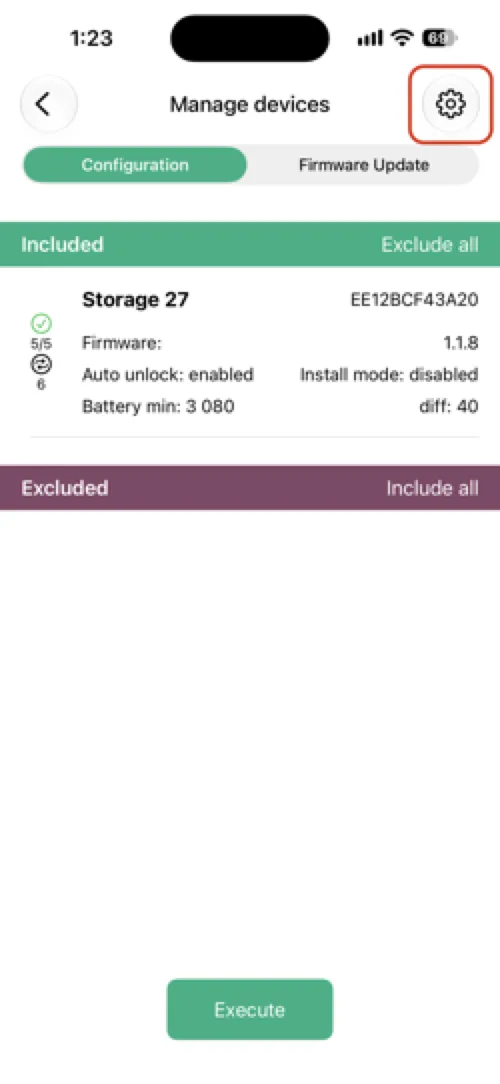
Step 4: On the Manage devices screen, tap the settings icon in the top-right corner.
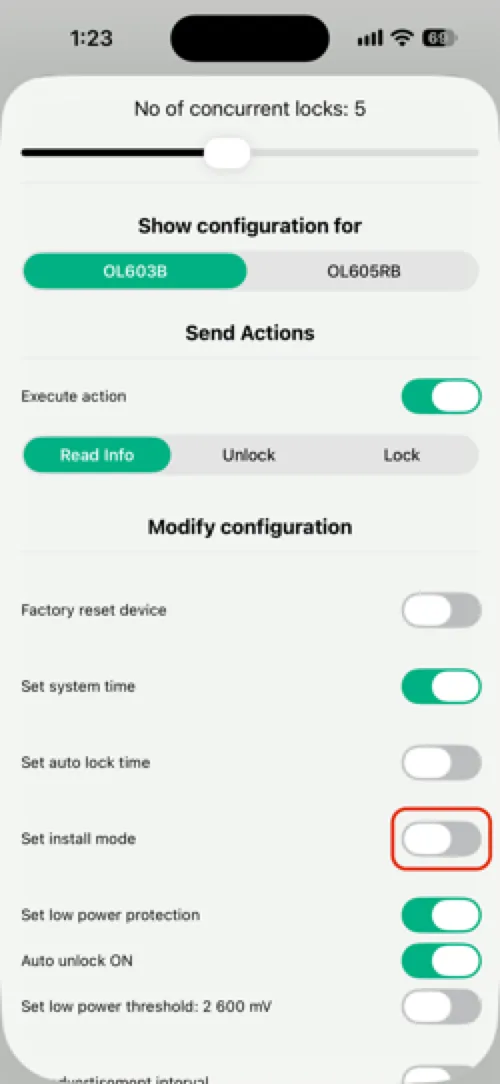
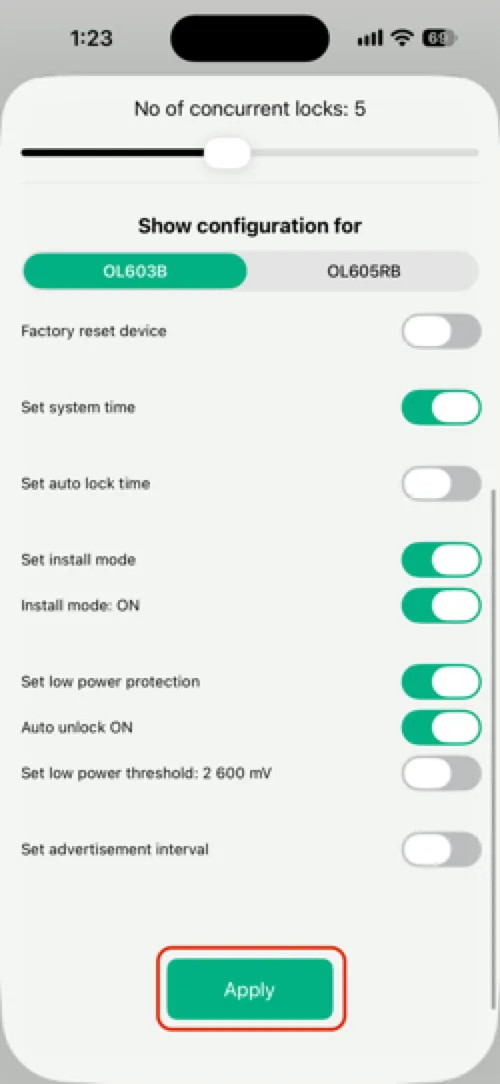
Step 5: Under Modify configuration, turn on the Set install mode toggle.
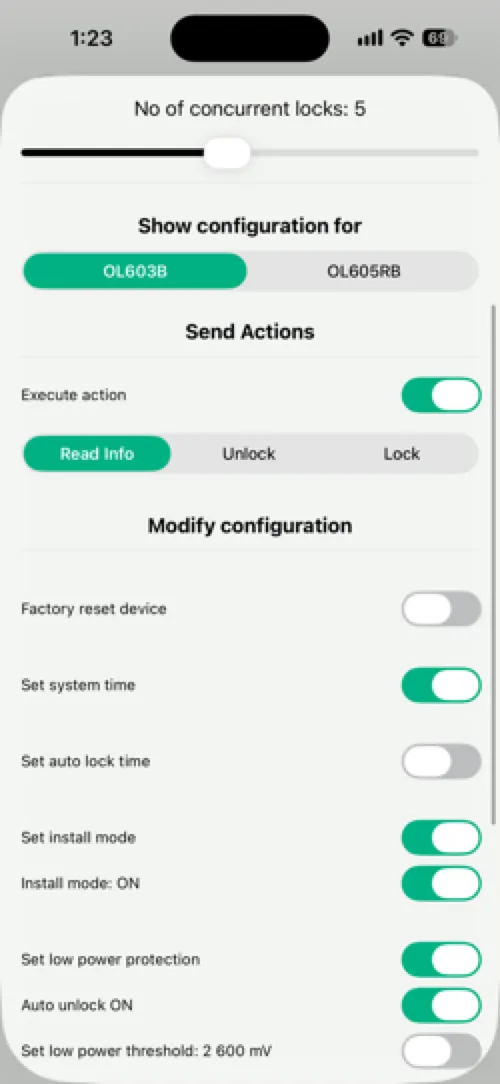
Step 6: A second toggle, Install mode: ON, appears — make sure it's switched on too.
Step 7: Tap Apply.
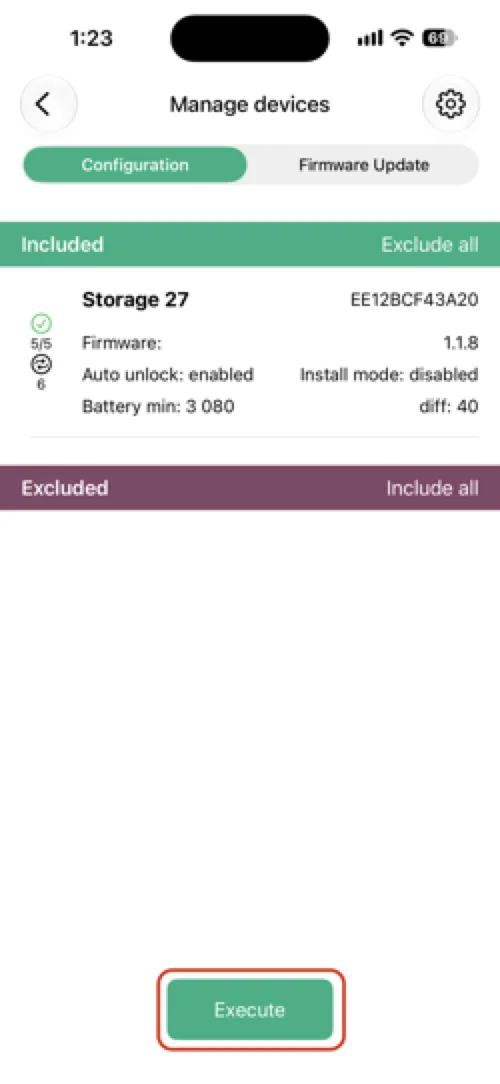
Step 8: Tap Execute.
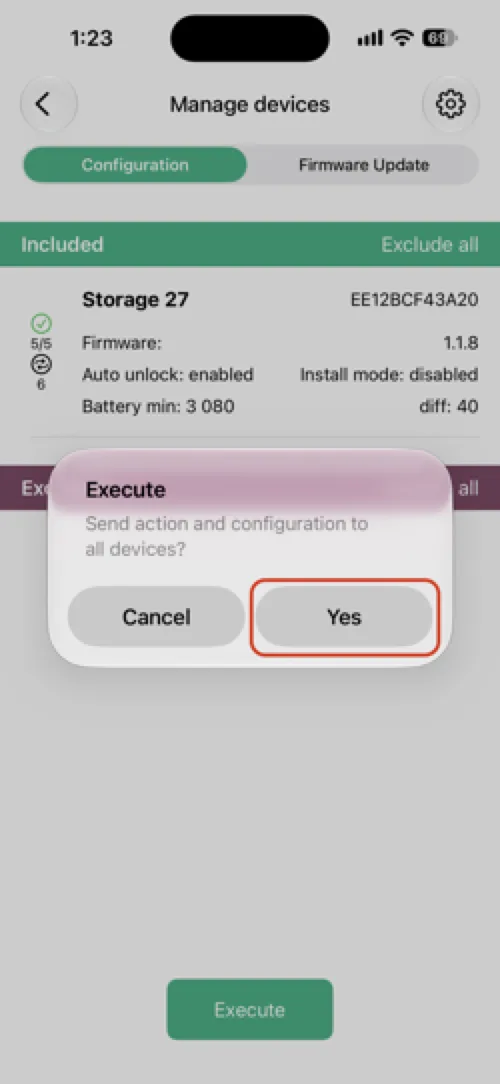
Step 9: Confirm by tapping Yes on the "Send action and configuration to all devices?" prompt.
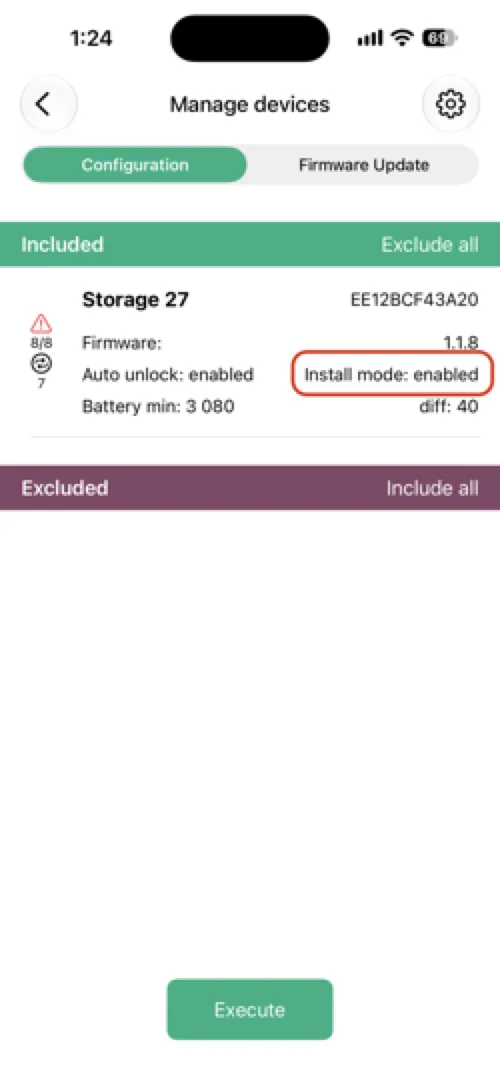
Step 10: Every lock in the cluster now shows Install mode: enabled. Make sure to turn it back off the same way once you're done — repeat these steps and switch the toggles off instead.
If you have further questions, feel free to contact us via our website chat (awaio.com) or email us at support@awaio.com.