

Step 1: Confirm the User Has Completed Basic Troubleshooting
Before investigating further, make sure the user has worked through the steps in Unable to Open Lockers (User Guide):
- Verified Bluetooth range
- Confirmed correct account and company
- Enabled Bluetooth and Wi-Fi
- Updated the Awaio app
- Granted Nearby devices permission (Samsung/Android)
- Tested access with a colleague's account
- Contacted their administrator
Step 2: Verify the Lock Configuration
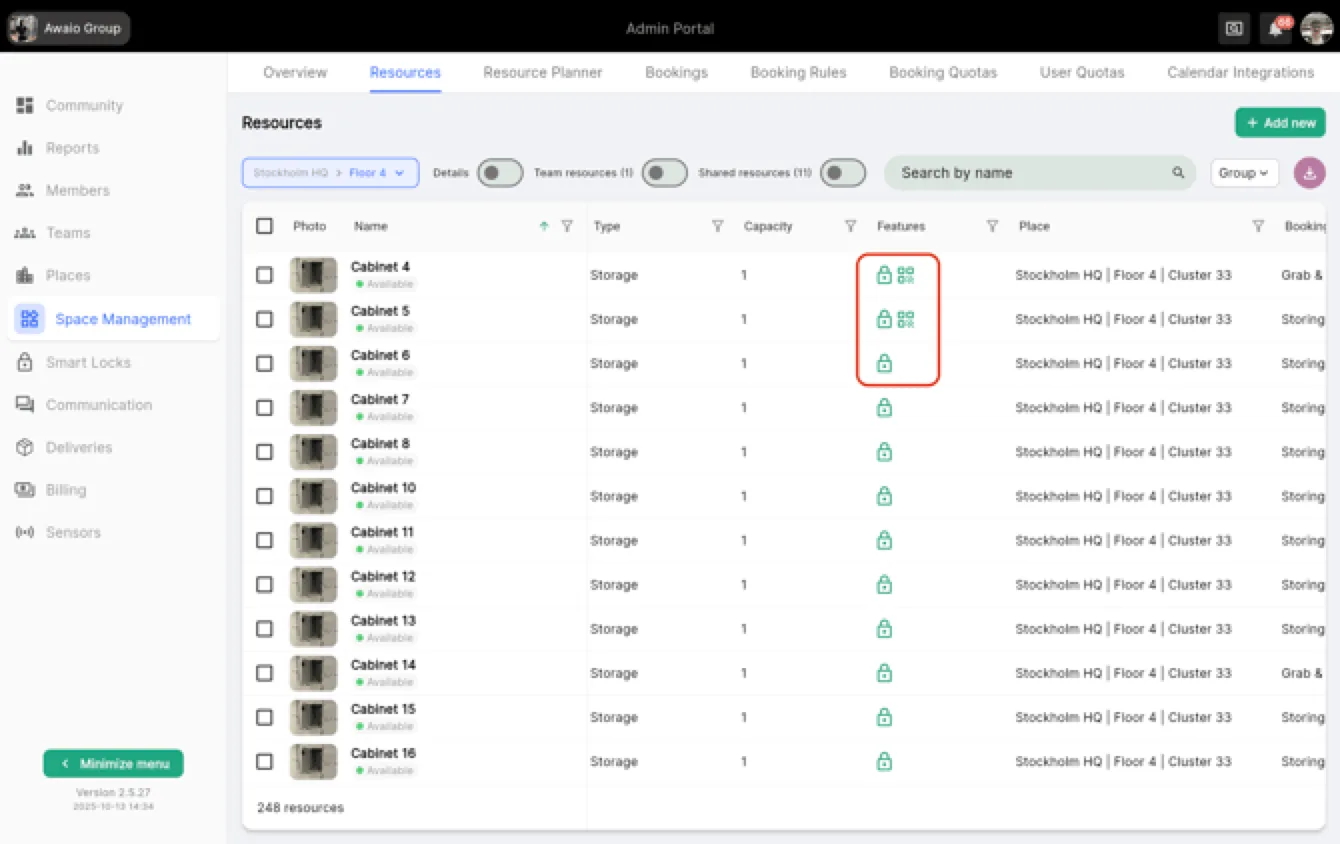
- In the Admin Portal, go to Space Management → Resources.
- Find the locker and check the Features column: it should show a linked lock icon.
- If the lock icon is missing or not linked, relink or reconfigure the lock.
Step 3: Check Locker Activity
- Locate the specific locker in the Admin Portal.
- Review the last opened date (Access Time).
- If the locker has not been opened for 6+ months, the battery may be depleted: follow the battery replacement procedures in the Battery Management guide.
Step 4: Contact Support
If none of the above steps resolve the issue, contact Awaio Support with the following information:
- Locker ID / Name
- Last connection date
- User email and account details
- Any error messages or logs
If you have further questions, feel free to contact us via our website chat (awaio.com) or email us at support@awaio.com.