

What is a booking rule?
A booking rule is a reusable policy that controls how a resource can be booked in the Awaio mobile app. Each rule defines constraints such as how far in advance users can book, how long a booking may last, whether confirmation is required, and more. One rule can be applied to multiple resources, and changes to a rule are automatically reflected on every resource that uses it.
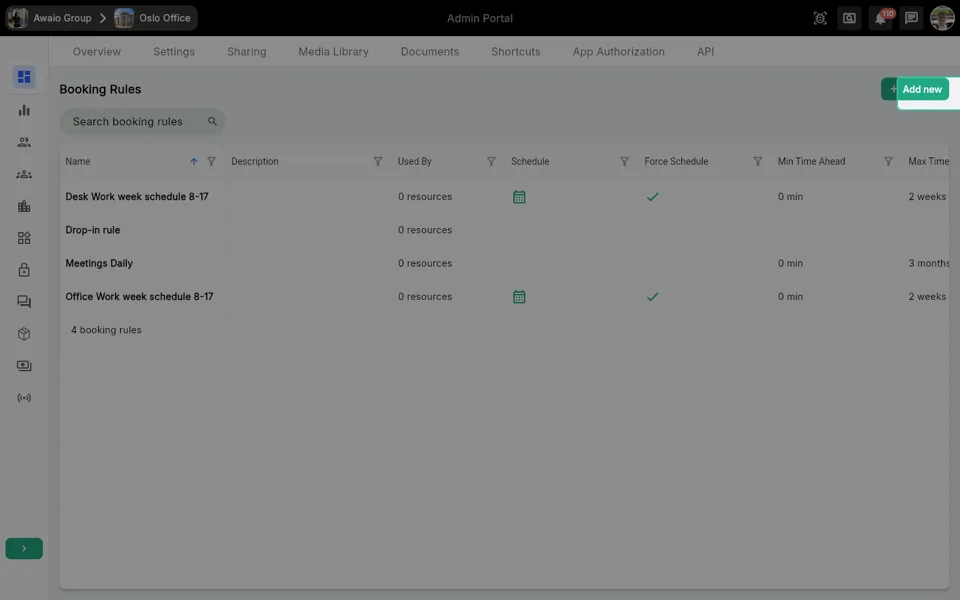
Booking rules are managed under Booking Rules in the Admin Portal.
Rule behaviours
Every booking rule has a Behaviour setting that determines the fundamental mode of operation for bookings made under that rule.
| Behaviour | Display name | How it works |
|---|---|---|
standard |
Standard | Default behaviour — users book a time slot in advance and the booking remains active until the slot ends or the user ends it manually. |
grabAndGo |
Grab & Go | The booking is automatically released (ended) the moment the user opens the associated lock. |
delivery |
Delivery | Intended for parcel/delivery scenarios. The booking is automatically released when the user opens the lock. Requires at least one community to be specified in Book on Behalf. |
adHoc |
Drop in | No advance booking needed — the resource is used on the spot if it is available. |
Select the behaviour from the Behaviour dropdown inside the rule editor.
Creating a booking rule
All new rules are created by cloning an existing rule or an Awaio-provided template.
- Go to Booking Rules in the Admin Portal.
- Click Add new in the top-right corner.
- The Create Booking Rule dialog opens and displays two lists: Community Rules (rules that already exist in your community) and Template Rules (pre-built templates provided by Awaio, labelled Template).
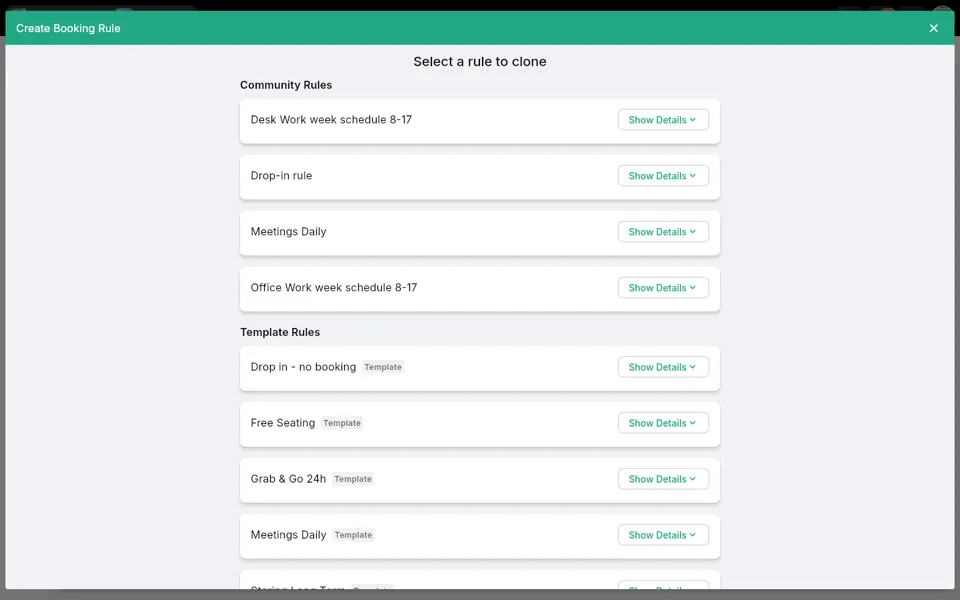
- Click Show Details on any rule to preview its settings before selecting it.
- Click a rule name or its row to select it as the starting point. The editor opens pre-populated with the cloned rule's settings.
- Adjust the settings as described in the sections below, then click Save.
Tip: Template Rules cover common scenarios such as Drop in - no booking, Free Seating, Grab & Go 24h, and Meetings Daily. Start from a template when no existing community rule is a close match. See Booking rule templates explained for a walkthrough of every template and the settings it comes with.
Rule settings reference
Name and description
| Field | Purpose |
|---|---|
| Name | Shown to users in the Awaio mobile app when they browse and book resources. Keep it short — long names may be truncated on smaller screens. |
| Description | Optional free-text field for additional context. Use this instead of putting extra detail into the name. |
Behaviour
Select one of the four behaviours described above. The behaviour affects which other settings are available in the editor.
Planned Bookings (booking window)
Controls how far in the future a booking can start.
| Setting | Description |
|---|---|
| Earliest start time | How soon in the future a booking can begin. 0 means immediately (here and now). |
| Latest start time | The furthest point in the future at which a booking can start. |
Both values are set with time sliders.
Booking Length
Defines the permitted duration of a single booking. Applies to Standard and Grab & Go behaviours.
| Setting | Description |
|---|---|
| Shortest time | Minimum booking duration (minimum 15 minutes). |
| Longest time | Maximum booking duration. |
| Default time | The duration pre-selected for users when they create a booking. |
Booking Schedule
A schedule lets users book one or more fixed time blocks per day rather than choosing arbitrary start and end times.
- Toggle Booking Schedule on.
- Optionally enable Force Schedule to restrict users exclusively to the defined time blocks. When Force Schedule is on, it overrides Opening Hours. When it is off, users can also enter a custom time, and the shortest/longest time constraints are calculated from the schedule blocks.
- Use the Time Block editor to add time blocks for each day of the week (Monday through Sunday). Any conflicting time already present will be overwritten.
Opening Hours
Opening Hours restrict booking start times to within one or more fixed time windows per day.
- Toggle Opening Hours on to enable.
- Define time blocks per weekday using the same Time Block interface as Booking Schedule.
- Opening Hours are disabled automatically when Booking Schedule is enabled with Force Schedule turned on.
Booking Confirmation
When enabled, users must actively confirm their booking before a specified deadline or the booking is automatically released.
| Setting | Description |
|---|---|
| Booking Confirmation (toggle) | Enables the confirmation requirement. |
| Earliest confirmation time | How far before the booking start time users can confirm. |
| Release time | The point relative to the booking start at which an unconfirmed booking is automatically released. |
| Release warning time | When a push notification warning is sent to the user before the automatic release. |
Participants sub-section:
| Setting | Description |
|---|---|
| Participant Confirmation | Allows participants (not just the organizer) to confirm the booking. |
| Notify Participants | Sends confirmation-reminder notifications to all participants. Only available when Participant Confirmation is on. |
Auto Confirm Groups: Specify group IDs whose members are exempt from the confirmation requirement — their bookings are confirmed automatically.
Access
Limits which resources users can book under this rule.
- Click Add to open the Select Access dialog and choose one or more access records.
- Each added access is listed and can be removed individually.
Book on Behalf
Allows specified communities to create bookings on behalf of other users (for example, reception staff booking a locker for a delivery).
| Setting | Description |
|---|---|
| Communities | The list of community IDs permitted to book on behalf. Click the edit icon to add or remove communities. |
| Force Book on Behalf | When on, every booking under this rule must be made on behalf of someone else. |
Required for Delivery behaviour: At least one community must be specified here when the Behaviour is set to Delivery.
Allow Multiple Organizers
When enabled, users other than the original organizer (specified at booking time) are also permitted to modify the booking.
Allow Participants
Controls whether participants can be added to bookings made under this rule. Disabled means no participants can be added.
Booking Category
Assigns a category to bookings created under this rule. Categories can be used for filtering and reporting.
Pricing
Attach a pricing policy to charge users for bookings.
- Click Select Pricing to open the pricing picker.
- Select a pricing record. The selected pricing name is shown in the rule editor.
- Click Show Details to review the pricing configuration without leaving the rule editor.
- Click Change Pricing to replace the current pricing, or Remove Pricing to remove the charge.
Booking Quota
A quota limits the total amount of booking time a user (or group) can accumulate under this rule.
- Click Select Quota to open the quota picker.
- Select a quota record. The selected quota name is displayed.
- Click Show Details to review quota details.
- Click Remove Quota to detach the quota from the rule.
Allow Repeating Bookings
Toggle on to allow users to create repeating (recurring) bookings under this rule.
Disable Extension
Toggle on to prevent users from extending an active booking beyond its original end time.
Only Allow One Reserved Booking (Delivery behaviour only)
When enabled, a user cannot create a new booking while a previous booking made under this rule is still in a reserved state (not yet cancelled or ended). This prevents duplicate delivery reservations.
Saving and deleting a rule
- Click Save to save all changes. If the rule is used by resources, a dialog will appear offering to refresh those resources with the updated rule settings.
- Click Delete to permanently delete the rule. The Delete button is only available when no resources are currently using the rule.
- Click Cancel to discard unsaved changes and close the editor.
Tips
- Start from a template. Awaio provides Template Rules for the most common scenarios. Cloning a template is faster than configuring every setting from scratch.
- Keep names short. The rule name is displayed in the Awaio mobile app. Use the Description field for any additional detail.
- One rule, many resources. Apply the same rule to multiple resources. Updating the rule updates all resources using it — you do not need to edit each resource individually.
- Force Schedule vs Opening Hours. Use Force Schedule when you want users to pick from predefined time blocks only. Use Opening Hours when you want to allow flexible booking durations but only within certain hours of the day. Do not combine both at the same time.
- Booking Confirmation + Auto Confirm Groups. Add internal staff or trusted groups to Auto Confirm Groups so their bookings are never accidentally released, while still enforcing confirmation for external users.
- Ask questions with forms. Add a form to a rule to collect answers from the person who booked, for example a mileage and fuel check when a company car comes back. See Set up booking forms.