

Overview
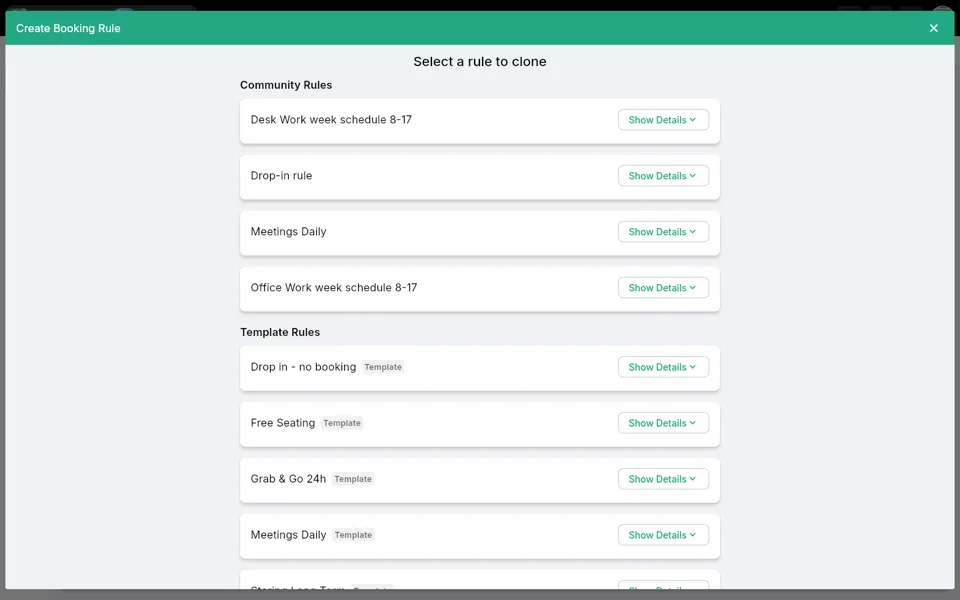
When you create a new booking rule in Awaio, the Create Booking Rule dialog presents a list of ready-made Template Rules alongside any existing Community Rules. Template rules are pre-configured starting points maintained by Awaio — selecting one clones its settings into a new rule that you can rename and adjust before saving. This article describes each available template, what it is designed for, and the key settings it brings with it.
How template rules work
- Navigate to Booking Rules in the admin portal.
- Click Create to open the Create Booking Rule dialog.
- Scroll to the Template Rules section. Each template is labelled with a Template badge.
- Click Show Details on any template to expand its settings before choosing it.
- Click the template card to clone it. The editor opens with all template settings pre-filled.
- Update the Name and any other settings, then click Save to create your rule.
Template: Drop in — no booking
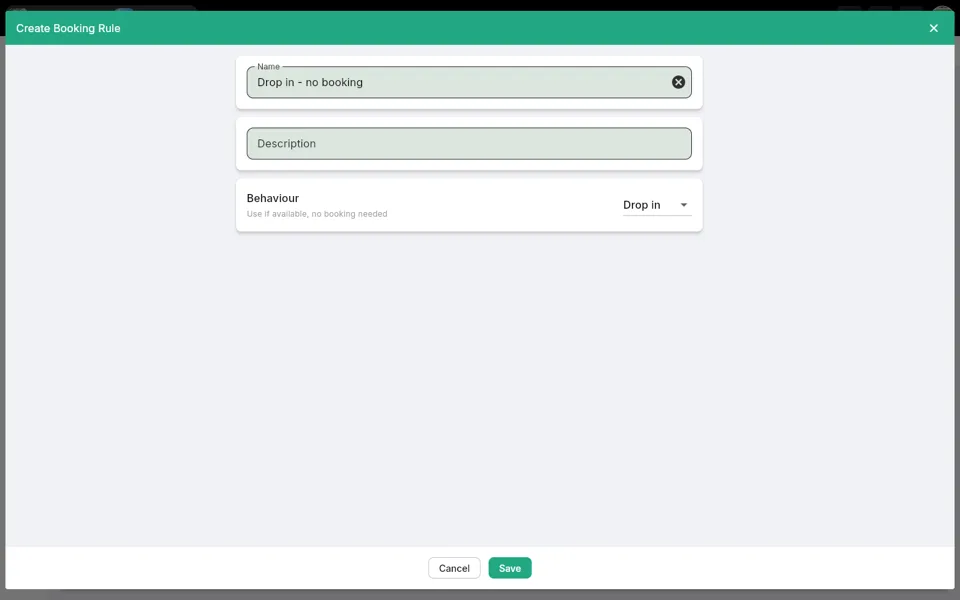
Best for: Resources that users can simply walk up and use without making a reservation — for example, casual seating areas or information screens.
| Setting | Value |
|---|---|
| Behaviour | Drop in — use if available, no booking needed |
This is the simplest template. Because the Behaviour is set to Drop in, Awaio does not require users to create a booking at all. No Planned Bookings window or confirmation settings are configured.
Template: Free Seating
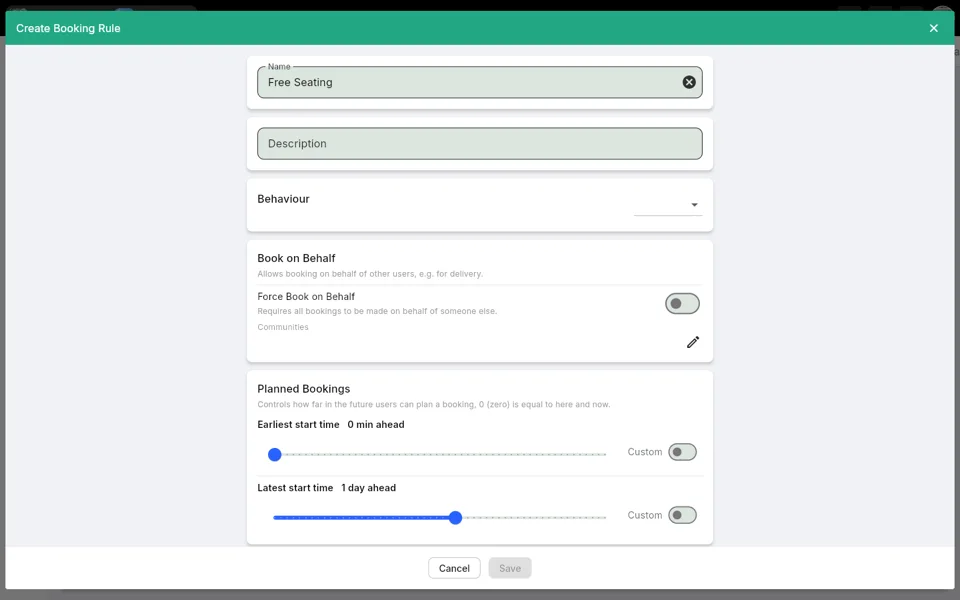
Best for: Hot-desk or flexible seating environments where users book a seat for the day, up to one day in advance.
| Setting | Value |
|---|---|
| Behaviour | Standard (no specific behaviour set) |
| Planned Bookings — Earliest start time | 0 min ahead (immediately) |
| Planned Bookings — Latest start time | 1 day ahead |
The Planned Bookings window limits reservations to a rolling 24-hour horizon, encouraging same-day booking and preventing desks from being monopolised far in advance.
Template: Grab & Go 24h
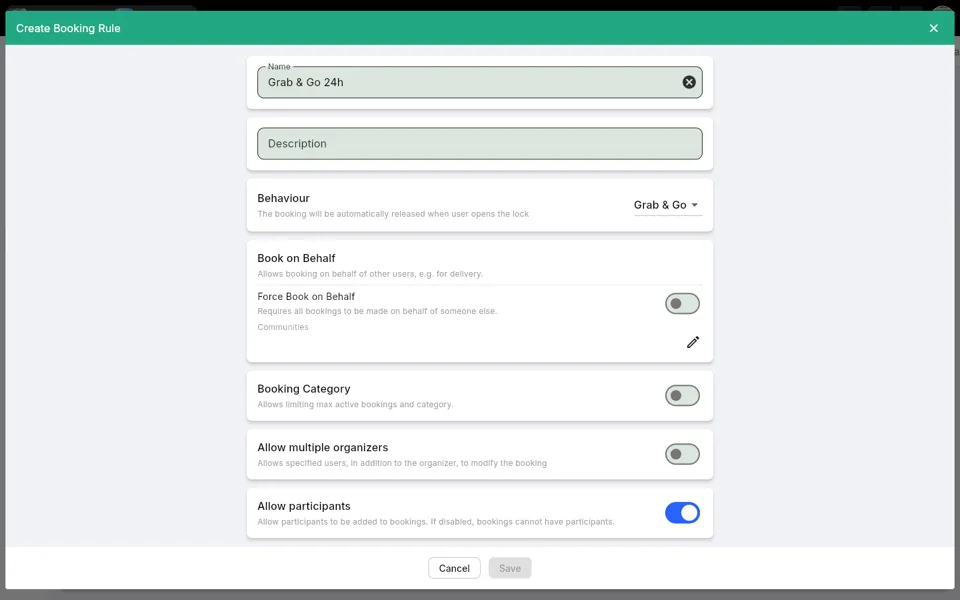
Best for: Lockers, equipment, or any resource that is automatically released as soon as the user physically accesses it (e.g. opens the lock).
| Setting | Value |
|---|---|
| Behaviour | Grab & Go — booking is automatically released when the user opens the lock |
| Allow participants | Enabled |
The Grab & Go behaviour means the booking ends automatically once access is granted, so the resource becomes available to others immediately. Allow participants is enabled, allowing additional people to be associated with the booking.
Template: Meetings Daily
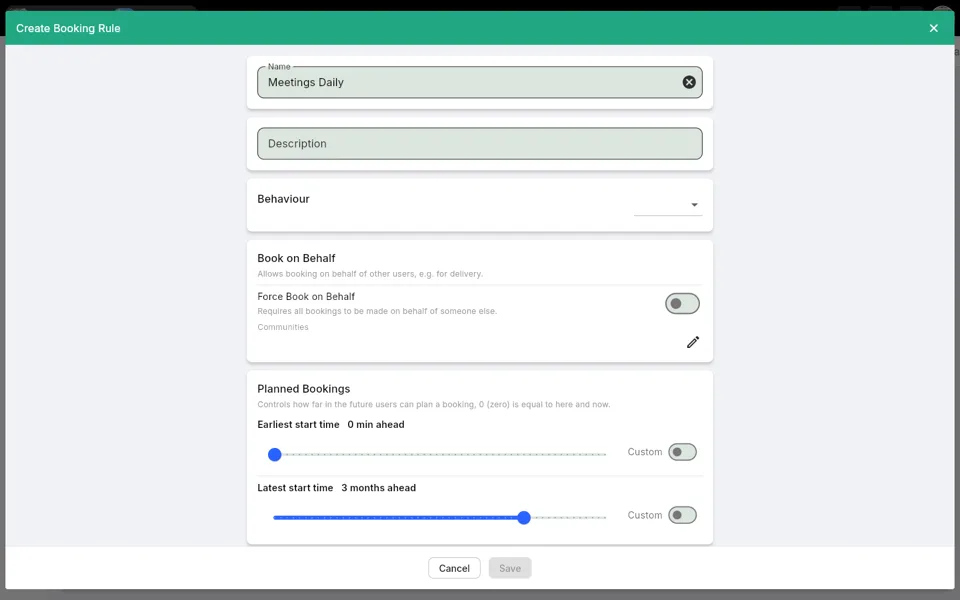
Best for: Meeting rooms or collaboration spaces that should be bookable up to three months ahead.
| Setting | Value |
|---|---|
| Behaviour | Standard |
| Planned Bookings — Earliest start time | 0 min ahead (immediately) |
| Planned Bookings — Latest start time | 3 months ahead |
The extended Planned Bookings window suits formal meeting room scheduling where teams need to reserve space well in advance. All other settings are left at their defaults, giving you a clean base to add booking confirmation, access rules, or pricing as needed.
Template: Storing Long Term
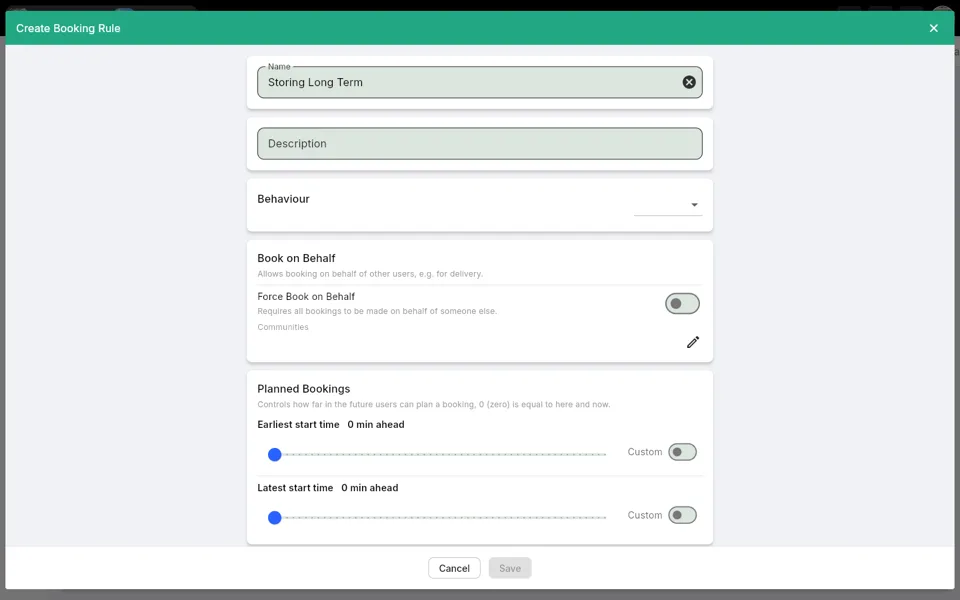
Best for: Storage spaces, lockers, or areas assigned to a user for an extended, open-ended period (for example, a permanent locker allocation).
| Setting | Value |
|---|---|
| Behaviour | Standard |
| Planned Bookings — Earliest start time | 0 min ahead |
| Planned Bookings — Latest start time | 0 min ahead |
Setting both Planned Bookings values to 0 min ahead means bookings can only start immediately — there is no future scheduling window. This is intentional for long-term storage scenarios where the user takes possession of the resource right away and holds it indefinitely until they actively end or release the booking.
Template: Storing Short Term
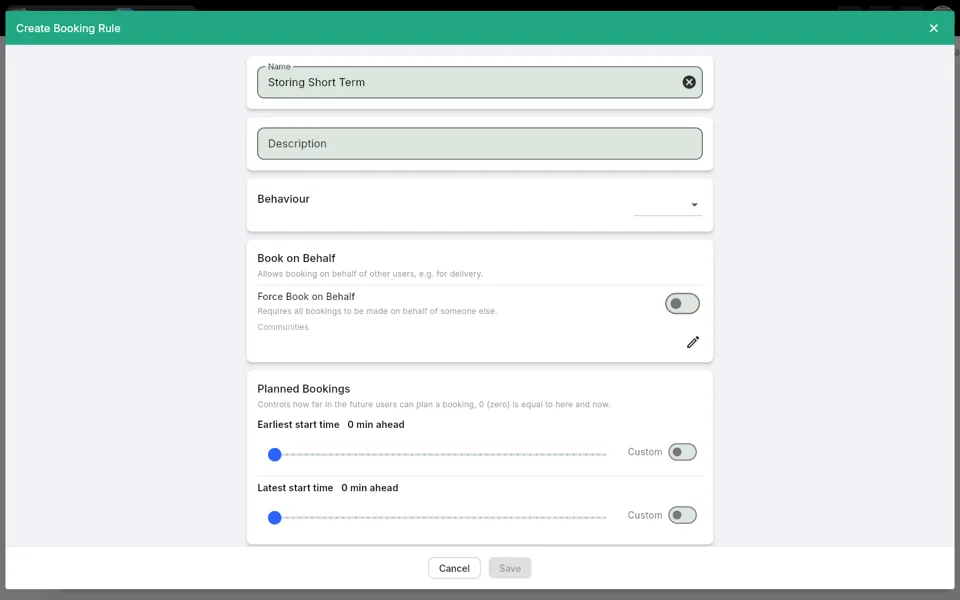
Best for: Temporary storage, day-use lockers, or similar resources that a user needs right now for a short period.
| Setting | Value |
|---|---|
| Behaviour | Standard |
| Planned Bookings — Earliest start time | 0 min ahead |
| Planned Bookings — Latest start time | 0 min ahead |
Like Storing Long Term, both Planned Bookings values are set to 0 min ahead, restricting bookings to immediate use only. The distinction between the two storing templates lies in the maximum booking length you configure after cloning — set a shorter Max length for short-term use cases and a longer (or unlimited) one for long-term assignments.
Template: Work week schedule 8-17
Best for: Desks or other resources that should only be bookable during standard office hours — Monday to Friday, 08:00–17:00.
This template applies a Booking Schedule that limits bookings to the working week, so bookings outside the configured hours are not permitted. Clone it for managed desk environments with fixed availability windows, then adjust the schedule blocks in the rule editor if your office hours differ.
Tips
- Rename the rule immediately. Templates use generic names. Update the Name field before saving so users see a meaningful label in the Awaio mobile app.
- Use the Description field for extra context. If the rule name alone does not explain how the resource should be used, add detail in the Description field — it is shown to users when browsing bookable resources.
- Templates are a starting point, not a fixed configuration. Every setting populated by a template can be changed after cloning. Use them to save time, then fine-tune settings such as Booking Confirmation, Access, Pricing, or Booking Quota to match your exact requirements.
- Preview settings before cloning. Click Show Details in the Create Booking Rule dialog to review a template's configuration without committing to it.
- Community Rules appear alongside templates. If your community already has well-configured rules, you can clone one of those instead of starting from a template — the same clone-and-edit workflow applies.
Next steps
- Add a Schedule or Opening Hours to restrict when bookings can be made.
- Configure Booking Confirmation to require users to check in and avoid no-shows.
- Assign the rule to one or more resources from the Booking Rules page.