Most meetings still start the same way: open Outlook, then open a second tab to find a room. The new Awaio add-in for Outlook removes that second step. Book the meeting room straight from the invite — and grab a desk or a parking spot for the day the same way, if you need one.
What's new
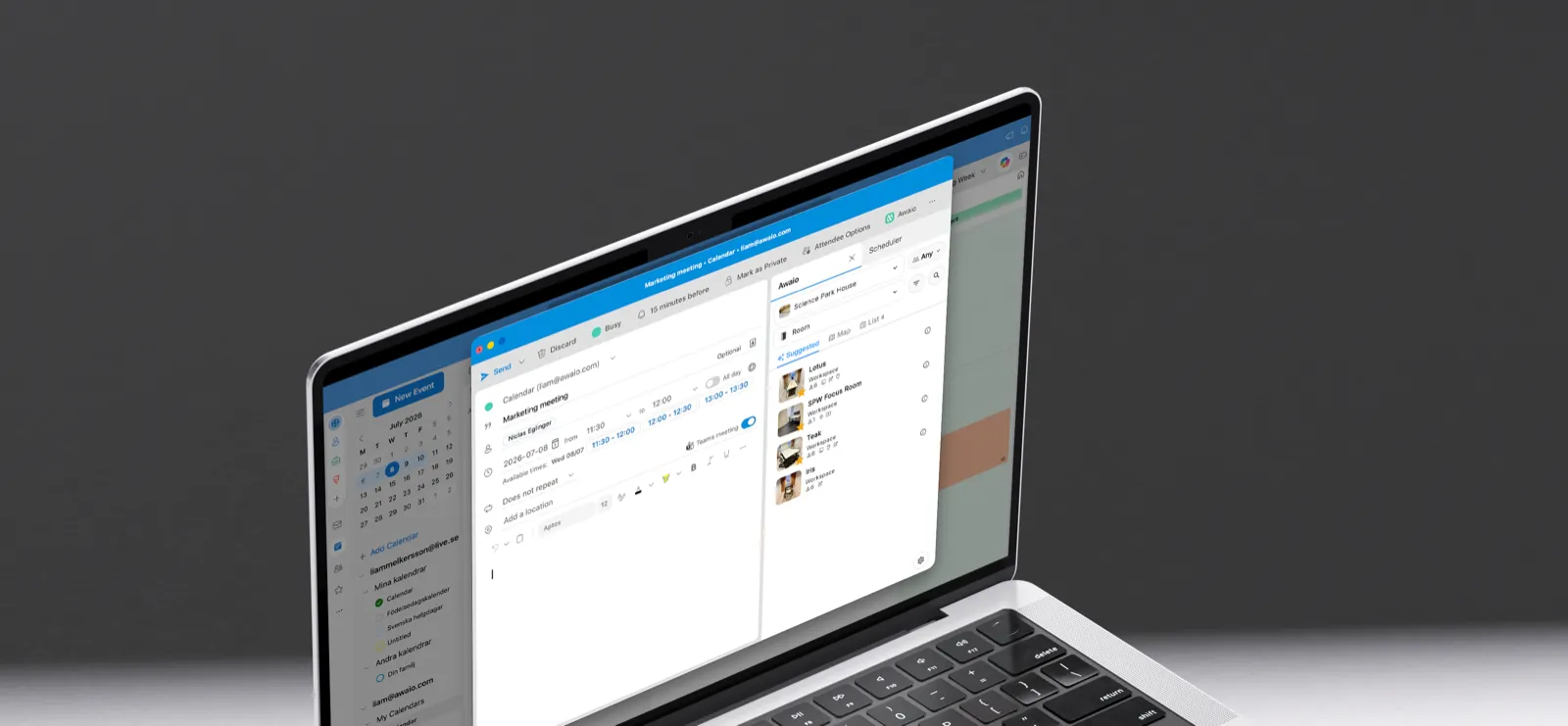
When someone opens or organizes a meeting in Outlook, an Awaio Workplace button now sits right in the ribbon. Clicking it opens a task pane next to the event, with every meeting room searchable by map or list.

The pane already knows the meeting time and attendee count, so it leads with suggested rooms that actually fit. Pick one, and it's added to the invite without touching the calendar. Need a desk for the day or a parking spot on your way in? Those are booked from the same pane, just a tab away.
Why it matters
Every extra click between "I need a room" and "I have a room" is a chance for someone to give up and take a call at their desk instead. Putting booking inside the tool people already have open removes that friction for the whole organization, not just the people who remembered to open the Awaio app.
For the person booking, the add-in comes down to three things:
- Fast, relevant suggestions. The pane already knows the meeting time and attendee count, so it leads with rooms that actually fit — no browsing a list of rooms too small or too far away.
- Richer information per room. Every resource carries photos, location details, floor guides, and a way to report a fault — right there in the booking flow, not in a separate app you have to remember exists.
- Wayfinding for large sites. On bigger campuses with hundreds of rooms across multiple buildings and floors, knowing a room is free is only half the problem. The add-in helps people actually find it.
One booking experience, even across separate Microsoft tenants
The add-in matters most where a single Microsoft 365 tenant doesn't map neatly to a single organization.
Think of a shared campus with hundreds of independent companies, each running its own Microsoft tenant, all pulling from the same pool of meeting rooms. Or a large enterprise group where different subsidiaries — often after an acquisition or a spin-off — end up on entirely separate Microsoft environments, even though they share the same buildings and the same rooms.
Microsoft doesn't solve room booking across tenants like that: a company on one tenant simply can't book a room that belongs to another tenant's Microsoft environment, even if they're on the same floor. Awaio does. The Booking Engine sits underneath all of it, so every company and every tenant gets the same "book it from Outlook" experience for the same shared resources — no workarounds, no separate system to log into.
Now Microsoft-verified on Microsoft Marketplace
The add-in has passed Microsoft's validation and is published on Microsoft Marketplace. That changes two things for the better.
Installing it is no longer a sideload. There's no manifest XML to download and upload as a custom app — an IT admin deploys Awaio from the Admin Center the same way they'd deploy any other Microsoft 365 app, and Microsoft handles updates from there.
And it's been reviewed. Microsoft has vetted the add-in's code, permissions, and privacy handling against its store requirements, so security teams evaluating it aren't taking a vendor's word for what it does.
Install it for your organization
The add-in is deployed centrally by an IT admin through the Microsoft 365 Admin Center. You'll need Global Administrator or Application Administrator access to your Microsoft 365 tenant.
- In the Microsoft 365 Admin Center, go to Settings → Integrated apps.
- Click Get apps and search for Awaio.
- Click Get it now on the Awaio listing.
- Under Assign users, choose Entire organization, or pick a group to pilot it first.
- Review the requested permissions and accept them.
- Finish the remaining steps. Microsoft 365 pushes the add-in to Outlook within a few hours.
Users can also find it themselves — in Outlook, under Get Add-ins, search for Awaio. If your tenant restricts who can add apps, Outlook shows a Request button instead, and the request goes to your Microsoft 365 or Entra admin to approve. Adding the Awaio add-in in Outlook walks through that side of it.
For the full walkthrough, see Installing the Awaio Outlook add-in for IT admins, Adding the Awaio add-in in Outlook for people adding it to their own Outlook, and Booking resources from Outlook with the Awaio add-in for how to book a first resource.
Want to see it running against your own office before rolling it out? Get in touch and we'll set up a walkthrough.