

Overview
Billboards are cards that appear on the home screen of the Awaio workplace app. Use them to broadcast announcements, reminders, and information to your community members. Each billboard is created from a template and can be customised with text, images, colours, an action button, and a scheduled display window before being published.
Navigate to Billboards
- Sign in to the Admin Portal.
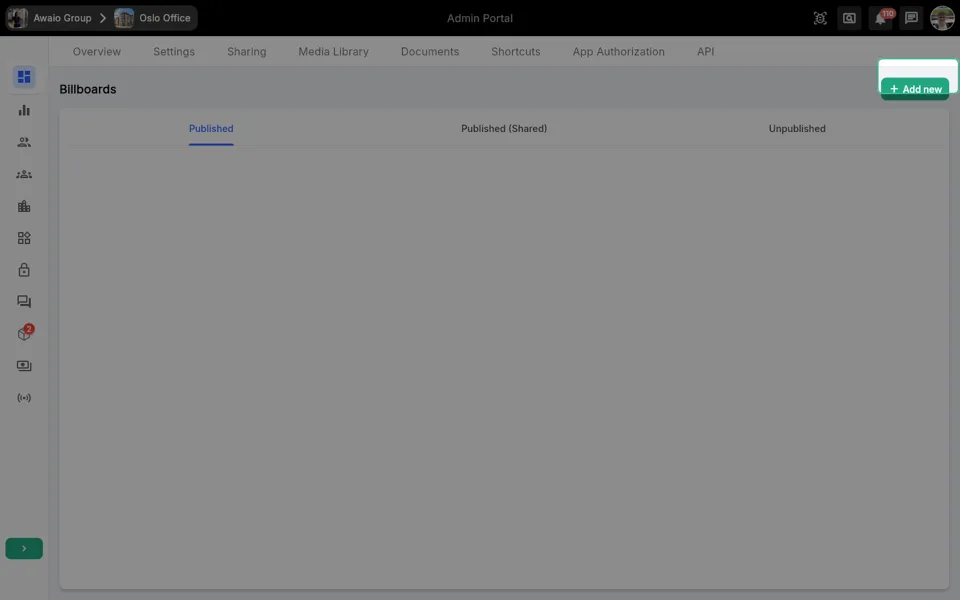
- In the left navigation, click the Billboards icon to open the Billboards page.
- Use the three tabs — Published, Published (Shared), and Unpublished — to review existing billboards by status.
Create a new billboard
- On the Billboards page, click + Add new in the top-right corner.
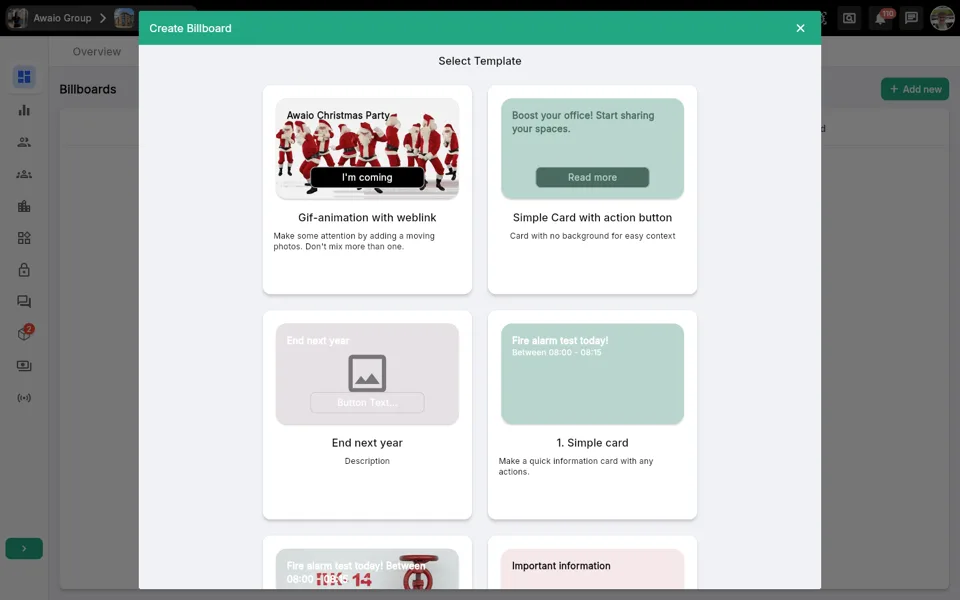
- The Create Billboard dialog opens, showing the Select Template screen.
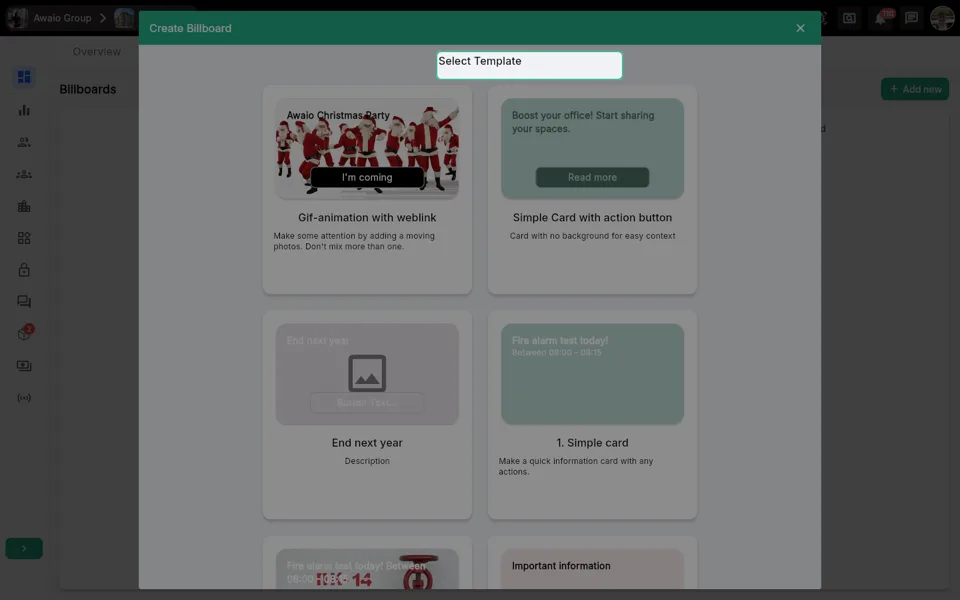
- Browse the available templates. Each template shows a visual preview along with a name and short description.
- Click the template you want to base your billboard on.
Edit card content
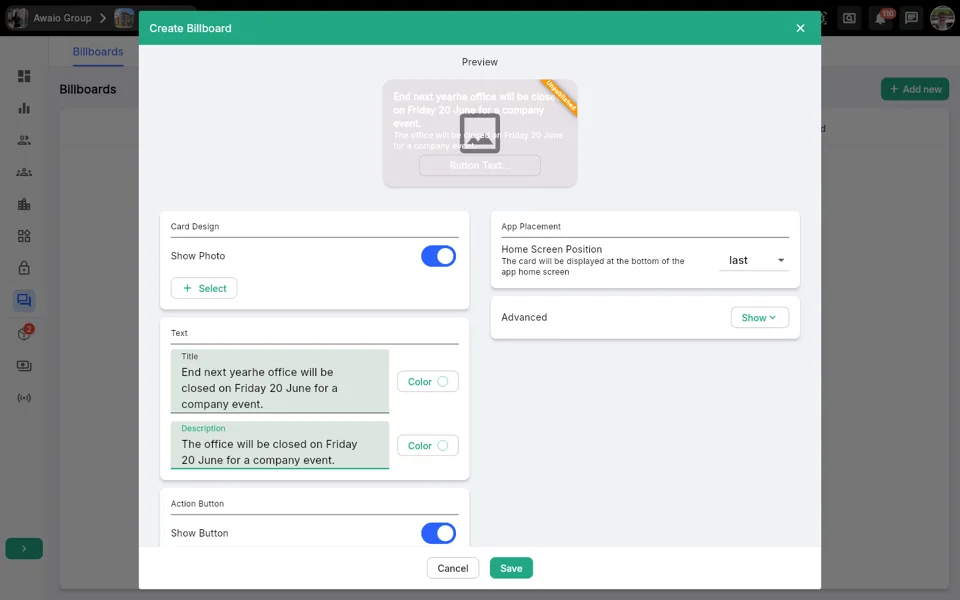
After selecting a template, the Create Billboard editor opens with a live Preview at the top.
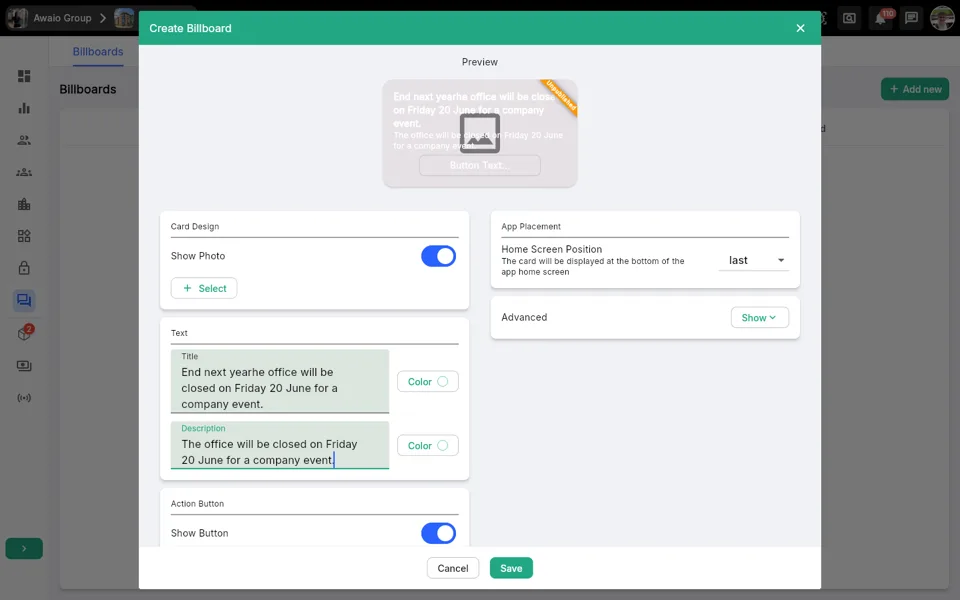
- Under Card Design, toggle Show Photo on or off.
- If enabled, click + Select to add an image from your Media Library or upload a file from your device.
- If disabled, use the Background color picker to set a solid background colour.
- Under Text, enter a Title (required) and an optional Description. Use the Color button next to each field to set the text colour independently.
- Under Action Button, toggle Show Button on or off. If enabled, configure the button label, colour, and link target.
Configure app placement
- In the App Placement panel on the right, locate Home Screen Position.
- Use the dropdown to choose where the billboard appears in the app home screen:
- first — displayed at the top of the home screen.
- center — displayed in the middle of the home screen.
- last — displayed at the bottom of the home screen.
- To set a display schedule, click Show next to Advanced and configure the Show from and Do not show after date and time fields. Toggle either field to Always if no time limit is needed.
Save and publish
- Click Save to save the billboard as unpublished. It will appear on the Unpublished tab.
- To publish, open the billboard from the Unpublished tab and click the Publish button.
- In the Publish Billboard dialog, optionally check Notify community members to send a push notification when the billboard goes live.
- Click Publish to confirm. The billboard moves to the Published tab and becomes visible to app users immediately.
Tips
- A billboard marked Unpublished is only visible to admins — it will not appear in the app until explicitly published.
- The Published (Shared) tab displays billboards that originate from another community but have been shared with yours.
- Use the Do not show after schedule to automatically retire time-sensitive announcements without manual intervention.
- Keep titles concise — they are the most prominent text on the card in the app.
- You can edit a published billboard at any time; changes take effect immediately without needing to republish.