

Regular firmware updates ensure smart locks remain secure, reliable, and compatible with the latest app and system features. Updates typically include security patches, performance improvements, and bug fixes that prevent connectivity issues and extend device lifespan.
Before you begin
- You must be logged in with an admin account with access to the correct Community and Resources.
- The cluster and its locks must be online with sufficient battery.
Step-by-step instructions
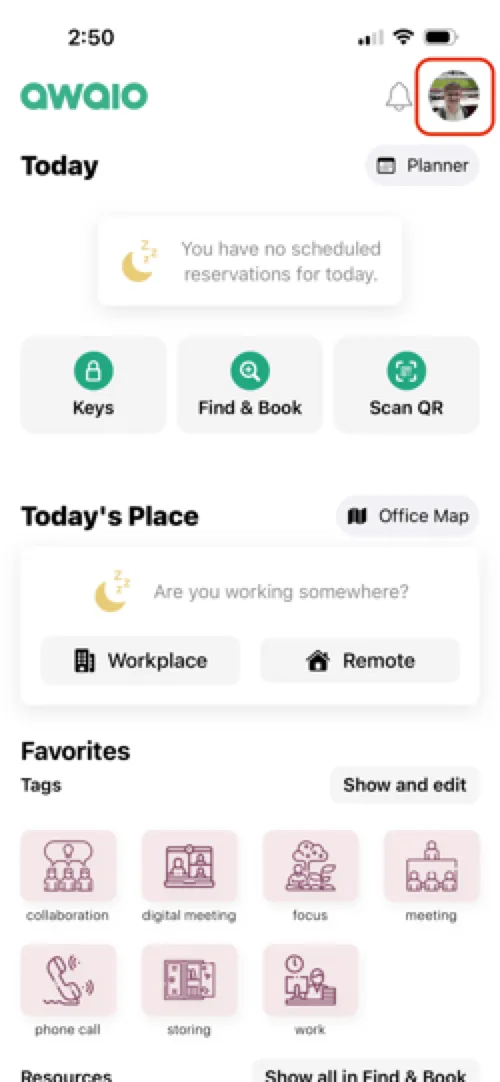
Step 1: Open the Awaio app
Tap your profile in the top-right corner.
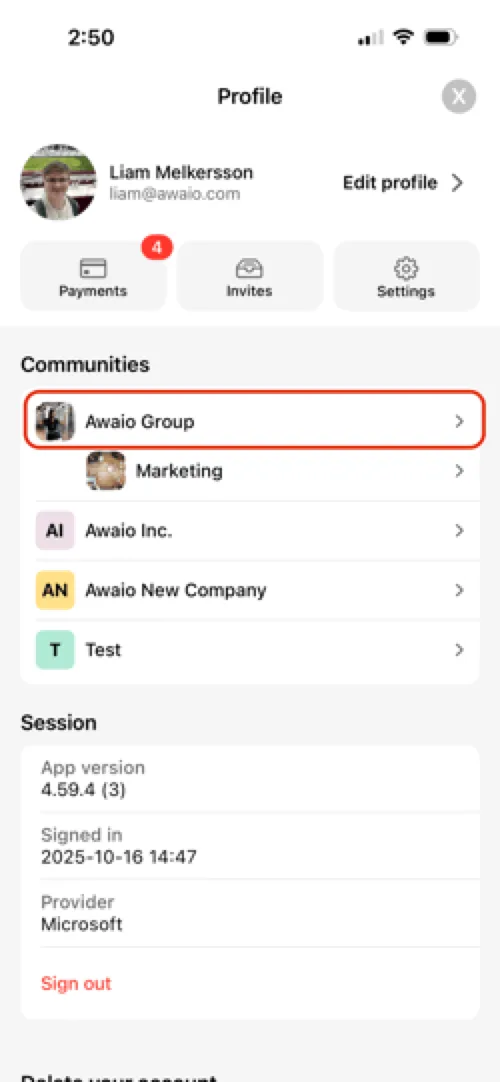
Step 2: Select your community
Under the Communities tab, choose your Community (typically your company name).
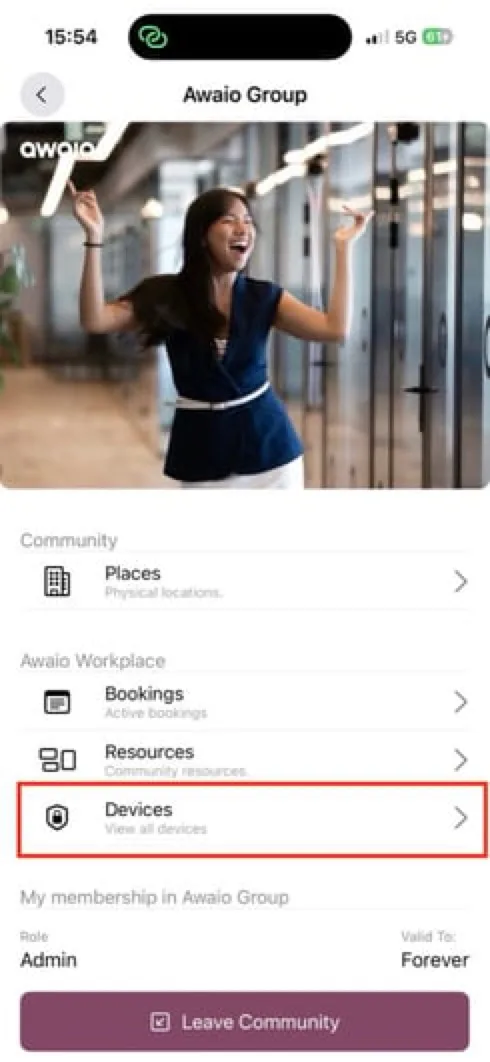
Step 3: Go to Devices
Tap Devices to view available clusters.
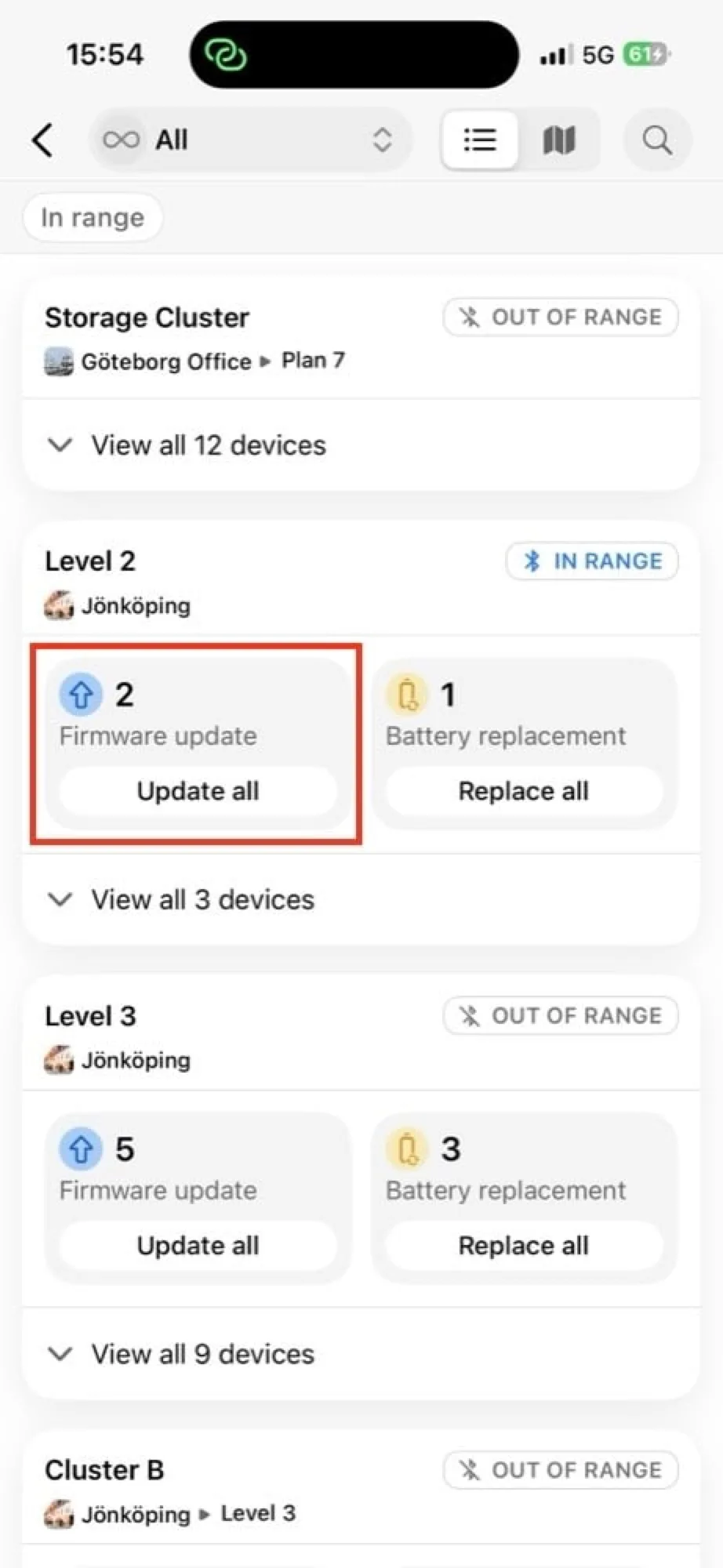
Step 4: Choose a cluster, area, or floor
Find the cluster you want to update and tap the Update all button.
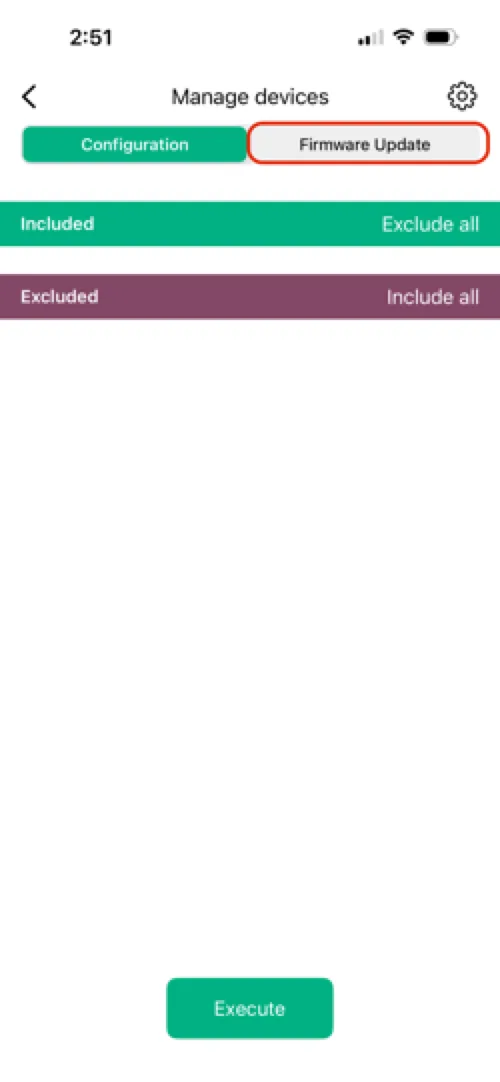
Step 5: Open the Firmware Update tab
Select the Firmware Update tab at the top of the cluster view.
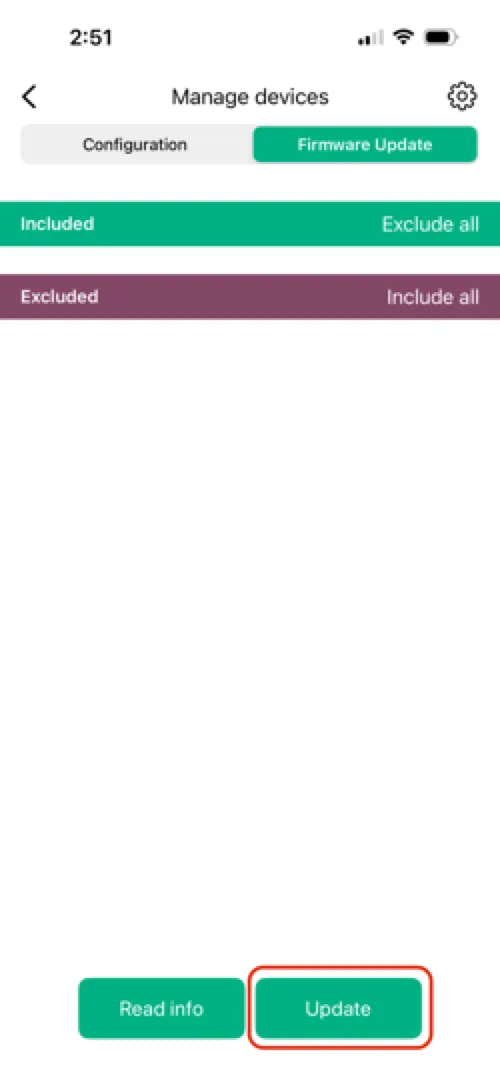
Step 6: Start the update
Press Update at the bottom of the page.
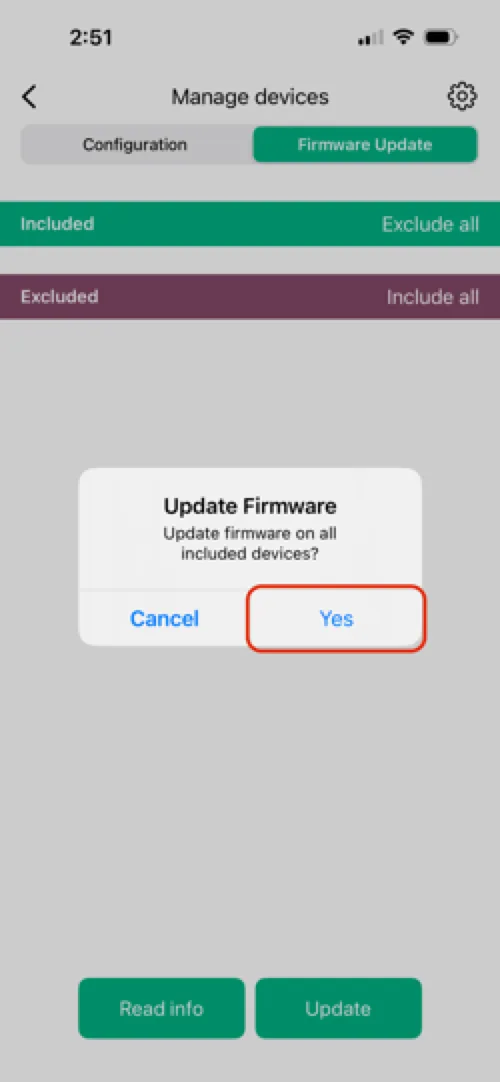
Step 7: Confirm the update
Click Yes when prompted to confirm the cluster update.
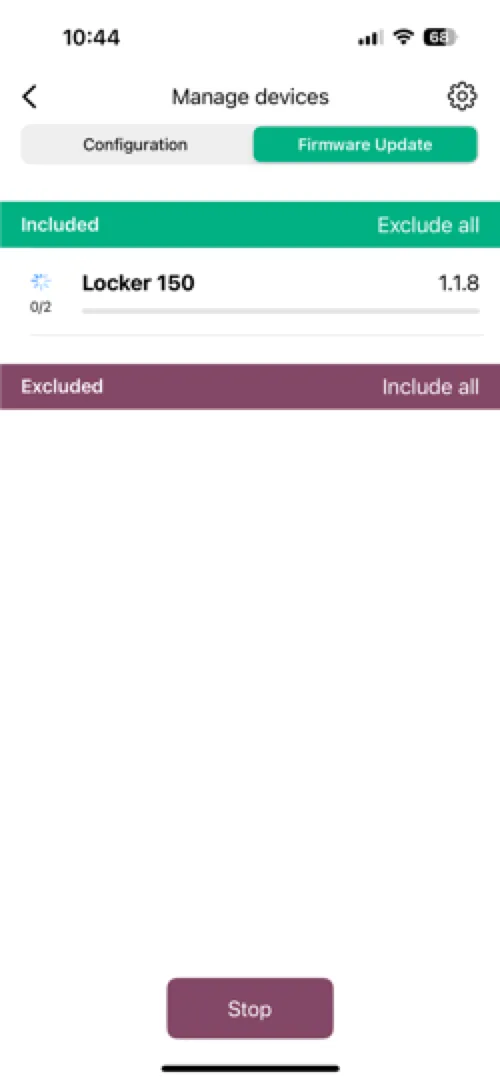
Step 8: Monitor the process
The system updates five locks at a time. Wait until all locks show as updated.
Step 9: Sync updated data
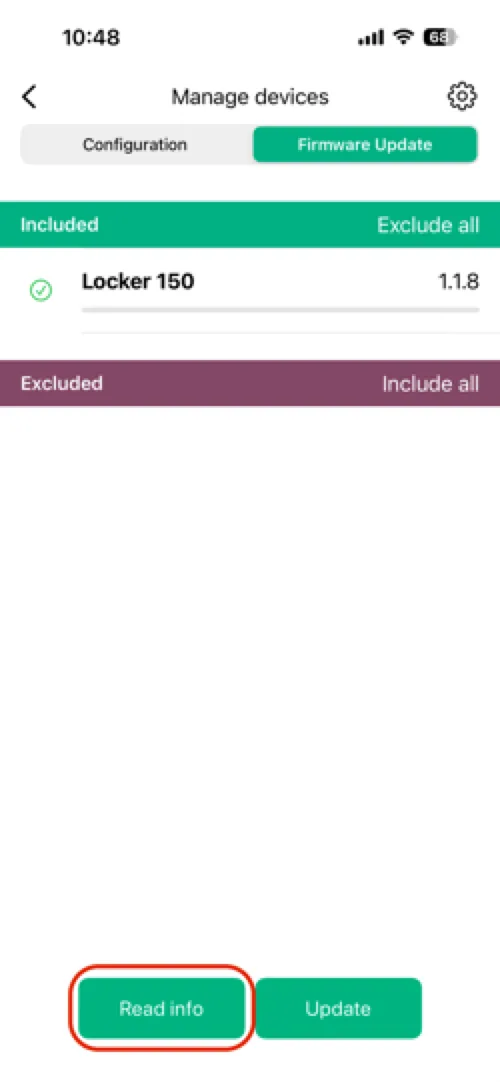
Click Read Info to send the new firmware data to your admin portal.
If something goes wrong
Locks don't start updating:
- Check the network connection and lock battery levels, then retry the update.
A lock fails during the update:
- Check its connection and battery, then retry for that lock.
Cluster remains unresponsive:
- Gather the cluster name/ID, affected lock IDs, timestamp, and any error messages, then contact Support.
If you have further questions, feel free to contact us via our website chat (awaio.com) or email us at support@awaio.com.