

This guide explains how administrators can open all lockers in a cluster at once.
Note: Only administrators with verified access can perform a bulk locker opening. If you do not have admin permissions, contact your system owner or admin.
Steps
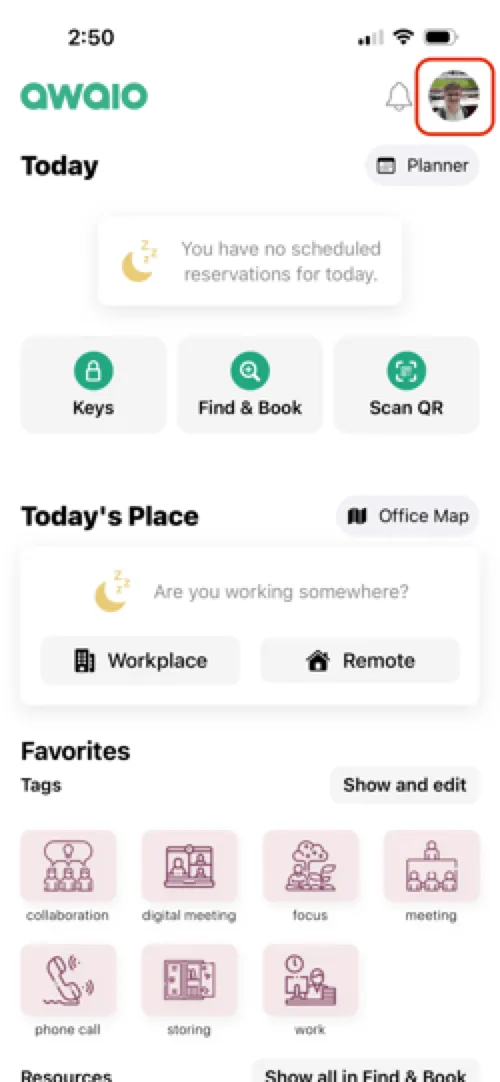
Step 1: Tap your profile picture in the top-right corner of the homescreen.
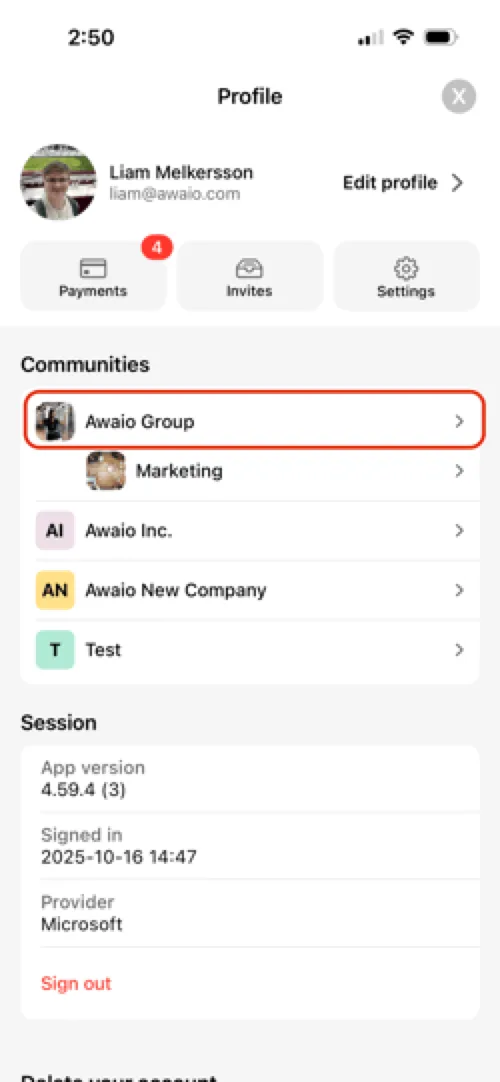
Step 2: Under Communities, select your community (often your company name).
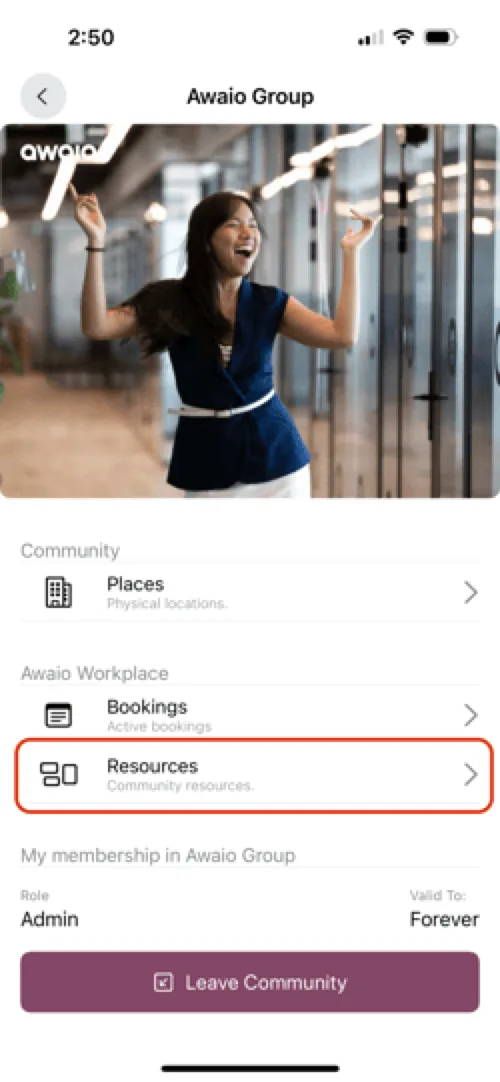
Step 3: Tap Resources to view your available clusters.
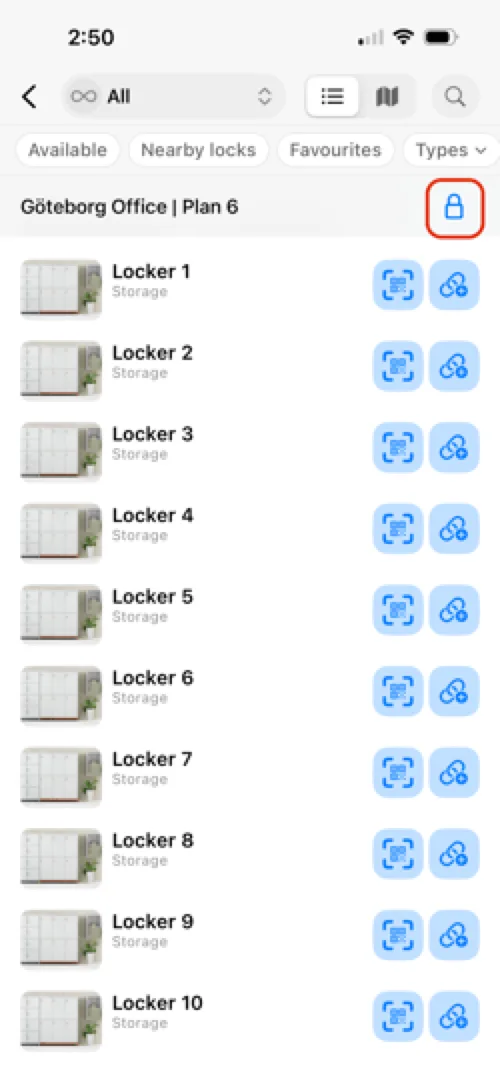
Step 4: Find the cluster you want to open and tap the blue lock icon in the top-right corner.
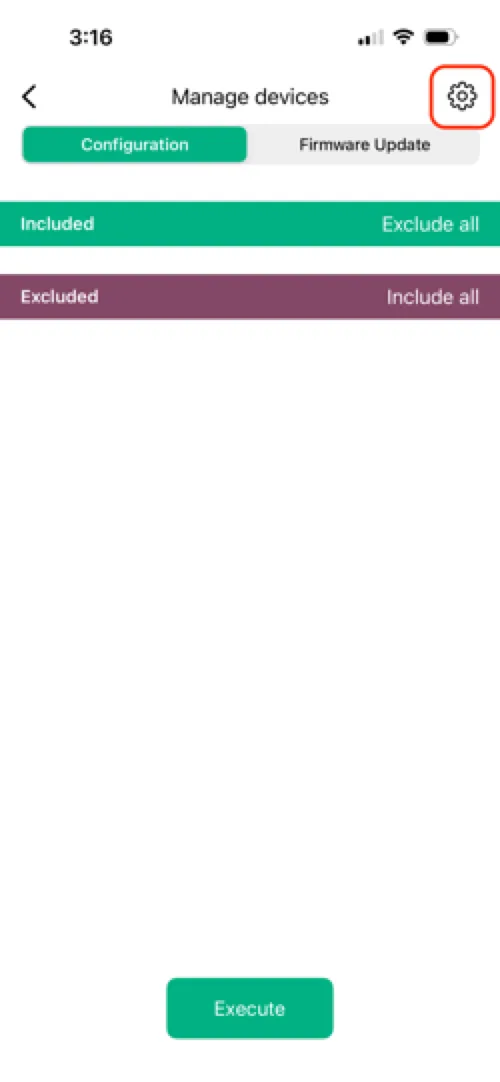
Step 5: On the Manage devices screen, tap the settings icon in the top-right corner.
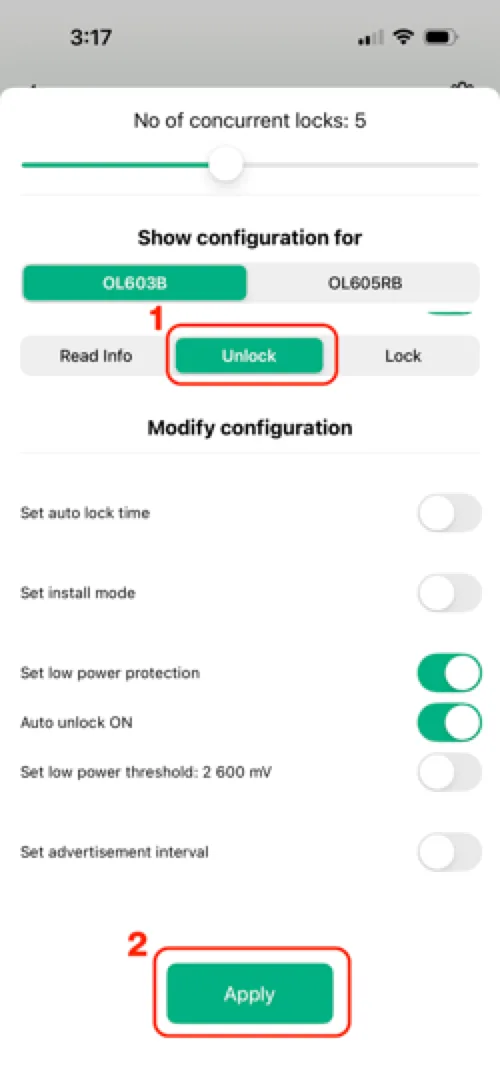
Step 6: Select Unlock, then tap Apply.
Step 7: Tap Execute to open all lockers in the cluster.
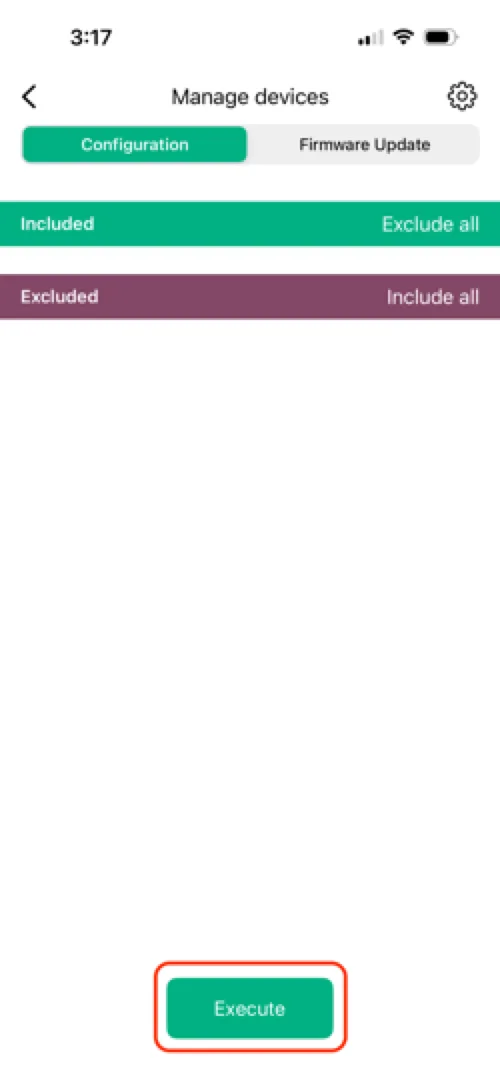
All lockers in the selected cluster will now be opened.
If you have further questions, feel free to contact us via our website chat (awaio.com) or email us at support@awaio.com.