

Overview
Every person in Awaio exists as a user record, but what that person can actually see and do is determined by a combination of three things: their role type, any admin roles layered on top, and the teams they belong to. A fourth dimension — validity windows — controls when that access is in effect. Understanding how these four concepts interact is the key to managing your workspace confidently.
The three role types
Every user in a community is assigned exactly one role type. Think of this as the base layer of permissions.
- User — A standard member of the community. Users can book resources, view the community, and interact with features according to what the community makes available to them. This is the right choice for the vast majority of employees and permanent members.
- Guest — A person with limited, time-bound access. Guests typically cannot see or do as much as full users, making this role type appropriate for visitors, contractors, or anyone who should experience a more restricted view of the workspace.
- Admin — A community administrator. Assigning someone the Admin role type alone does not automatically grant broad permissions; the specific areas they can administer are controlled separately through admin roles (covered below). In practice, giving someone the Admin role type is the prerequisite for granting any administrative capability.
Example — a 3-month contract receptionist: You hire a receptionist on a fixed-term contract. The right starting point is the User role type, not Admin. The receptionist needs to use the space like any employee. If they also need to manage deliveries, you can layer on the Deliveries admin role (see below), scoped to their contract period using a validity window.
Admin roles: fine-grained administrative permissions
When someone has the Admin role type, you can then assign them one or more admin roles. Each admin role unlocks a specific area of the Admin Portal. This approach means you can give a facilities manager access to locks and resources without also giving them access to billing or user management.
The available admin roles, and what each one governs, are:
| Admin role | What it controls |
|---|---|
| Billboard | Manage billboards displayed on screens |
| Billing | Payments, payment providers, and pricings |
| Bookings | Administer bookings and booking rules |
| Booking Quotas | Manage booking quota settings |
| Community | Modify community settings |
| Deliveries | Manage incoming deliveries |
| Events | Administer events and happenings |
| Forms | Administer forms |
| Locks | Manage smart locks |
| Members | Administer users in the community |
| Places | Administer places |
| Products | Administer products |
| Reports | View reports and analytics |
| Resources | Administer bookable resources |
| Sensors | Administer sensors |
| Teams | Administer teams |
| User Quotas | Manage user quota settings |
| Super Admin | Full access to everything within the community |
Super Admin is deliberately the highest tier. It is equivalent to granting all admin roles simultaneously and should be reserved for workspace managers or IT administrators who genuinely need unrestricted access. For everyone else, grant only the admin roles their responsibilities require.
Example — a facilities admin who needs Locks and Resources only: Create this person with the Admin role type, then assign only the Locks and Resources admin roles. They can manage smart locks and bookable resources but cannot access billing, user management, reports, or any other area. If their scope expands later, you add admin roles incrementally rather than escalating to Super Admin.
How status is derived
The Status column in the Users list is not something you set manually. It is computed automatically from the state of a user's role record.
There are four possible statuses:
- Active — The role exists, is not disabled, and the current date falls within any validity window that has been set (or no window has been set, meaning it is unlimited). This is the normal operational state.
- Inactive — The role has been explicitly disabled. The user record still exists and the role is still associated with the community, but the person cannot use their access. Disabling is reversible.
- Scheduled — A
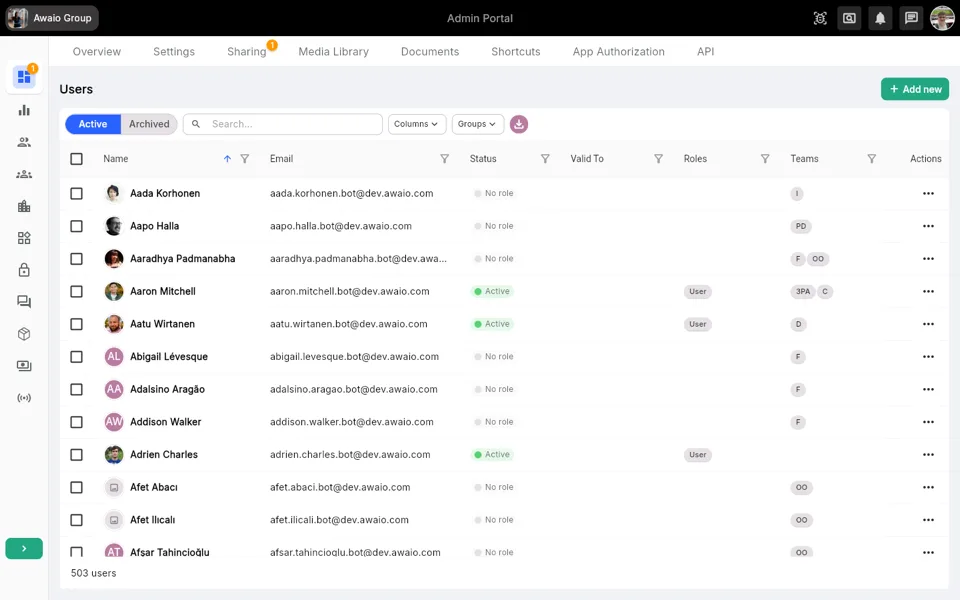
Valid Fromdate has been set and that date is still in the future. The role exists but has not yet come into effect. You will see this when you set up access in advance of a start date. - No role — The user exists in Awaio but has no role record in the currently selected community. They may have been added to the system (for example, through another community or through a team) without ever receiving a community role. The users Aada Korhonen, Aapo Halla, and others visible in the screenshot above illustrate this: they appear in the Users list but show No role because they have not been given a role in the currently active community.
Understanding this distinction matters because No role is not the same as Inactive. An Inactive user had a role that was turned off; a No-role user never had one in this community at all. If you expect someone to be Active but they show No role, the most likely explanation is that they were invited to a different community or were added via a team that sits in a different community scope.
Time-boxed access: Valid From and Valid To
Both fields are optional. When neither is set, access is unlimited in time. When one or both are set, Awaio evaluates them continuously to derive the user's status.
- Valid From sets the earliest moment the role becomes active. Until that date arrives, the status shows as Scheduled.
- Valid To sets the expiry date. Once that date passes, the role is effectively expired (it does not automatically delete the user, but their access no longer works).
Example — a guest visitor with a 1-day access window: Invite the person as a Guest role type. Set Valid From to the morning of their visit and Valid To to the end of that same day. Until the start time arrives the status reads Scheduled; during the visit it reads Active; after midnight it is effectively expired. You do not need to remember to revoke access manually.
Time-boxing works equally well for long-horizon cases. A consultant joining for six months gets a User role with a Valid To date six months out. No administrative action is required when the engagement ends.
Employee and Consultant flags
Beyond role type, a role record can carry employee and consultant flags. These are not separate role types — they sit alongside the role type as descriptive attributes. They allow you to distinguish workforce categories within the same role type. For example, both a permanent employee and an external consultant might hold the User role type, but tagging them differently lets you filter, report on, and apply policies to each group separately. Use these flags to reflect the contractual relationship rather than to control access directly.
Disabling versus archiving
These two operations are often confused but serve different purposes.
Disabling a role is a soft, reversible action. The role record remains; the user's status flips to Inactive. You might disable a role when someone is on extended leave, under review, or temporarily needs their access suspended. Re-enabling restores them to Active immediately.
Archiving a user moves them out of the Active list entirely and into the Archived view (visible via the toggle at the top of the Users list). Archiving is appropriate when someone has permanently left and you want to keep their historical record — bookings, deliveries, and activity logs — without them appearing in day-to-day administration. An archived user cannot use their access. Archiving can also happen automatically when a Valid To date passes, if auto-archive is enabled on that role.
The practical rule: disable for temporary situations, archive for permanent departures.
Teams and how they relate to roles
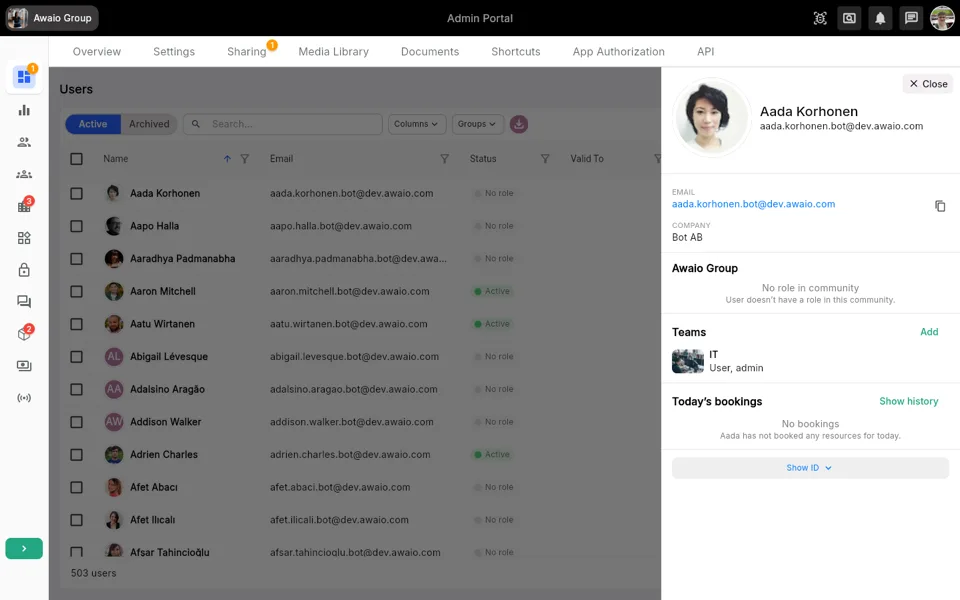
Teams are sub-communities within your organisation. A user can belong to one or more teams, each with their own role assignment. This means a person can have the User role type in the top-level community and the admin role in a specific team — as shown in the details drawer screenshot above, where a user has the roles "User, admin" within the IT team.
Teams allow you to model departmental or project structures without duplicating communities. Common uses include:
- Giving a team lead administrative control over their own team's resources and members, without community-wide Admin access.
- Restricting certain resources (meeting rooms, equipment) so that only members of a specific team can book them.
- Applying different booking quotas to different teams within the same community.
A user's team memberships are visible in both the Teams column of the Users list and in the Teams section of their details drawer. You can add a user to a team directly from the details drawer by selecting Add next to the Teams heading.
Example — a facilities admin revisited: The facilities admin described earlier holds the Admin role type at the community level with Locks and Resources admin roles. They are also a member of the Facilities team, where their team role is simply User. The team membership gives them access to team-specific bookings and communications; the community admin roles give them their administrative capabilities. The two layers are independent and additive.
Putting it all together
The combinations available in Awaio are intentionally flexible. Here is a summary of the decision points for any new person you are adding:
- What is their relationship to the workspace? Permanent employee → User. Occasional visitor or short-term contractor → Guest. Someone who needs to administer part of the platform → Admin.
- Does their access have an end date? If yes, set Valid To. If their start date is in the future, set Valid From too.
- If they are an Admin, what do they specifically need to manage? Assign only the relevant admin roles. Reserve Super Admin for those who genuinely need unrestricted access.
- Should they be categorised as an employee or consultant? Set the appropriate flag so filters and reports reflect your workforce structure accurately.
- Do they belong to a team? Add them to the relevant teams. Their team role can differ from their community role.
Getting these foundations right means access is self-managing for the majority of cases: guests expire automatically, scheduled roles activate on time, and disabled roles can be re-enabled without losing historical context.
Next steps
- To add a new user or invite someone to your community, use the + Add new button on the Users page.
- To edit an existing user's role type, admin roles, or validity dates, open their details drawer from the Users list and select Edit in the community role section.
- To review which users currently have a specific admin role, use the Columns filter on the Users list to show the Agent Policies column, or filter by role in the search bar.
- To understand how booking quotas interact with user and team roles, see the article on Booking Quotas.