A TapCard is a credit-card sized NFC card and a TapDot is a small adhesive NFC sticker. Both do the same job: you link one to a resource in Awaio, mount or hand it out, and from then on a phone held against it books or opens that resource instantly — no searching through lists.
The same flow works for every resource type:
- Meeting rooms and desks — a TapDot by the door books the room on the spot.
- Doors and gates — tap to open an entry point covered by an access group.
- Lockers — tap to open an allocated or grab-and-go locker.
Before you start: you need admin access to the community the resource belongs to, an NFC-capable phone (all iPhones from iPhone 7 onwards, and most Android phones with NFC switched on in system settings), and the physical TapCard or TapDot in hand.
Link a card from the resource list
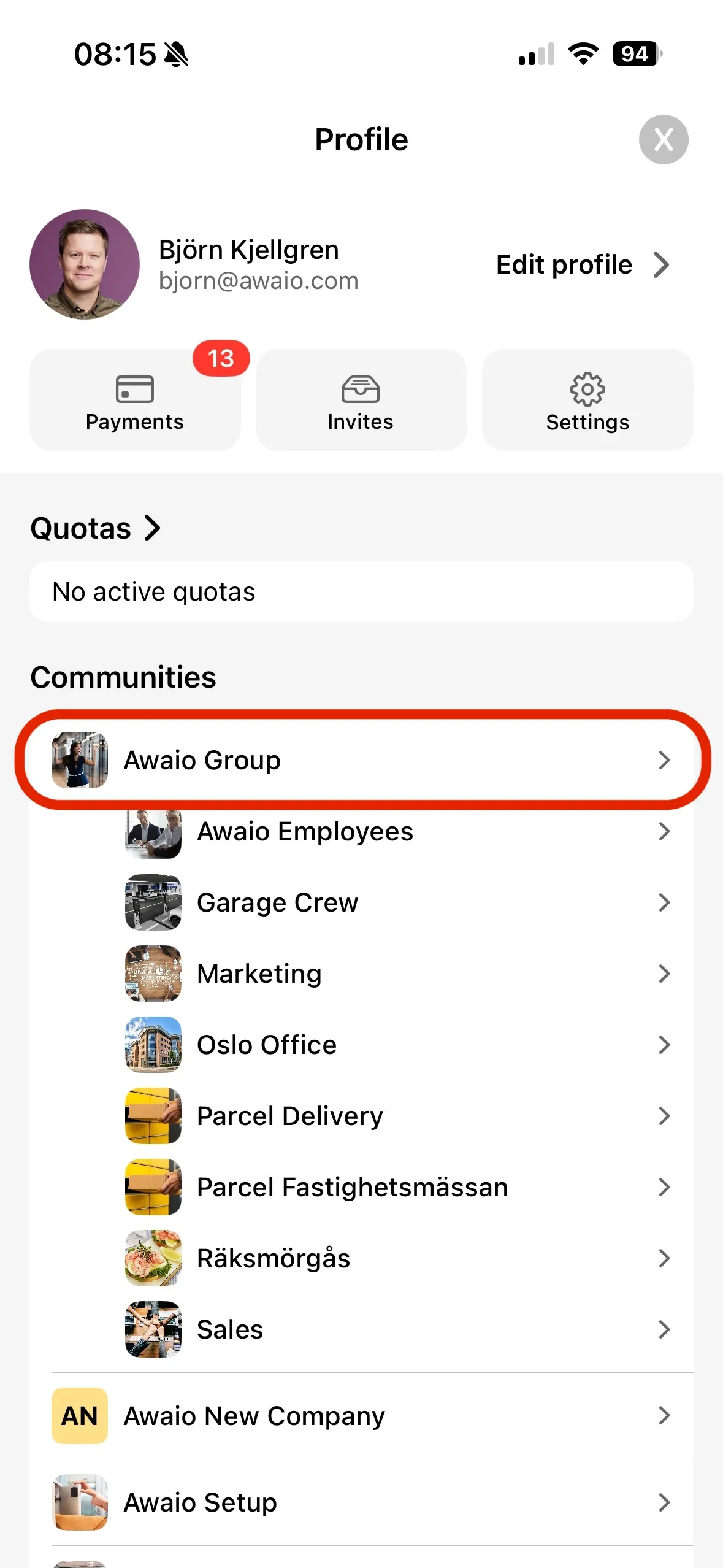
Step 1: Tap your profile picture in the top-right corner of the homescreen, then under Communities select the community that owns the resource.
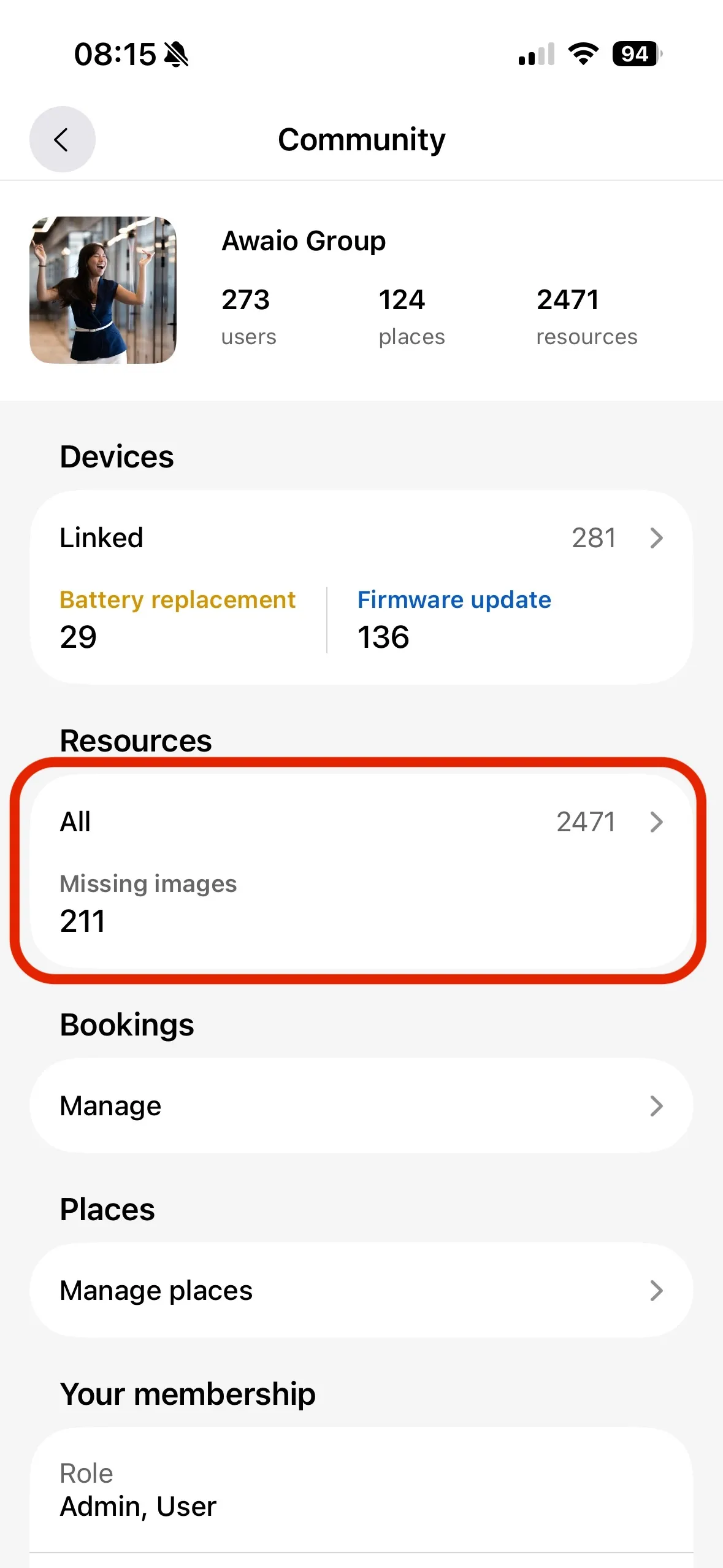
Step 2: On the community screen, tap All under Resources.
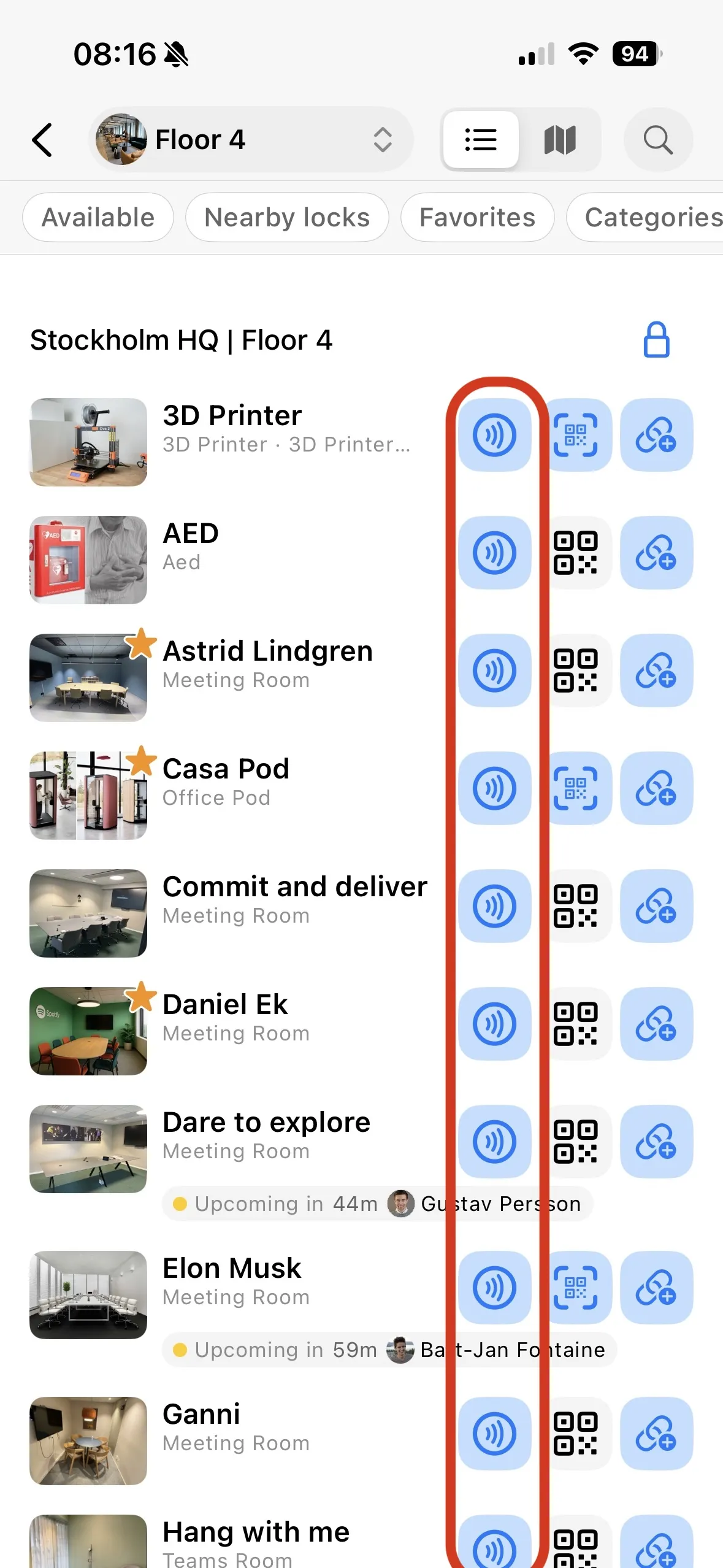
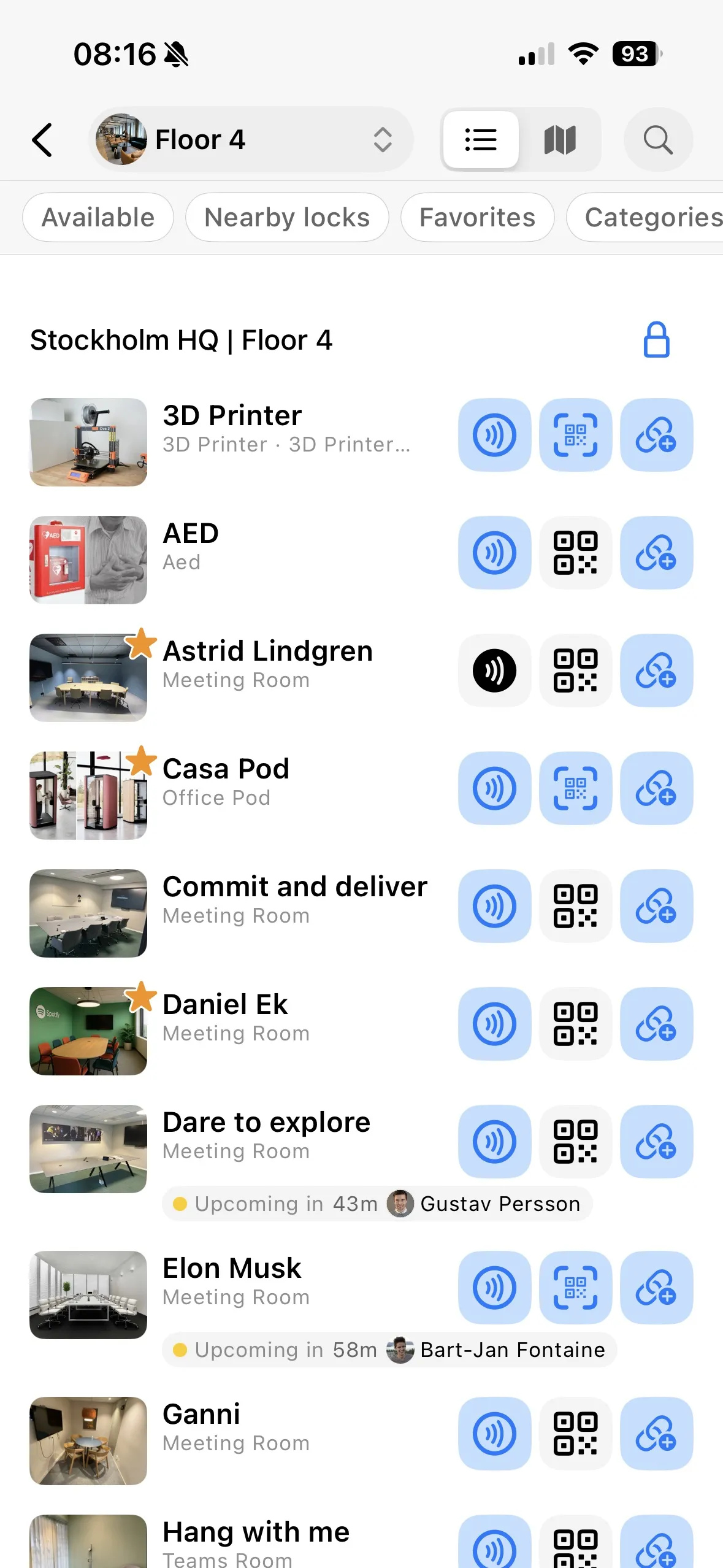
Step 3: Pick the place and floor at the top, then find the resource you want to pair. Each row has three action buttons on the right — NFC, QR, and link. Tap the NFC button (the contactless wave icon) on that row.
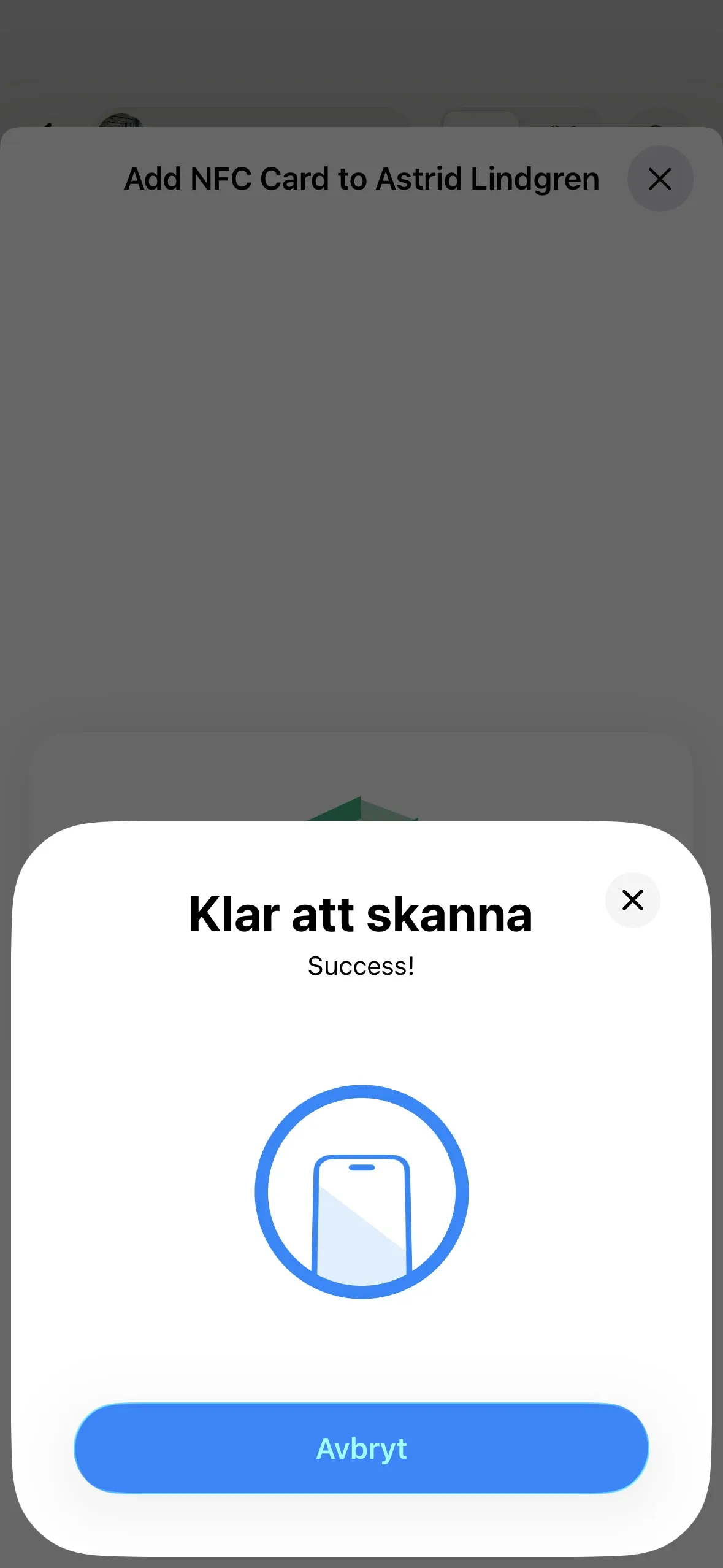
Step 4: The screen confirms which resource you are pairing — for example Add NFC Card to Astrid Lindgren — and the scan sheet opens with Hold near an Awaio card. Hold the TapCard or TapDot flat against the back of your phone, near the top edge, and keep it still.
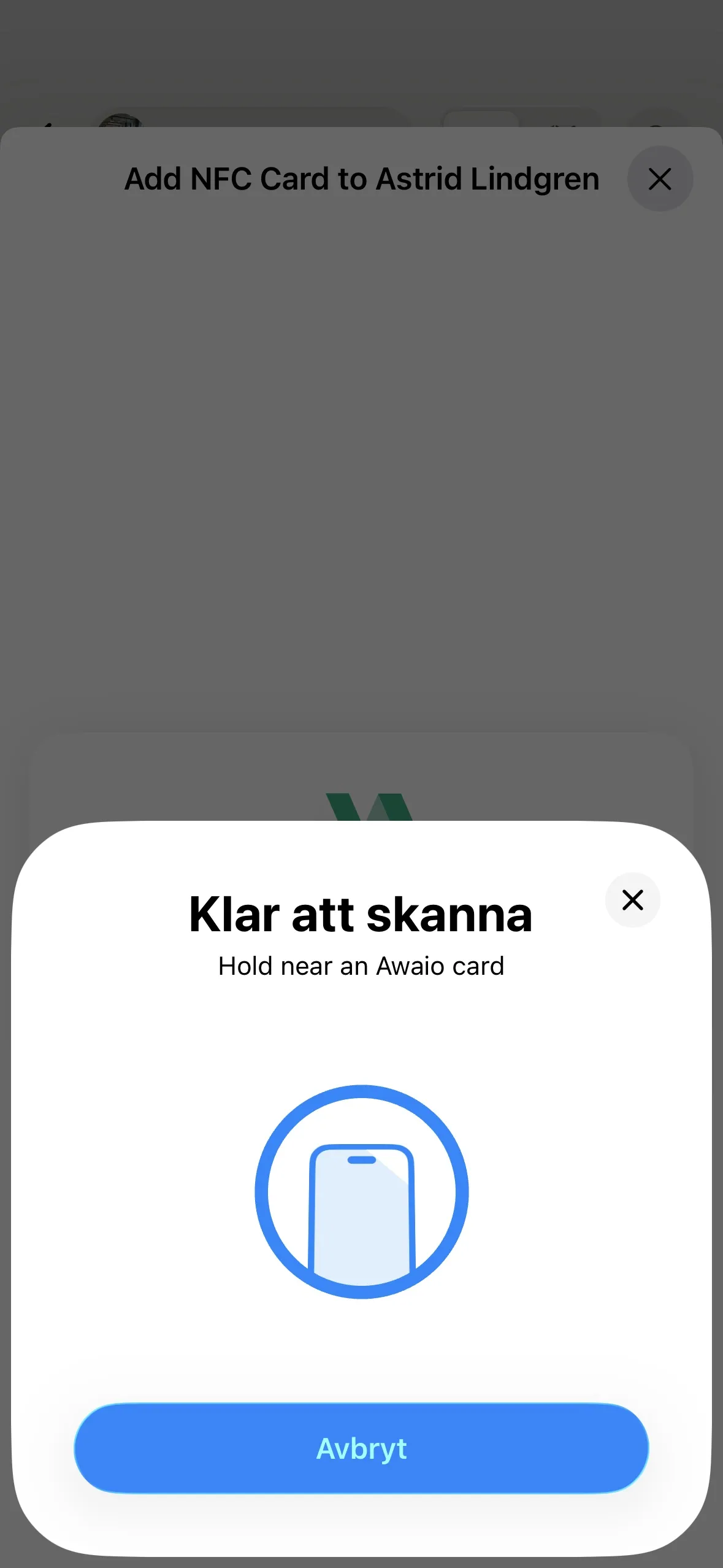
Note: The scan sheet itself is drawn by the phone's operating system, so its heading appears in your phone's language rather than the app's — a Swedish handset shows Klar att skanna, for instance.
Step 5: When the card is read, the sheet changes to Success!
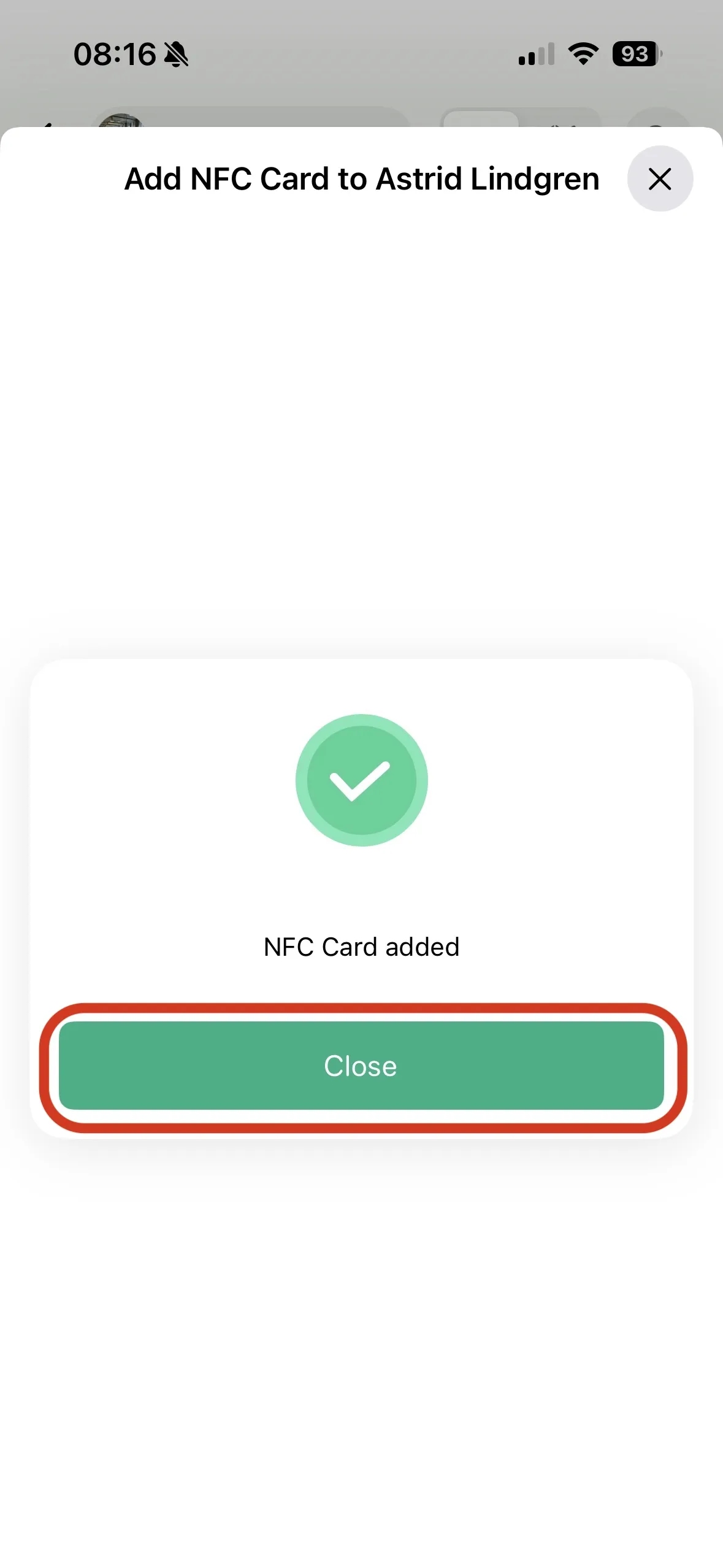
Step 6: A green confirmation appears: NFC Card added. Tap Close.
Step 7: Back in the resource list, the NFC button on that row is now dark instead of light blue. That is how you tell at a glance which resources already have a card linked and which don't.
Link a card from the map
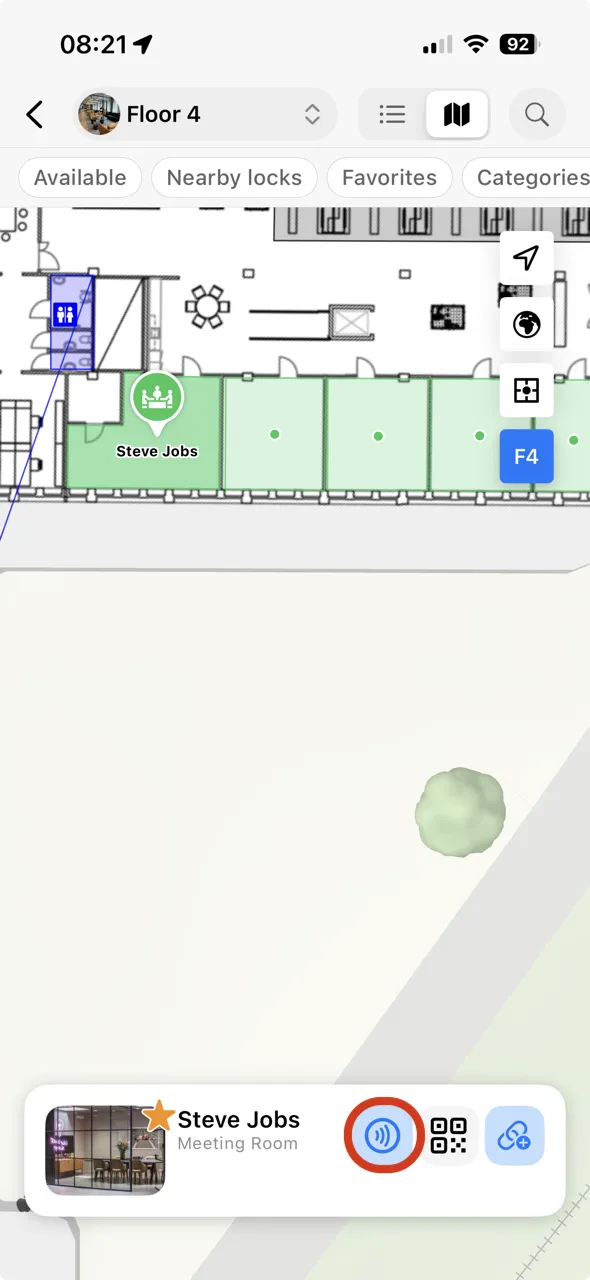
You can start the exact same flow from the office map, which is usually faster when you're pairing doors — you walk the floor, tap the door on the map where you're standing, and pair it there and then instead of hunting for its name in a long list.
Switch to the map view with the toggle at the top of the resource screen, tap the resource on the floor plan, and the card that slides up from the bottom carries the same three buttons. Tap the NFC button and continue from Step 4 above.
What happens when someone taps
Once a card is linked, anyone with the Awaio app and the right permissions can hold their phone against it. What follows depends on the resource and on that person's access:
- A free meeting room or desk is booked for them straight away.
- A door or gate opens, provided the person is a member of an active access group that includes it.
- A locker they hold, or an available grab-and-go locker, unlocks.
The tap never grants access on its own — it only points at the resource. Permissions still come from access groups, booking rules, and team membership, so a card left behind or picked up by the wrong person doesn't open anything that person couldn't already open in the app.
Troubleshooting
- Nothing is detected. The NFC antenna sits near the top of the phone on iPhones and varies by model on Android. Move the card slowly across the back of the phone and hold it still for a couple of seconds.
- The scan sheet doesn't open on Android. Check that NFC is switched on in the phone's system settings — it's off by default on some devices.
- The card is read but nothing links. Only Awaio TapCards and TapDots can be paired. Access badges from other systems are read-only to Awaio and won't work here.
- The NFC button is missing on a row. You need admin rights in that community. Check which community you selected in Step 1, and confirm your role on the community screen under Your membership.
- You paired the wrong resource. Run the flow again from the correct resource and scan the same card — a card points at one resource at a time.
If you have further questions, feel free to contact us via our website chat (awaio.com) or email us at support@awaio.com.
