Awaio locks give you complete control and visibility of battery status across every lock in your system. Unlike traditional RFID locks, the platform continuously collects battery data in the admin portal: giving you a real-time overview without manual checks.
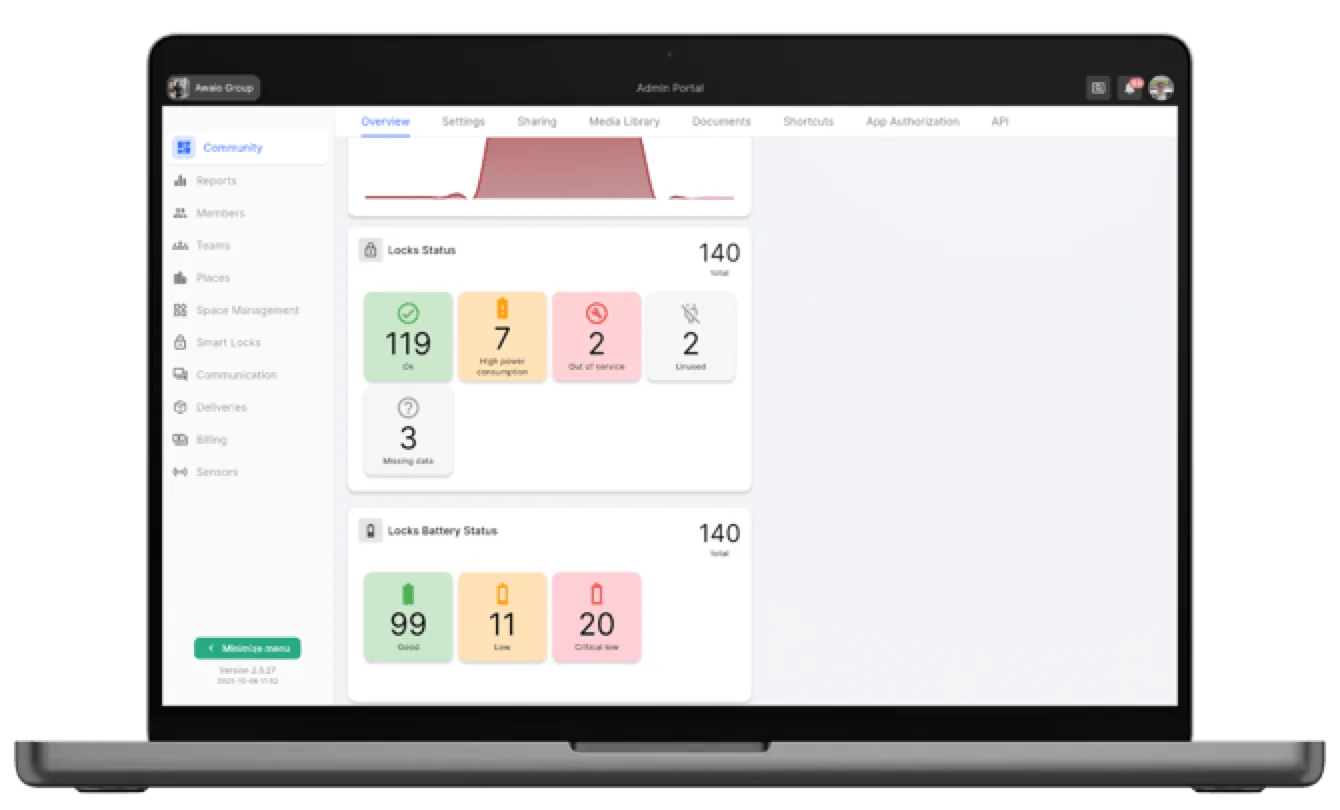
The Devices card on the Community overview summarises the whole estate: total device count, how many locks need a battery replacement, how many need a firmware update, and a red banner counting locks that auto-opened because of a critical low battery.
How it works
Smart battery monitoring
Battery data is updated automatically every time a lock is opened via the Awaio app. The information syncs instantly to the admin portal for full transparency across all your locks.
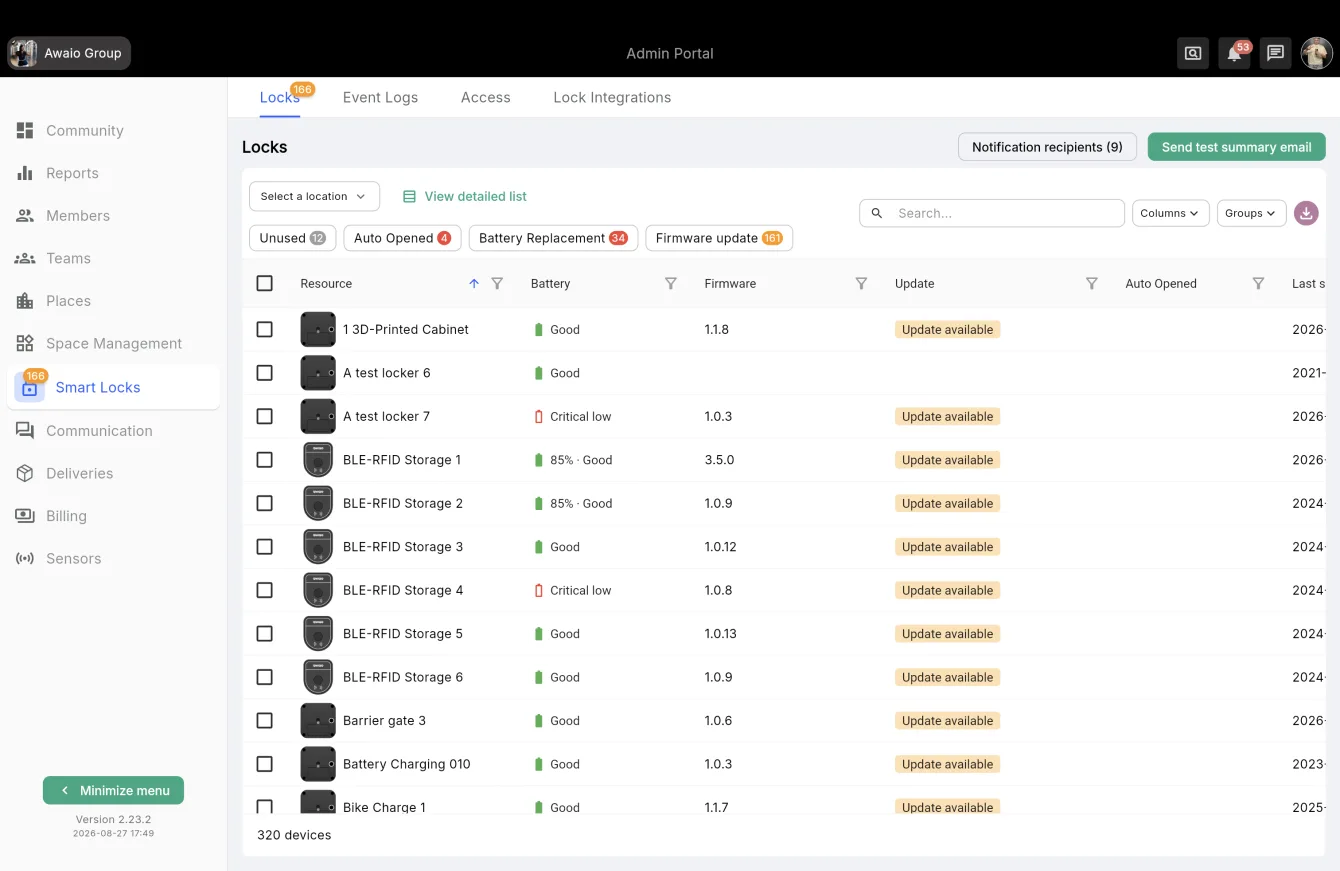
Go to Smart Locks → Locks for the per-lock view. Each row shows Battery (Good / Low / Critical low, with a percentage where the lock reports one), Firmware, Update status and Last seen. The filter chips above the table jump straight to the locks that need attention:
- Unused: locks with no recent activity
- Auto Opened: locks that unlocked themselves on critical low battery
- Battery Replacement: locks due for a new battery
- Firmware update: locks running outdated firmware
Auto-unlock: built-in safety function
When battery levels drop, the system triggers three stages to prevent lockouts:
- Warning: displayed in the Admin Portal
- Critical alert: sent via email to administrators
- Automatic unlock: triggered before voltage becomes insufficient
This eliminates forced entry and ensures no one gets locked out due to a dead battery. Every lock that reaches stage 3 is counted in the red banner on the Devices card and in the Auto Opened filter.
Monthly service summary email
Instead of checking the portal manually, let Awaio send you a monthly summary of what needs attention. The lock/device service summary email goes out on the 1st of each month and covers:
- Battery warning events
- Battery critical events
- Auto-unlock-triggered device events
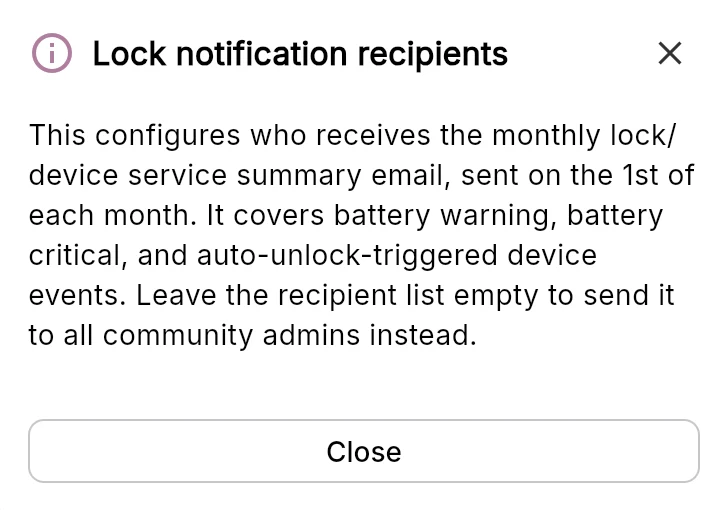
Set it up under Smart Locks → Locks:
- Click Notification recipients at the top of the Locks page.
- Add the email address of each person who should receive the summary. Leave the recipient list empty to send it to all community admins instead.
- Click Save.
- Use Send test summary email to check the setup right away, without waiting for the 1st.
This is the easiest way to keep battery maintenance on a fixed rhythm: the facility team gets one email a month listing the locks that need a battery, and nothing slips through.
Routine for unused lockers
For lockers that are rarely or never opened, battery data is not refreshed automatically. Run this check every 6 months:
- In the Admin Portal, go to Smart Locks → Locks.
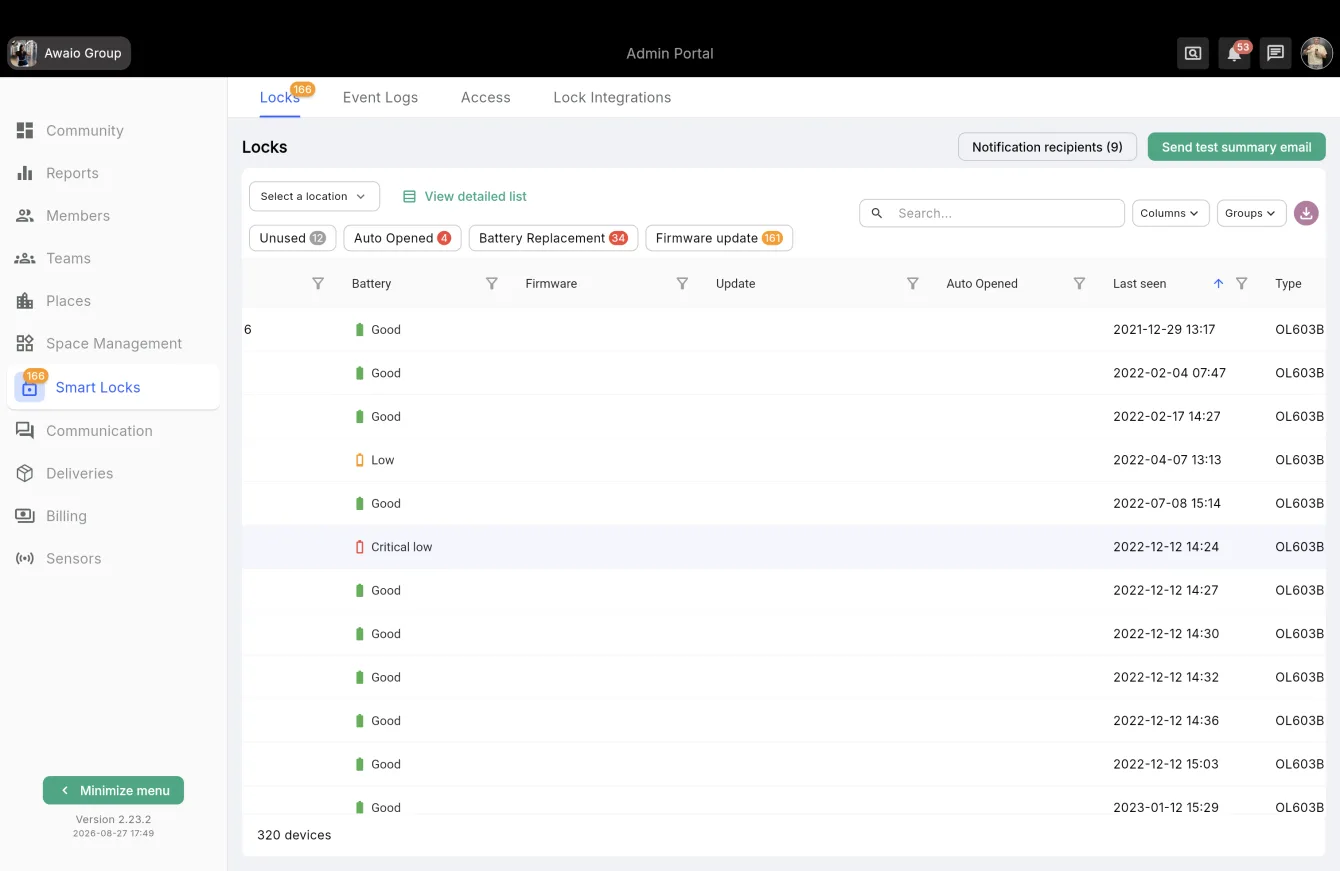
- Click the Unused chip, or sort the Last seen column ascending to put the oldest locks first.
- Open those lockers via the Awaio app to refresh battery data.
- Review the updated Battery and Last seen values in the Admin Portal.
Tip: This is also the easiest way to see which lockers are actually in use: typically around 40% of personal lockers stay unused.
After replacing a battery
Select a lock in the list to open its detail panel. It shows type, battery status, firmware version and status, last seen, MAC address and the lock ID. Once a new battery is in, click Replace battery to reset the battery status for that lock.
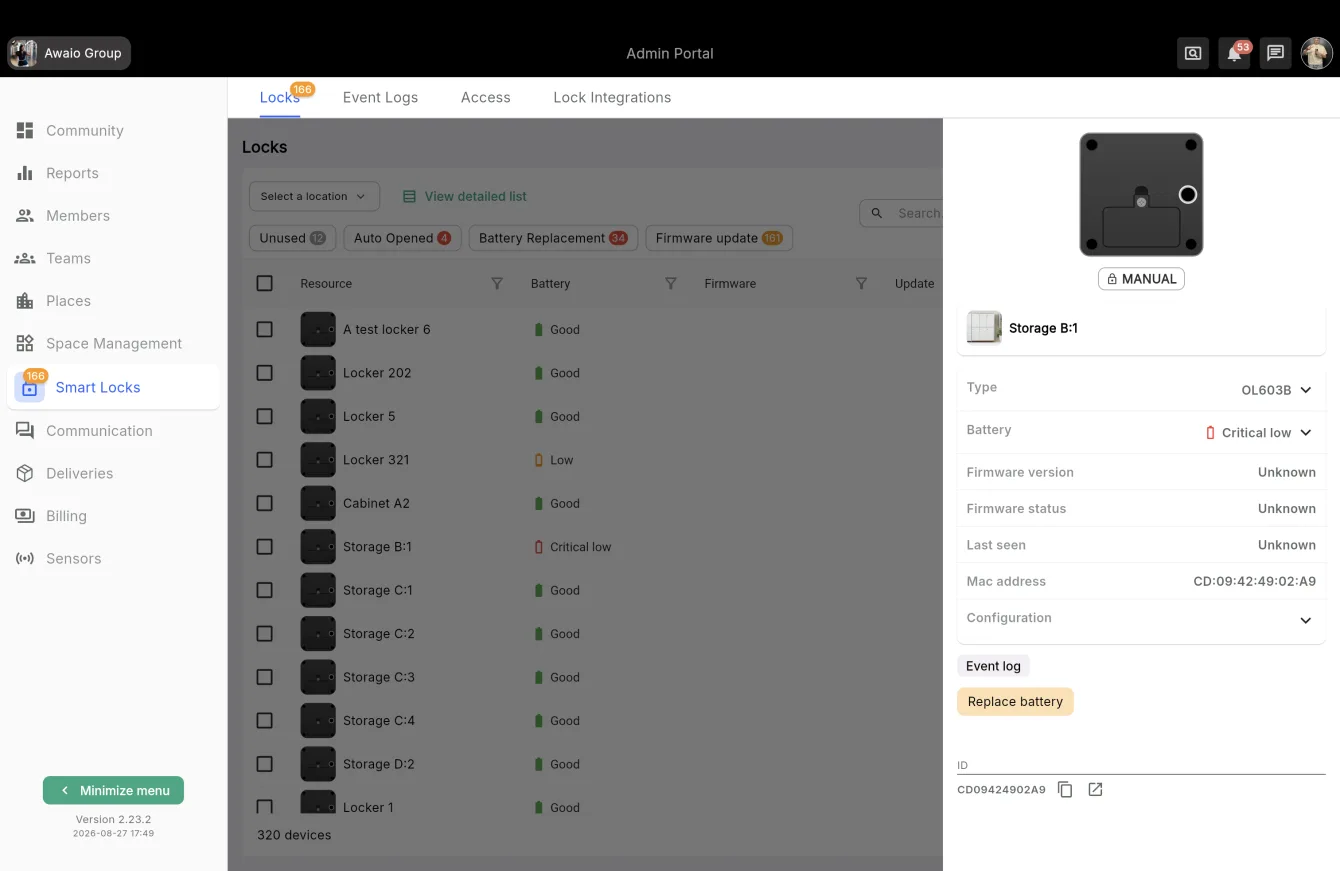
A lock that has never reported in shows Unknown for firmware and last seen: open it once via the app to populate the data.
The value
- Preventive maintenance: act before a battery causes a problem
- Secure and reliable: auto-unlock prevents forced entry
- Complete utilization overview: see exactly which lockers are active
In short
Regular use means automatic updates. Long inactivity means a quick refresh every 6 months. Result: secure locks, optimized battery life, and zero downtime.
If you have further questions, feel free to contact us via our website chat (awaio.com) or email us at support@awaio.com.