







Allow Awaio to use your existing company account in Google Workspace. Once the Awaio apps are trusted in your Google Admin Console, users can sign in to Awaio with their Google account instead of a separate Awaio password.
Many Google Workspace organisations restrict which third-party apps may access Google data through OAuth. If yours does, Google sign-in will fail until the Awaio apps are explicitly allowed — that is what the steps below do. Awaio publishes four separate OAuth clients (web, iOS, Android, and the room booking integration), so all four need to be trusted for every part of Awaio to work.
This is a separate integration from room booking — see Awaio with Google Workspace Room Booking if you want to sync Google Calendar room resources with Awaio.
Requested permissions
Across the four apps, Awaio requests these Google services:
- Sign in with Google: to sign in to Awaio and read the basic profile (name and email address)
- Calendar: to show the user's own calendar in the Awaio app, and to sync room calendars for the room booking integration
- Google Workspace administrator: to read room resources from your directory when setting up room booking
Part 1: Open API controls in the Google Admin Console
Step 1: Open API controls
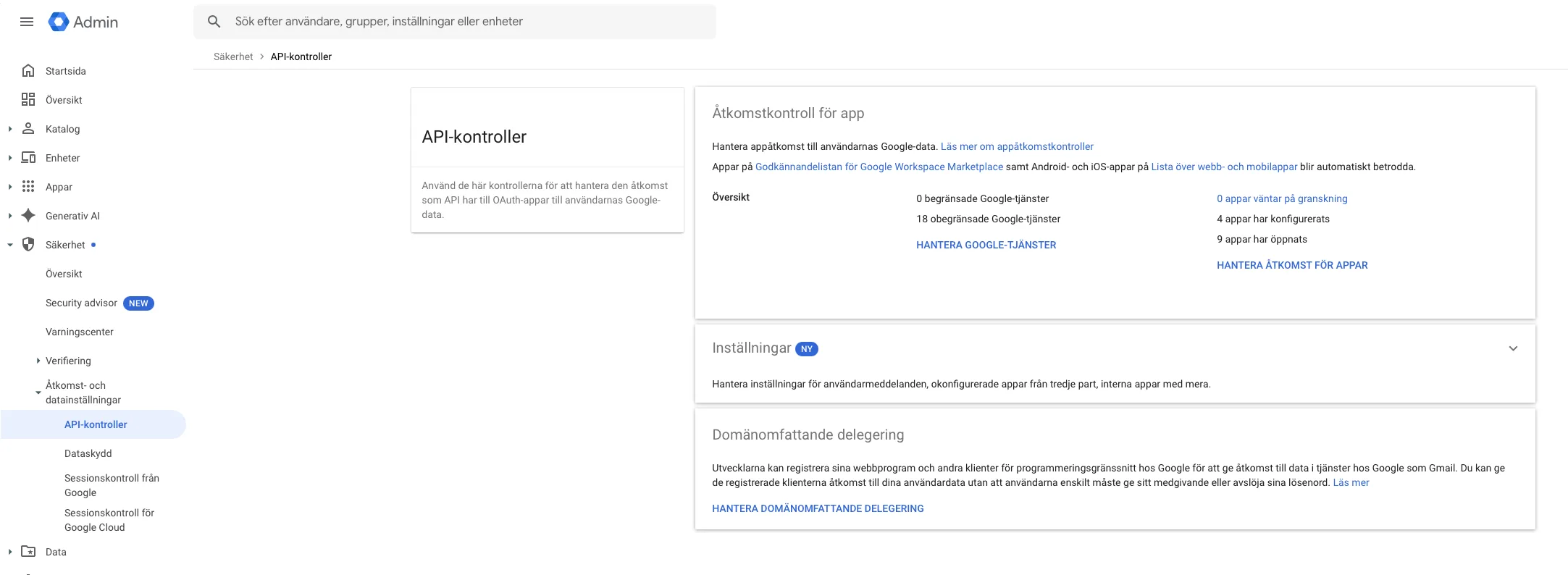
Log in to the Google Admin Console and go to Security → Access and data control → API controls.
Step 2: Open Manage Third-Party App Access
Under App access control, click Manage Third-Party App Access. This page lists every app that has been configured for your organisation.
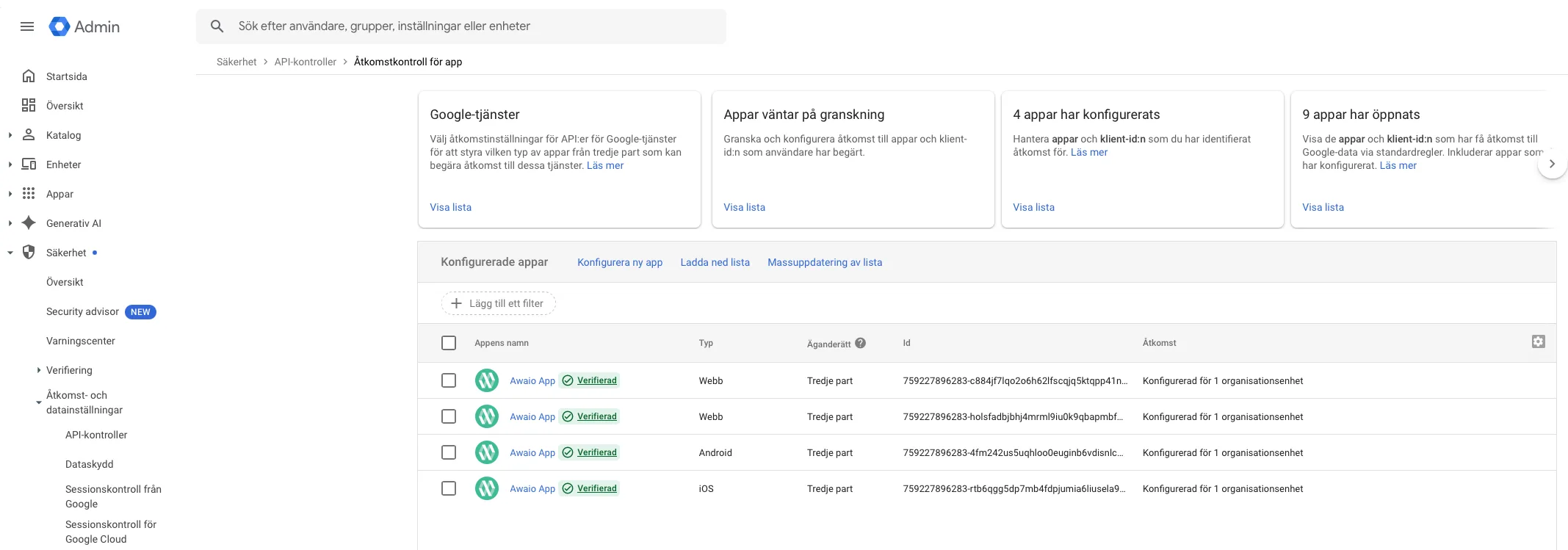
Part 2: Trust the Awaio apps
Step 3: Configure a new app
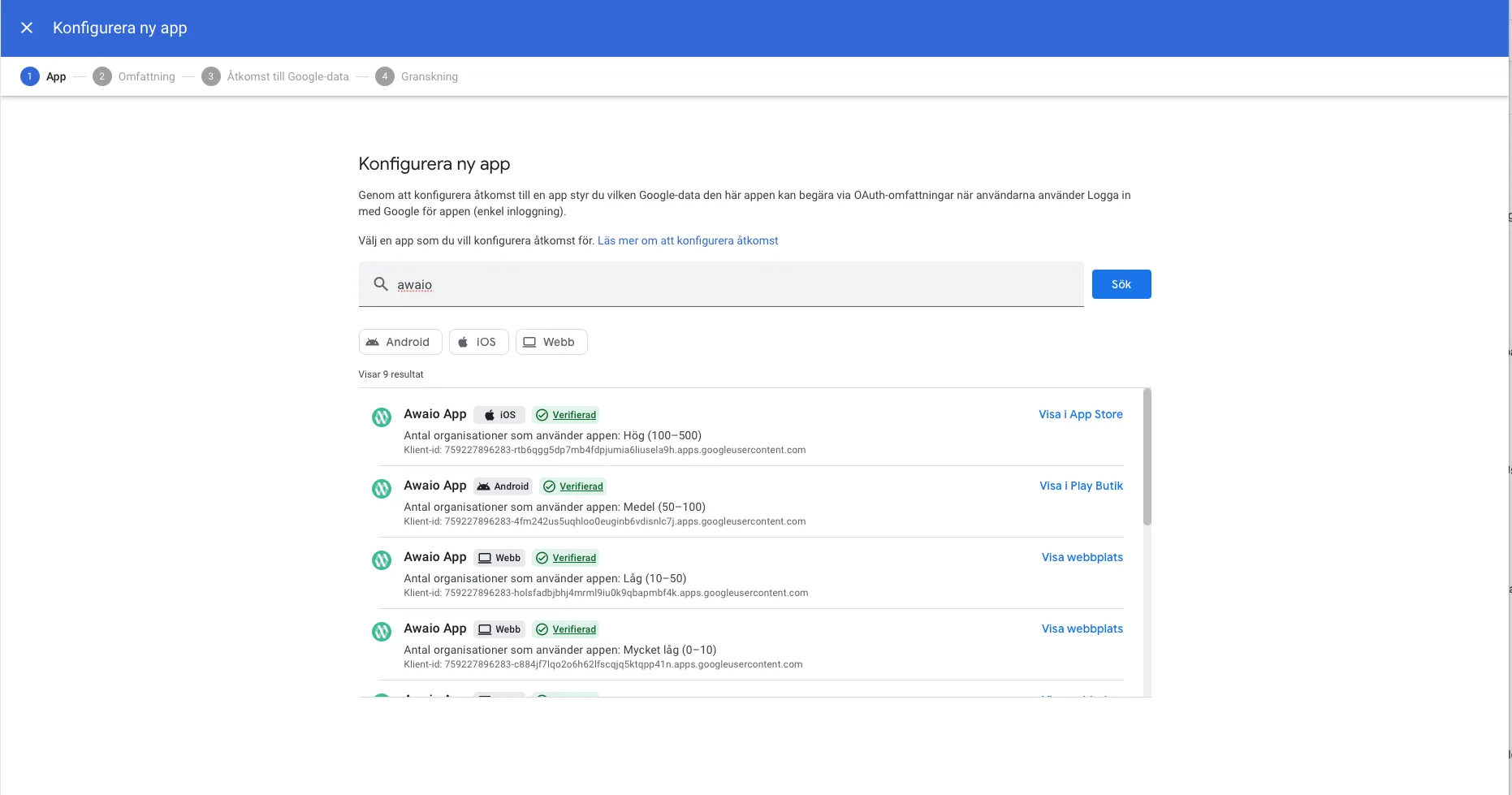
Click Configure new app and search for Awaio. Filter by Android, iOS, or Web to find each of the four Awaio apps. You can also search by OAuth client ID using the list in Part 3.
Step 4: Verify all four apps are configured
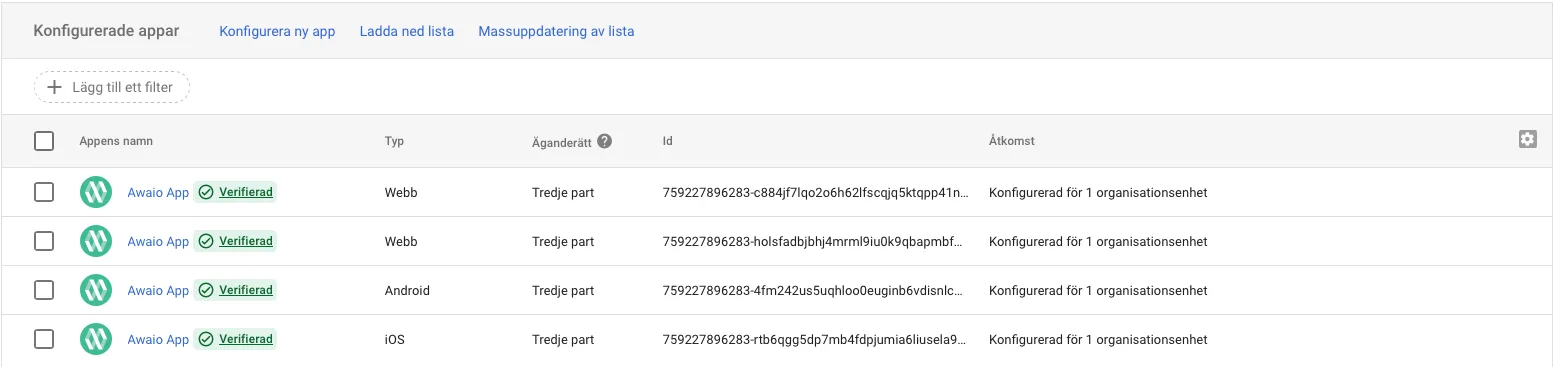
When you are done, the configured apps list should show four Awaio App entries — two Web, one Android, and one iOS — each marked Verified and configured for your organisational unit.
Part 3: Awaio OAuth client IDs
Use these client IDs if you prefer to look each app up by ID, or to confirm you are trusting the right app.
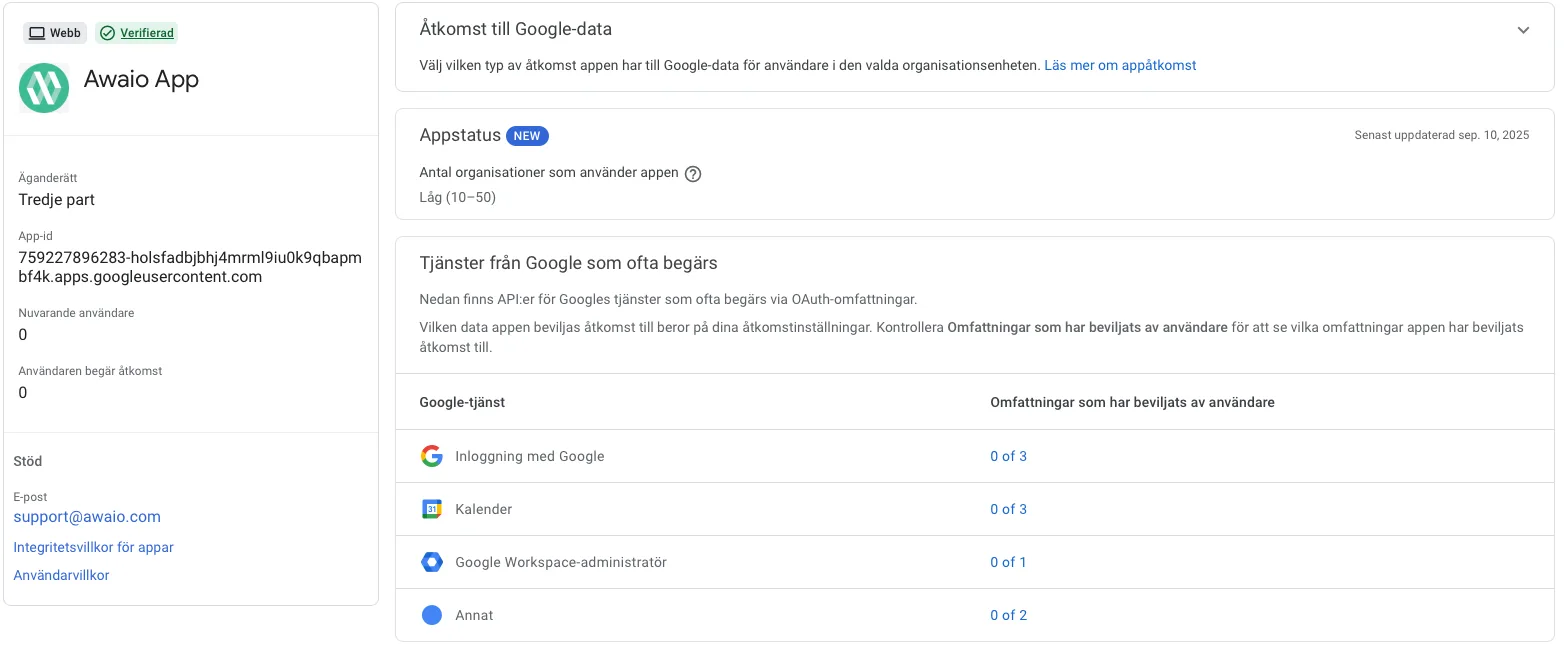
Web Admin / Web App
759227896283-holsfadbjbhj4mrml9iu0k9qbapmbf4k.apps.googleusercontent.com
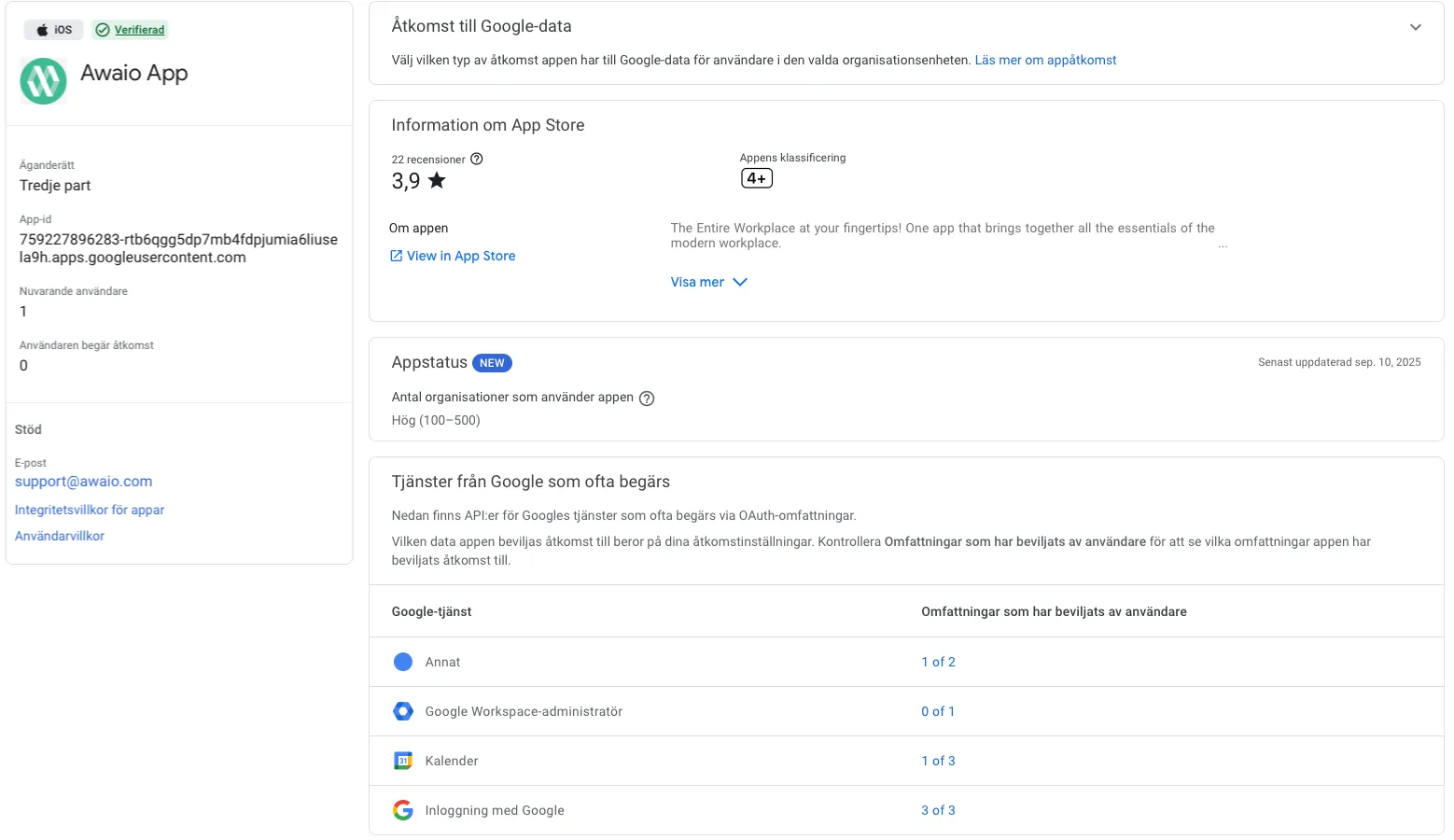
iOS app
759227896283-rtb6qgg5dp7mb4fdpjumia6liusela9h.apps.googleusercontent.com
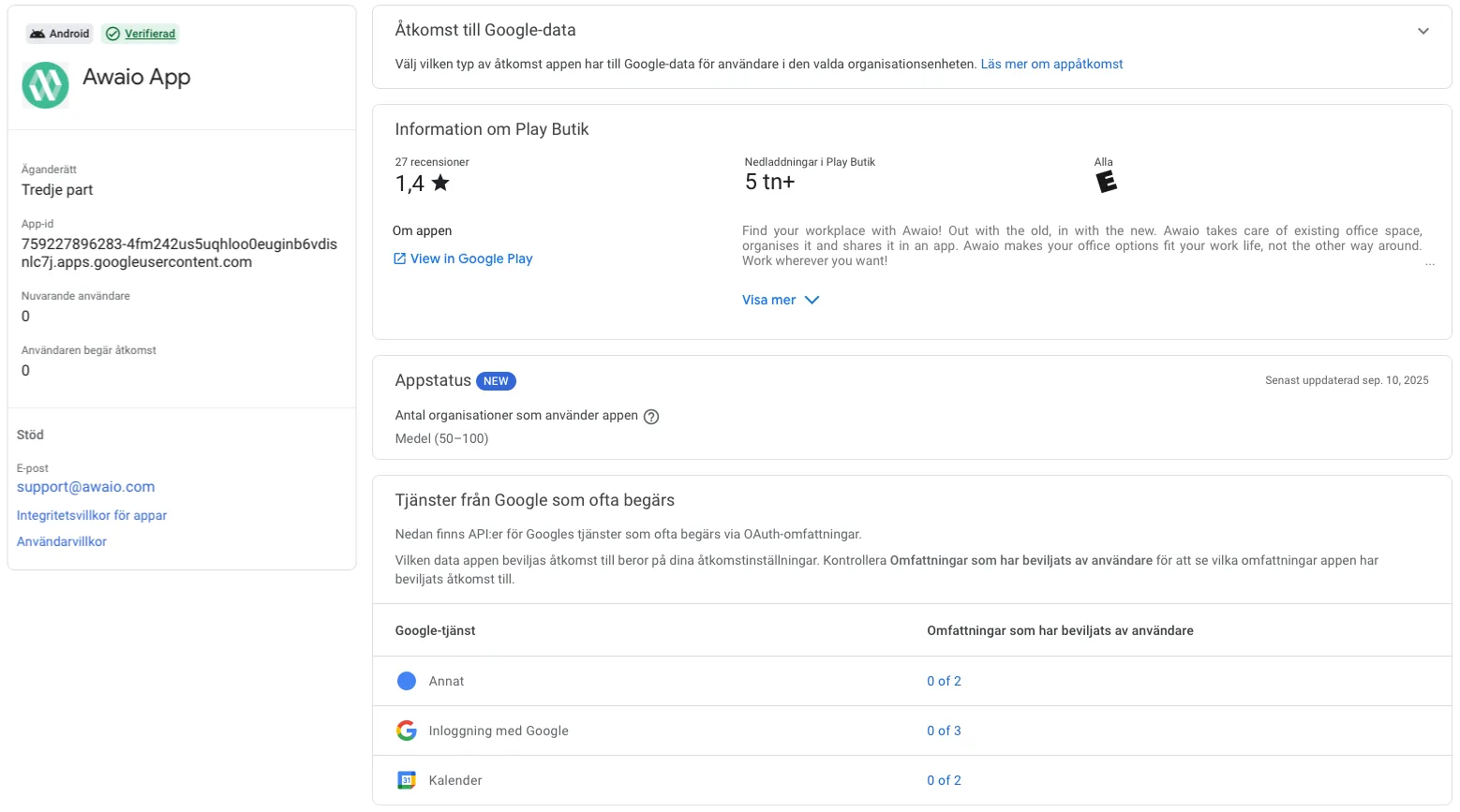
Android app
759227896283-4fm242us5uqhloo0euginb6vdisnlc7j.apps.googleusercontent.com
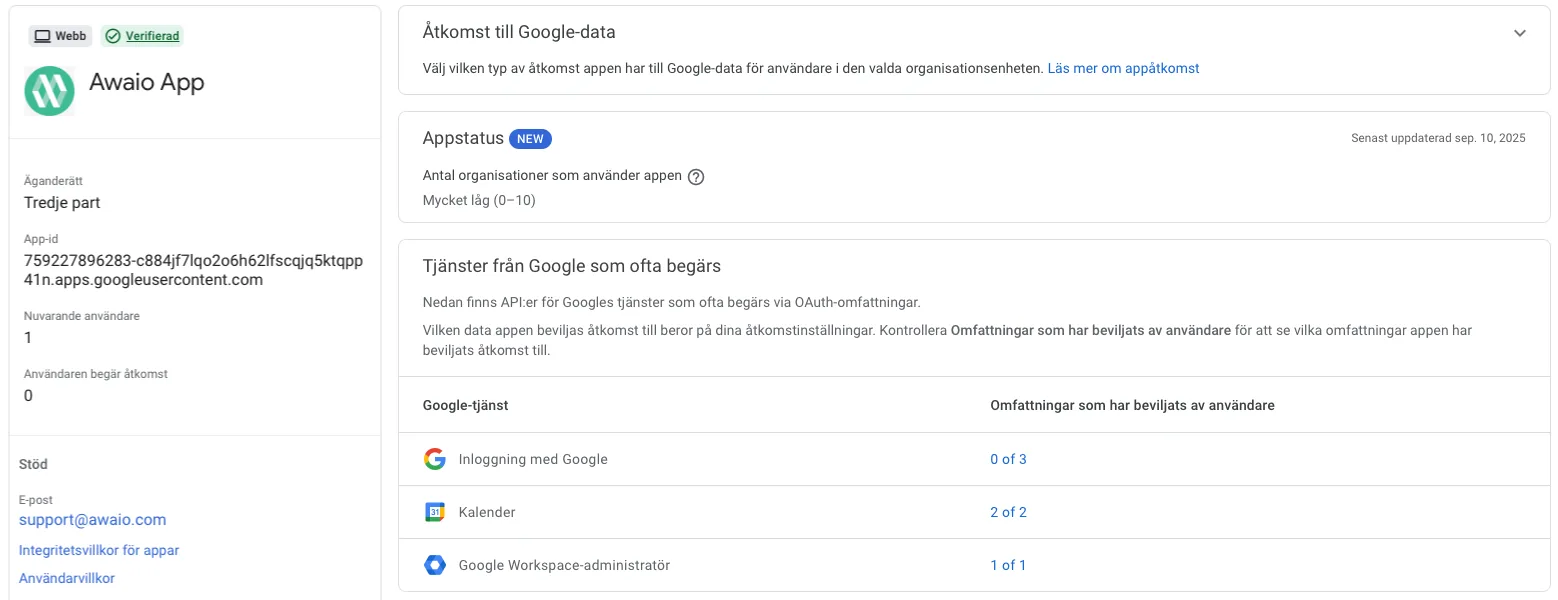
Room Booking Integration
759227896283-c884jf7lqo2o6h62lfscqjq5ktqpp41n.apps.googleusercontent.com
This client is only needed if you also set up Google Workspace Room Booking. It requests Calendar and Google Workspace administrator access so Awaio can read your room resources and sync their calendars.
If you have further questions, feel free to contact us via our website chat (awaio.com) or email us at support@awaio.com.