







Overview
If you have a permanently assigned resource — a desk, a parking space, or something else — it stays reserved for you every day. On days you are not in the office, you can release it so colleagues can book it instead. Your assignment is not removed; the resource simply becomes available for the days you choose.
Step 1: Open your assigned place
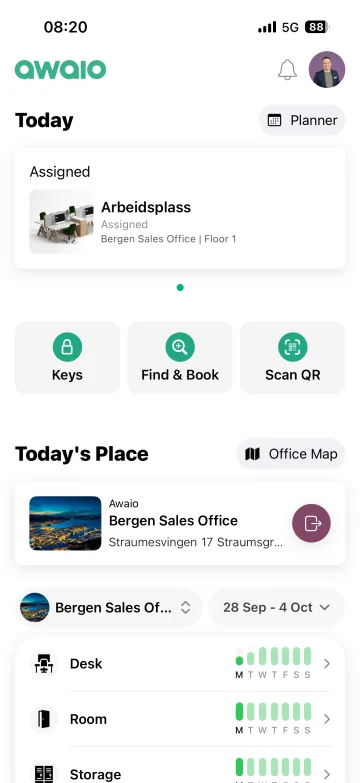
- Open the Awaio app and go to Today.
- Under Assigned, tap the resource you want to release.
Step 2: Tap Edit, then Release time
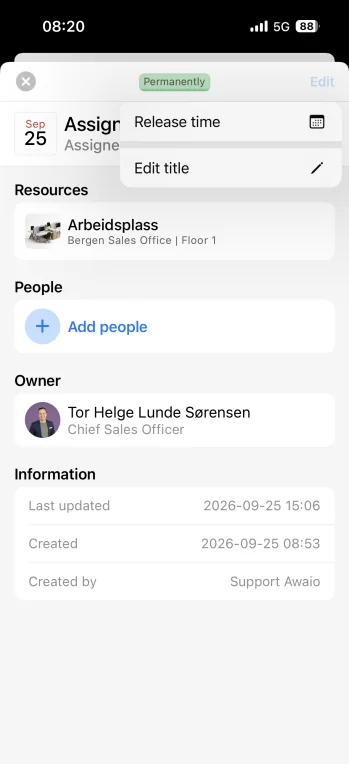
- In the top-right corner of the resource view, tap Edit.
- Choose Release time from the menu.
Step 3: Select the days you will not use
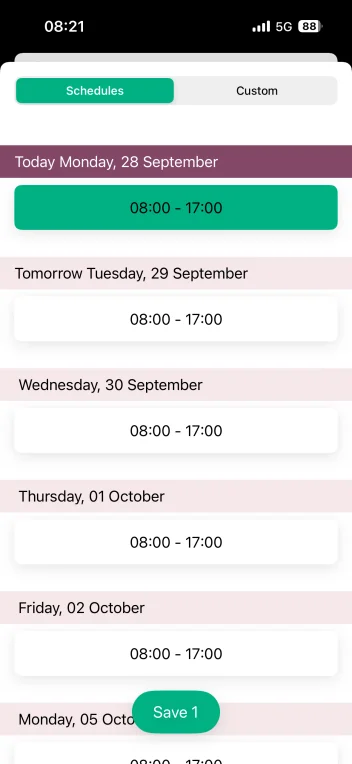
- Under Schedules, tap the days you will not be using the resource.
- A selected day turns green, meaning it will be released.
- Tap Save to confirm.
Tip: Use the Custom tab if you need to release only part of a day rather than the full booking window.
Step 4: Confirm the release
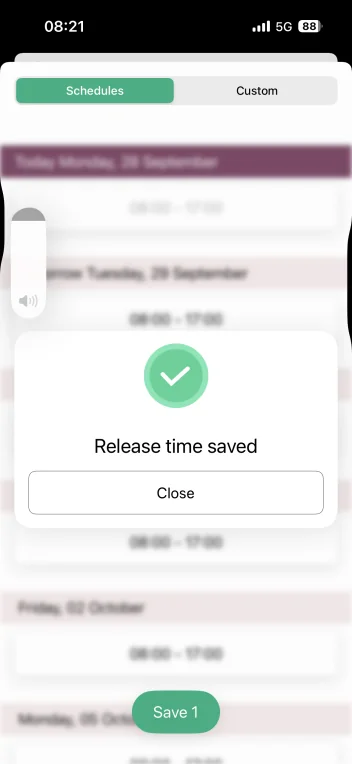
- A Release time saved confirmation appears.
- Tap Close.
The resource is now free for colleagues to book on the days you released. It stays assigned to you on all other days.
If you have further questions, feel free to contact us via our website chat (awaio.com) or email us at support@awaio.com.